> ## Documentation Index
> Fetch the complete documentation index at: https://docs.claimr.io/llms.txt
> Use this file to discover all available pages before exploring further.
# Issues analytics
> Review user-reported task completion issues and drill into each report's general, task, reporter, and trace details.
## What is Issue analytics?
Issue analytics provides a detailed overview of user-reported problems encountered while completing tasks within Claimr, specifically for VAPs remarketing companies. It allows you to monitor and analyze user-submitted reports to identify and resolve potential task-completion issues.
## How your users see this
When users, aiming to **complete** tasks, encounter issues, they can report them.
The **Report an issue** link appears after three unsuccessful attempts to **complete** a task.
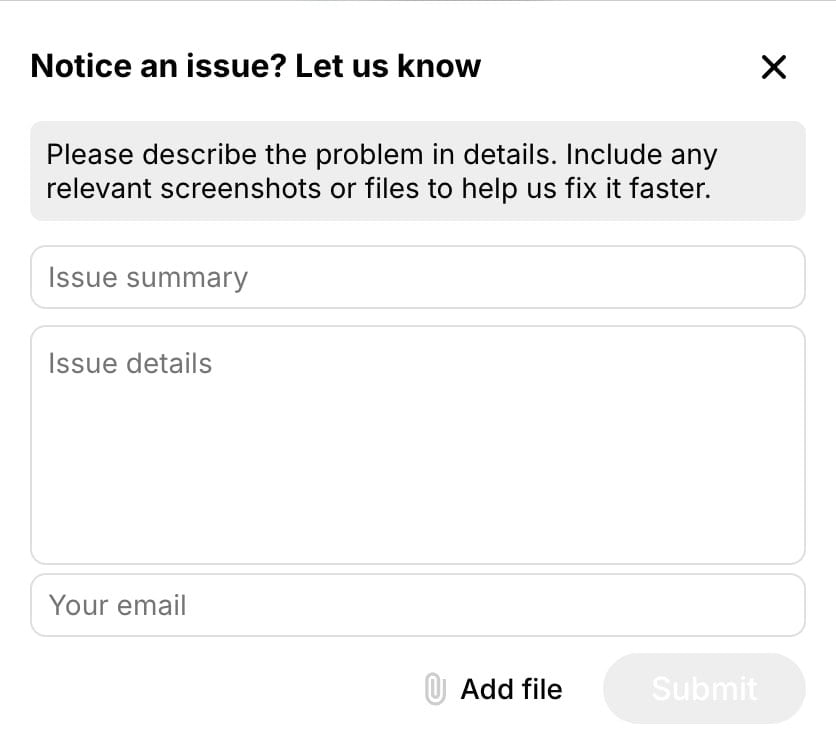
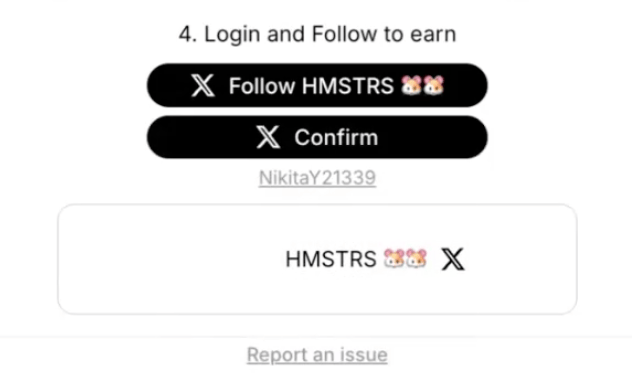 Clicking **Report an issue** opens a modal window where users can:
* Leave their email address.
* Provide a short issue description.
* Attach files.
Clicking **Report an issue** opens a modal window where users can:
* Leave their email address.
* Provide a short issue description.
* Attach files.
 ## Use this data to
* **Identify task completion barriers:** Spot patterns and trends in user-reported issues preventing task **completion**.
* **Improve task clarity:** Address issues to minimize user frustration and ensure smoother task **completion**.
* **Enhance user experience:** Resolve problems promptly to improve overall satisfaction with the task **completion** process.
* **Monitor task integrity:** Ensure tasks are being **completed** correctly and effectively.
## Accessing Issues analytics
1. Log in to your Claimr account.
2. Select the relevant campaign.
3. Click on the **Analytics** tab.
4. Select **Issues** from the submenu.
## Issue dashboard
Once you select **Issues**, the dashboard will open, displaying a table of all reported issues. This table provides a summary of each issue and allows you to quickly assess the situation.
## Use this data to
* **Identify task completion barriers:** Spot patterns and trends in user-reported issues preventing task **completion**.
* **Improve task clarity:** Address issues to minimize user frustration and ensure smoother task **completion**.
* **Enhance user experience:** Resolve problems promptly to improve overall satisfaction with the task **completion** process.
* **Monitor task integrity:** Ensure tasks are being **completed** correctly and effectively.
## Accessing Issues analytics
1. Log in to your Claimr account.
2. Select the relevant campaign.
3. Click on the **Analytics** tab.
4. Select **Issues** from the submenu.
## Issue dashboard
Once you select **Issues**, the dashboard will open, displaying a table of all reported issues. This table provides a summary of each issue and allows you to quickly assess the situation.
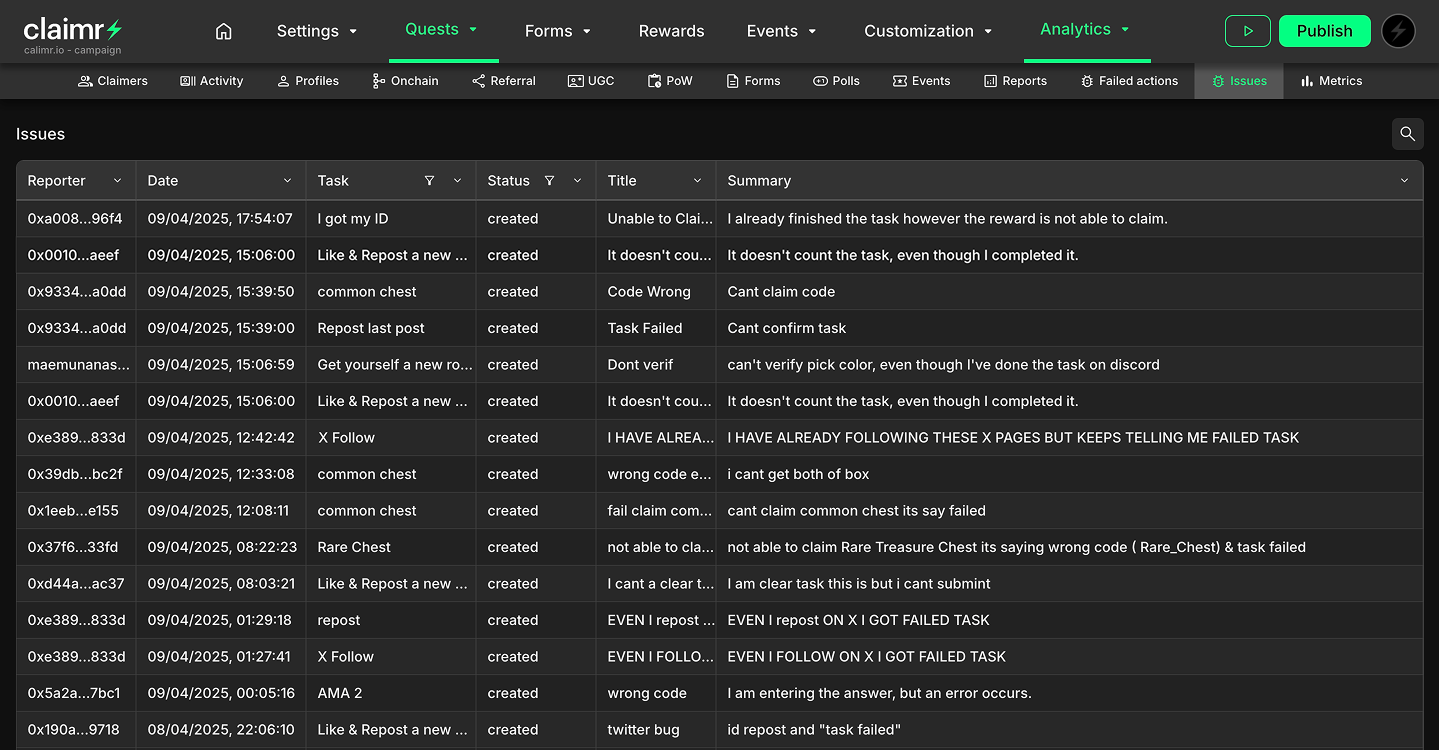 **Table elements:**
* **Reporter:** The username or identifier of the user who reported the issue.
* **Date:** The date and time when the issue was reported.
* **Task:** The name or identifier of the task the user was attempting to complete.
* **Status:** The current status of the reported issue.
* **Title:** A brief title or summary of the issue provided by the user.
* **Summary:** A short description of the issue provided by the user.
To open each issue report for detailed information, click on the respective row in the table.
## Issue details modal
Clicking on a row in the dashboard table opens a modal window containing all the details of the reported issue.
### General information
**Table elements:**
* **Reporter:** The username or identifier of the user who reported the issue.
* **Date:** The date and time when the issue was reported.
* **Task:** The name or identifier of the task the user was attempting to complete.
* **Status:** The current status of the reported issue.
* **Title:** A brief title or summary of the issue provided by the user.
* **Summary:** A short description of the issue provided by the user.
To open each issue report for detailed information, click on the respective row in the table.
## Issue details modal
Clicking on a row in the dashboard table opens a modal window containing all the details of the reported issue.
### General information
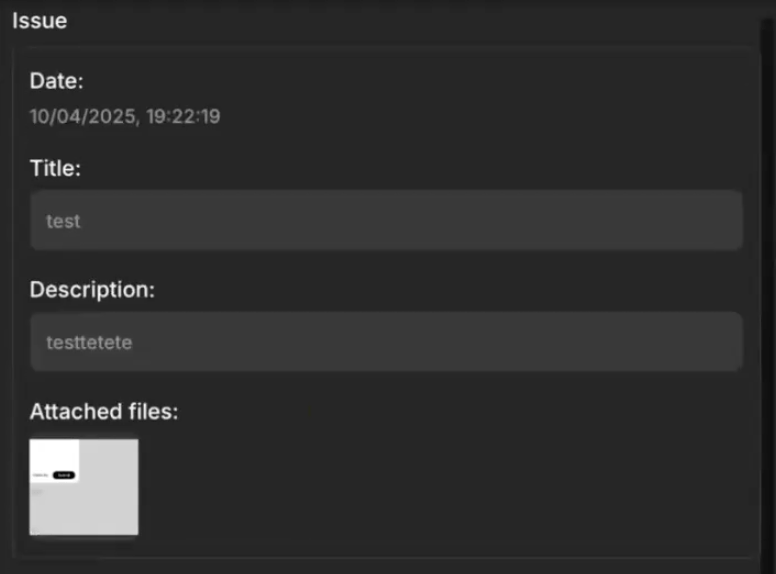 * **Date:** The date and time when the issue was reported.
* **Title:** The title or summary of the issue provided by the user.
* **Description:** The detailed description of the issue provided by the user.
* **Attached files:** Any files (e.g., screenshots) attached by the user.
### Task section
* **Date:** The date and time when the issue was reported.
* **Title:** The title or summary of the issue provided by the user.
* **Description:** The detailed description of the issue provided by the user.
* **Attached files:** Any files (e.g., screenshots) attached by the user.
### Task section
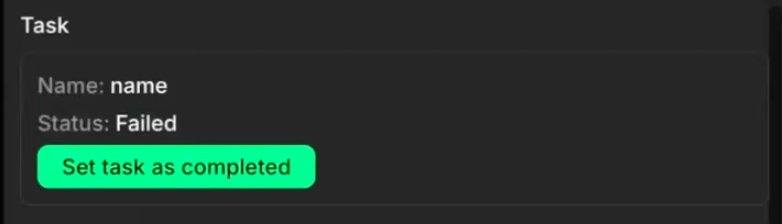 * **Name:** The name of the task the user was attempting to complete.
* **Status:** The status of the task at the time the issue was reported (e.g., "Failed").
* **Set task as completed:** A button allowing you to manually mark the task as completed if you determine the issue does not prevent successful completion.
### Reporter section
* **Name:** The name of the task the user was attempting to complete.
* **Status:** The status of the task at the time the issue was reported (e.g., "Failed").
* **Set task as completed:** A button allowing you to manually mark the task as completed if you determine the issue does not prevent successful completion.
### Reporter section
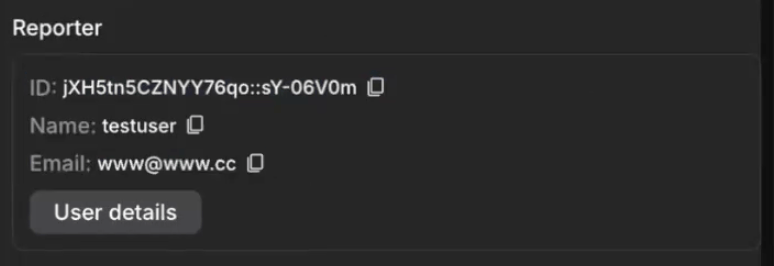 * **ID:** The unique identifier of the user who reported the issue.
* **Name:** The username of the user who reported the issue.
* **Email:** The email address of the user who reported the issue.
* **User details:** A button or link to view more detailed information about the reporting user.
For more details about all User information in Claimr, visit [User information](/data-analytics/user-information).
### Trace section
This section provides a breadcrumb trail of the user's activity leading up to the reported issue. You can recreate the user's steps and identify the source of the problem.
* **ID:** The unique identifier of the user who reported the issue.
* **Name:** The username of the user who reported the issue.
* **Email:** The email address of the user who reported the issue.
* **User details:** A button or link to view more detailed information about the reporting user.
For more details about all User information in Claimr, visit [User information](/data-analytics/user-information).
### Trace section
This section provides a breadcrumb trail of the user's activity leading up to the reported issue. You can recreate the user's steps and identify the source of the problem.
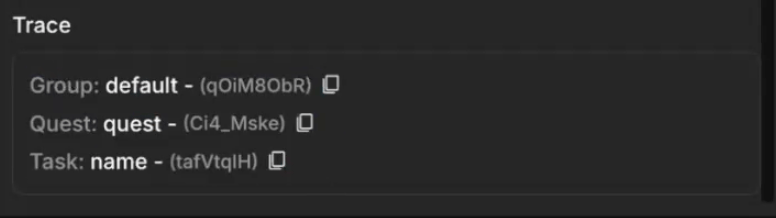 * **Group:** The group associated with the task. This helps identify the specific set of tasks or users involved.
* **Quest:** The quest associated with the task. This helps pinpoint the specific campaign or sequence of actions the user was attempting.
* **Task:** The name of the task the user was attempting to complete.
* **Group:** The group associated with the task. This helps identify the specific set of tasks or users involved.
* **Quest:** The quest associated with the task. This helps pinpoint the specific campaign or sequence of actions the user was attempting.
* **Task:** The name of the task the user was attempting to complete.