> ## Documentation Index
> Fetch the complete documentation index at: https://docs.claimr.io/llms.txt
> Use this file to discover all available pages before exploring further.
# Challenges
> Configure challenge type, requirements, and rewards, and see how challenge tiles appear and update for users.
## Understanding Claimr challenges
A challenge is a focused objective or set of tasks that users can undertake within your campaign. It adds an element of excitement and competition, encouraging users to go above and beyond the standard campaign activities.
### Benefits of using challenges
**Increased engagement**: Provide an extra layer of gamification, encouraging users to participate more actively in your campaigns.
**Targeted actions**: Design challenges to drive specific user actions, such as completing tasks, exploring content, or making referrals.
**Rewarding achievements**: Provide a sense of accomplishment and reward users for their efforts.
## Configuring challenges
 Navigate to the **Events** section in the Claimr admin panel and select the **Challenges** tab.
Click **Create Challenge** to add a new one. A sidebar panel with settings will appear.
Navigate to the **Events** section in the Claimr admin panel and select the **Challenges** tab.
Click **Create Challenge** to add a new one. A sidebar panel with settings will appear.
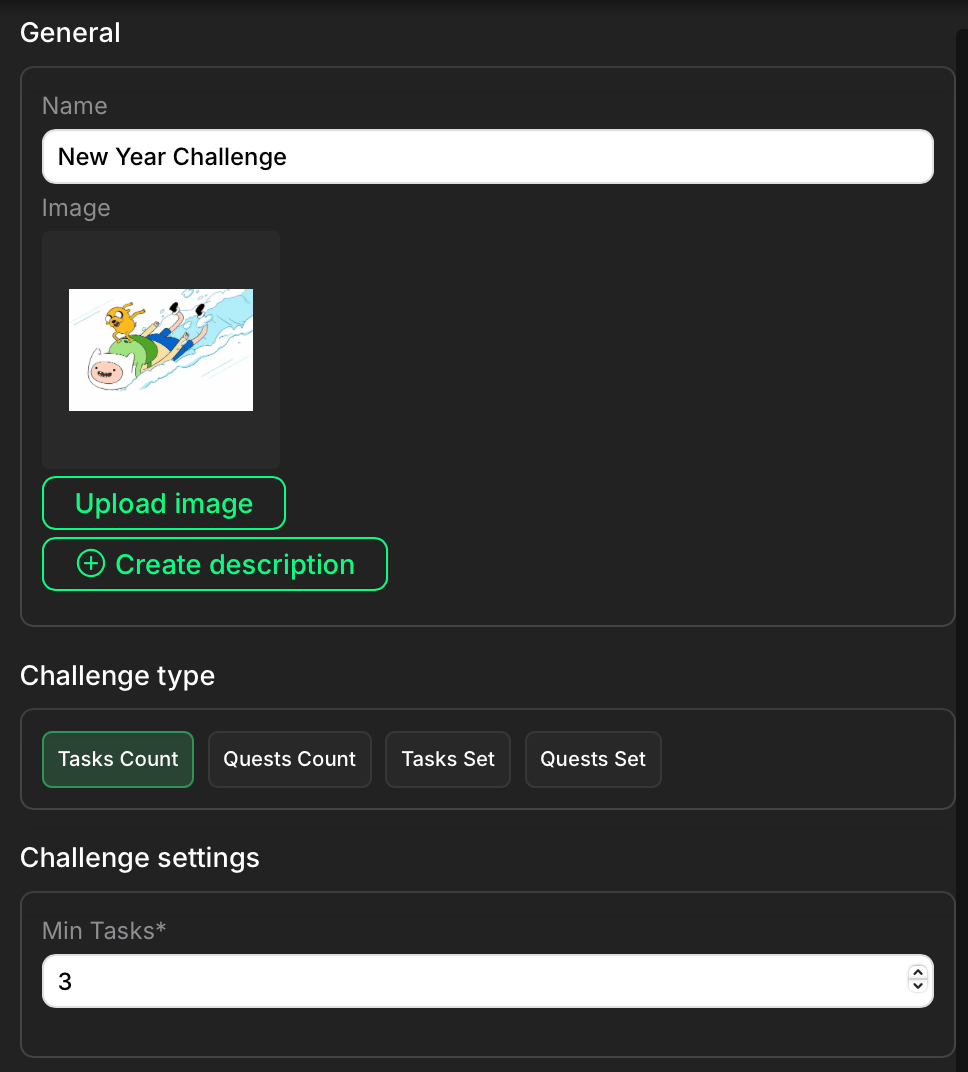 * **Name**: Provide a clear and concise name for the challenge.
* **Image**: Upload an image or icon that represents the challenge.
* **Description**: Add a brief explanation of the purpose or theme. This helps users understand what to expect within this challenge. Click **Create description** (if no description exists) or **Edit** (if a description already exists) below the Description field. This will open a text editor where you can write and format your description. Remember to click **Save** to keep your new or updated description. For more details on descriptions and tags, visit [Descriptions: creation, usage, tags](/descriptions-creation-usage-tags).
* **Challenge type**: Choose the type of challenge:
* Tasks Count: Tracks the number of tasks a user must complete.
* Quests Count: Tracks the number of quests a user must complete.
* Tasks Set: Requires users to complete a specific set of tasks.
* Quests Set: Requires users to complete a specific set of quests.
* **Configure Challenge Settings**: Depending on the challenge type, configure specific settings. For example, if you chose "Tasks Count," you'll need to specify the minimum number of tasks required in the "Min Tasks" field.
* **Set Rewards**: Define the rewards that users will earn for completing the challenge. You can include XP, as well as extra rewards like NFTs or gift codes.
Click the **Create** button to save your new challenge.
To make your challenges appear in the widget and function correctly, ensure you have enabled the necessary add-on in your Claimr campaign settings. For more information, visit [Widget configurations](/widget/widget-configurations).
## Presenting challenges to users
* **Name**: Provide a clear and concise name for the challenge.
* **Image**: Upload an image or icon that represents the challenge.
* **Description**: Add a brief explanation of the purpose or theme. This helps users understand what to expect within this challenge. Click **Create description** (if no description exists) or **Edit** (if a description already exists) below the Description field. This will open a text editor where you can write and format your description. Remember to click **Save** to keep your new or updated description. For more details on descriptions and tags, visit [Descriptions: creation, usage, tags](/descriptions-creation-usage-tags).
* **Challenge type**: Choose the type of challenge:
* Tasks Count: Tracks the number of tasks a user must complete.
* Quests Count: Tracks the number of quests a user must complete.
* Tasks Set: Requires users to complete a specific set of tasks.
* Quests Set: Requires users to complete a specific set of quests.
* **Configure Challenge Settings**: Depending on the challenge type, configure specific settings. For example, if you chose "Tasks Count," you'll need to specify the minimum number of tasks required in the "Min Tasks" field.
* **Set Rewards**: Define the rewards that users will earn for completing the challenge. You can include XP, as well as extra rewards like NFTs or gift codes.
Click the **Create** button to save your new challenge.
To make your challenges appear in the widget and function correctly, ensure you have enabled the necessary add-on in your Claimr campaign settings. For more information, visit [Widget configurations](/widget/widget-configurations).
## Presenting challenges to users
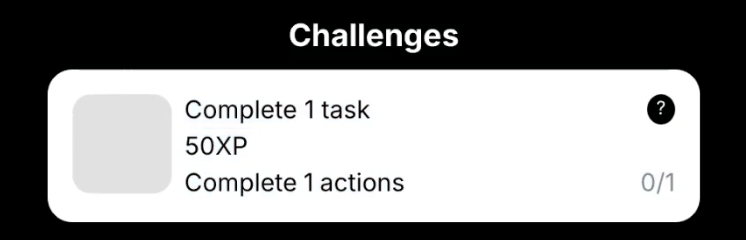 Challenges are presented to users as interactive tiles within the Claimr widget. These tiles include:
**Challenge name and description**: A brief description of the challenge and what users need to do to complete it.
**Reward**: Clearly displays the reward that users will earn for completing the challenge.
**Progress counter**: A visual indicator that shows the user's progress towards completing the challenge.
## How users interact with challenges
Users view the challenge tile in the widget. They attempt to complete the challenge requirements. The challenge tile's progress bar updates as the user makes progress. Once the user completes the challenge, they receive the associated reward.
Challenges are presented to users as interactive tiles within the Claimr widget. These tiles include:
**Challenge name and description**: A brief description of the challenge and what users need to do to complete it.
**Reward**: Clearly displays the reward that users will earn for completing the challenge.
**Progress counter**: A visual indicator that shows the user's progress towards completing the challenge.
## How users interact with challenges
Users view the challenge tile in the widget. They attempt to complete the challenge requirements. The challenge tile's progress bar updates as the user makes progress. Once the user completes the challenge, they receive the associated reward.