> ## Documentation Index
> Fetch the complete documentation index at: https://docs.claimr.io/llms.txt
> Use this file to discover all available pages before exploring further.
# Tournaments
> Configure tournament requirements and point types, manage tournament status, and review tournament analytics and the user-facing leaderboard tab.
## What are tournaments?
Tournaments are temporary events that you create and manage from the admin panel. Each tournament runs as a separate leaderboard session, independent of the standard leaderboard. This allows you to track user activity within a defined time frame. Only one tournament can be active at a time. All tournaments can be reviewed in the **Analytics** section.
## Configuration steps
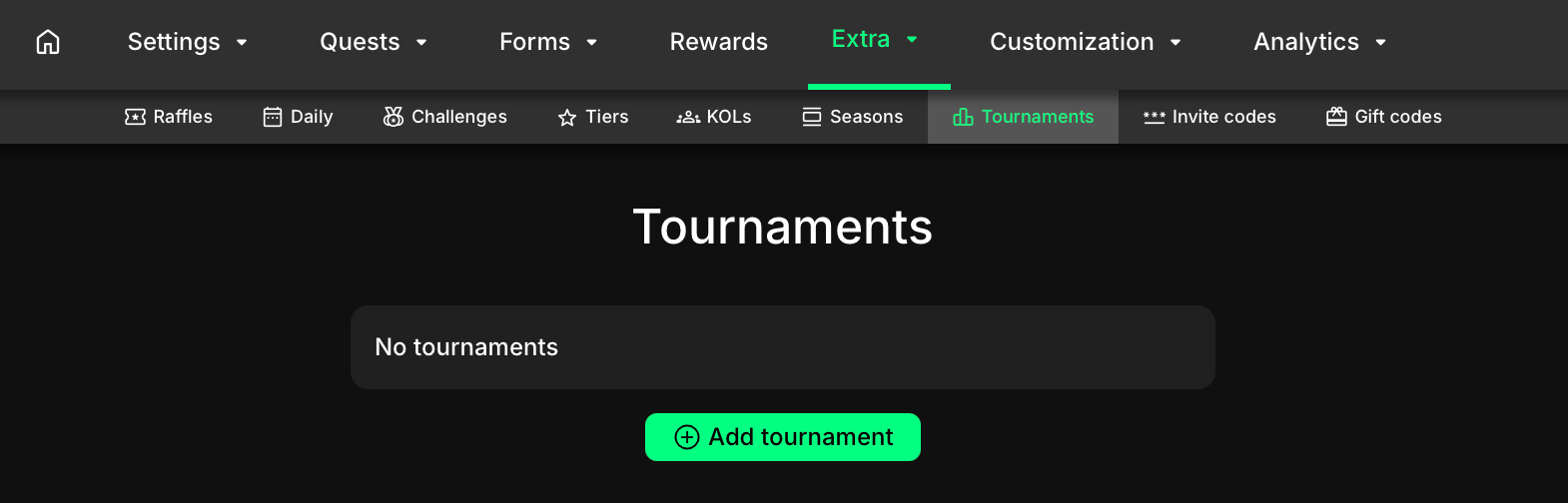
In the header menu, go to **Extra** and select **Tournaments**. Click **+ Add Tournament**. This opens the tournament settings window.
 Configure the following fields:
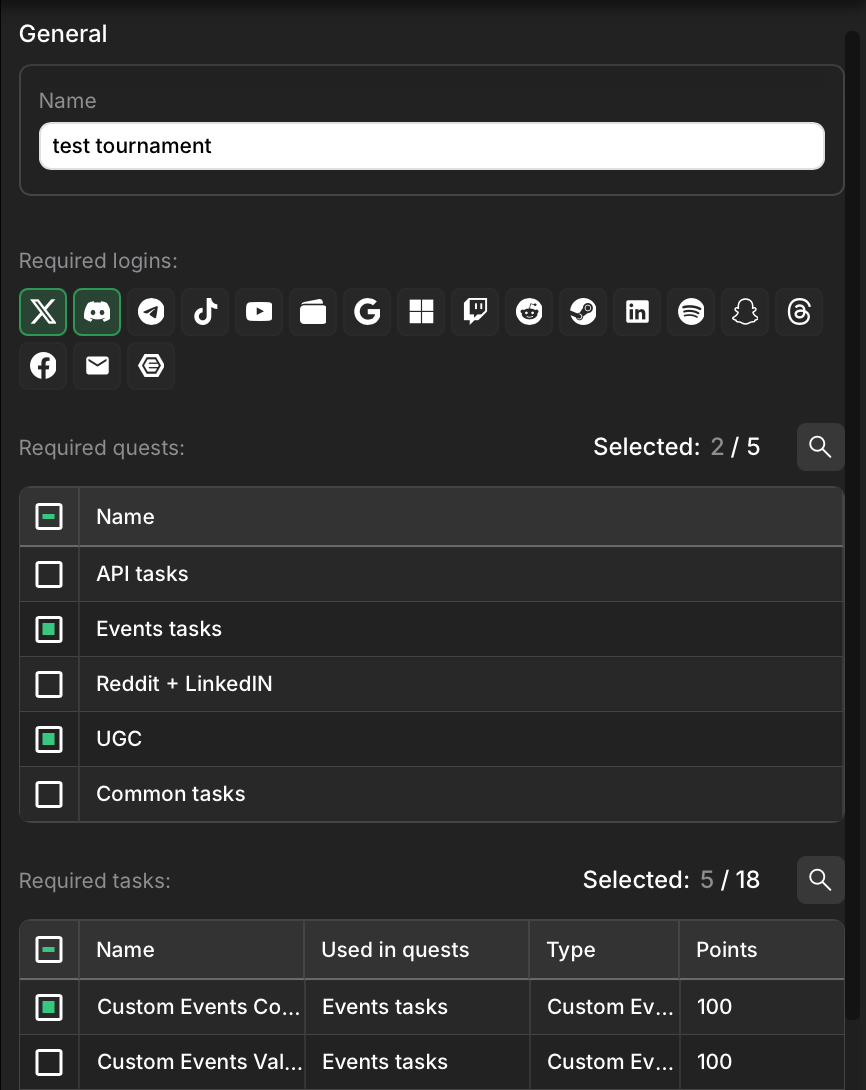 * **Name**: enter the tournament name.
* **Required logins**: select the connected platforms that users must have to be eligible for the tournament leaderboard.
* **Required quests**: select the quests that users must complete to qualify.
* **Required tasks**: select the individual tasks that users must complete. Tasks can be linked to quests or used independently.
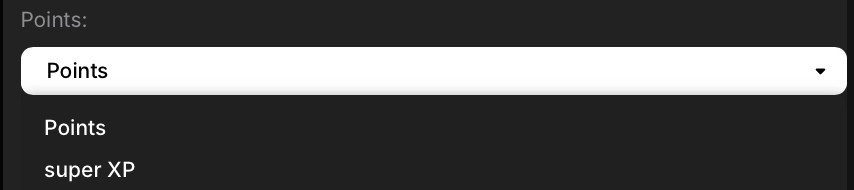
* **Points type**: if your campaign has multiple point types configured in Points settings (e.g., XP plus additional customizable points), select which point type will be used to calculate the tournament leaderboard.
* **Name**: enter the tournament name.
* **Required logins**: select the connected platforms that users must have to be eligible for the tournament leaderboard.
* **Required quests**: select the quests that users must complete to qualify.
* **Required tasks**: select the individual tasks that users must complete. Tasks can be linked to quests or used independently.
* **Points type**: if your campaign has multiple point types configured in Points settings (e.g., XP plus additional customizable points), select which point type will be used to calculate the tournament leaderboard.
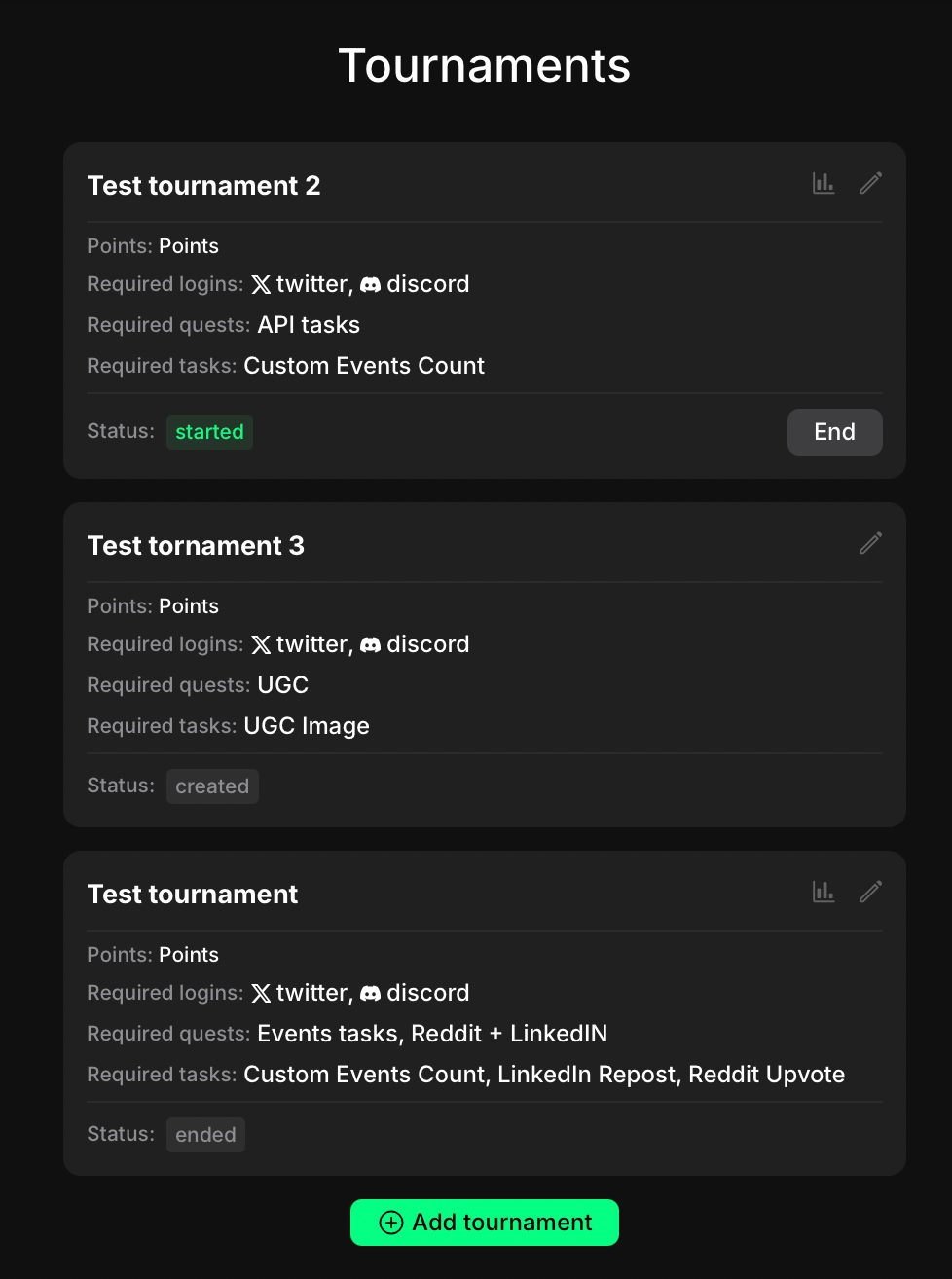
 When all settings are configured, click **Create**. The tournament will appear in the list of tournaments.
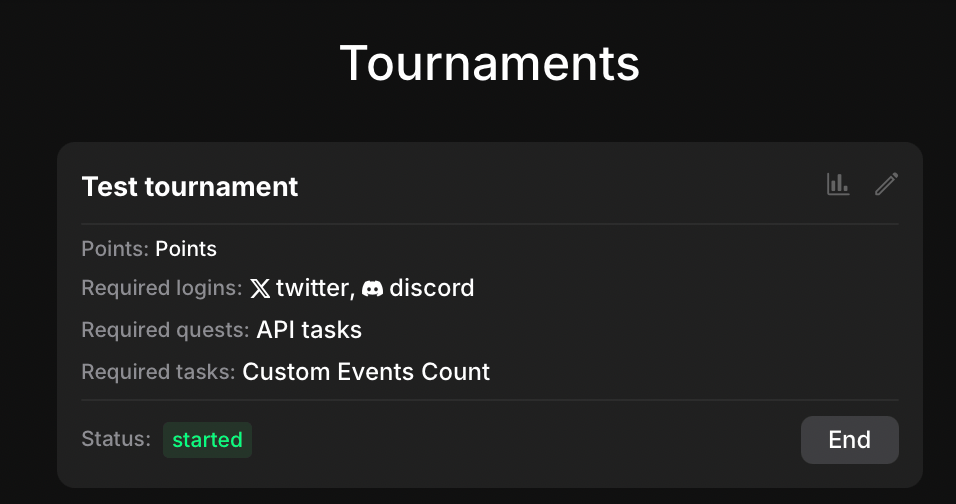 Manage the tournament using the available actions:
* Start — activate the tournament. A dedicated leaderboard will be created.
* End — finish the tournament. The leaderboard is closed and stored as historical data.
* Edit — change the tournament name.
* Delete — remove the tournament.
## Completion logic
Manage the tournament using the available actions:
* Start — activate the tournament. A dedicated leaderboard will be created.
* End — finish the tournament. The leaderboard is closed and stored as historical data.
* Edit — change the tournament name.
* Delete — remove the tournament.
## Completion logic
 * Only one tournament can run at the same time.
* Created tournaments remain in status created until started.
* When started, the status changes to started and all user activity contributes to the tournament leaderboard.
* When ended, the status changes to ended and the final leaderboard is stored for analytics.
Once a tournament is started, you can access its analytics directly from the tournament card by clicking the Analytics icon in the upper corner next to the Edit button.
## Analytics
1. You can access tournament analytics in two ways:
* In the header menu, go to Analytics and select Tournaments.
* From the Tournaments view, click the analytics icon in the upper corner of a specific tournament card.
2. The overview table will open showing all tournaments with their name and status. Clicking a tournament opens its leaderboard.
3. The leaderboard is displayed as a dynamic table with the following columns:
* Only one tournament can run at the same time.
* Created tournaments remain in status created until started.
* When started, the status changes to started and all user activity contributes to the tournament leaderboard.
* When ended, the status changes to ended and the final leaderboard is stored for analytics.
Once a tournament is started, you can access its analytics directly from the tournament card by clicking the Analytics icon in the upper corner next to the Edit button.
## Analytics
1. You can access tournament analytics in two ways:
* In the header menu, go to Analytics and select Tournaments.
* From the Tournaments view, click the analytics icon in the upper corner of a specific tournament card.
2. The overview table will open showing all tournaments with their name and status. Clicking a tournament opens its leaderboard.
3. The leaderboard is displayed as a dynamic table with the following columns:
 * Name — username or identifier.
* Points — total points earned.
* Connected accounts — Twitter, wallet, Discord, or other linked accounts (columns appear dynamically depending on available data).
4. You can sort the table, copy wallet addresses, and export the leaderboard to a .csv file.
5. Clicking a user opens detailed information about that participant.
## User view
* Name — username or identifier.
* Points — total points earned.
* Connected accounts — Twitter, wallet, Discord, or other linked accounts (columns appear dynamically depending on available data).
4. You can sort the table, copy wallet addresses, and export the leaderboard to a .csv file.
5. Clicking a user opens detailed information about that participant.
## User view
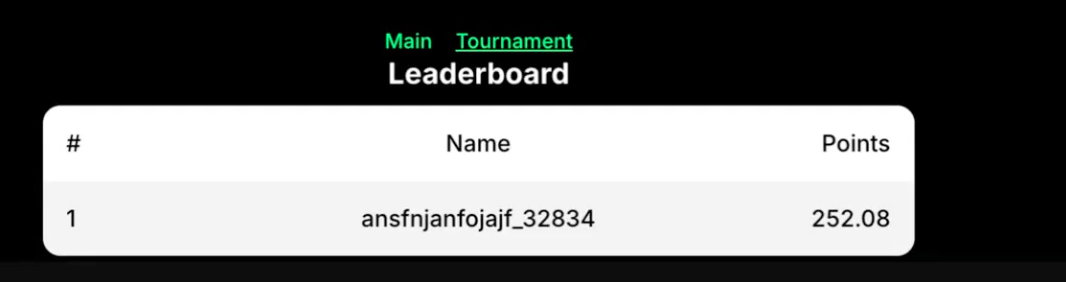 * In the app leaderboard, a Tournament tab appears next to the Main leaderboard when a tournament is active.
* Users can switch between the main leaderboard and the tournament leaderboard to see rankings.
* Tournament leaderboards have the same structure and options as the main leaderboard.
* In the app leaderboard, a Tournament tab appears next to the Main leaderboard when a tournament is active.
* Users can switch between the main leaderboard and the tournament leaderboard to see rankings.
* Tournament leaderboards have the same structure and options as the main leaderboard.