> ## Documentation Index
> Fetch the complete documentation index at: https://docs.claimr.io/llms.txt
> Use this file to discover all available pages before exploring further.
# Quizzes
> Configure the Quiz block's questions, answer choices, scores, and explanations to engage users and test their knowledge.
## What are quizzes?
The Quiz block in Claimr forms allows you to create interactive quizzes to engage users, test their knowledge, and gather information in a structured way. Quizzes provide a more engaging alternative to traditional surveys and can be used for various purposes, including:
* **Knowledge checks:** Assess user understanding of a topic.
* **Lead qualification:** Gather information about potential customers through interactive questions.
* **Interactive tutorials:** Guide users through a learning process with immediate feedback.
* **Fun and engagement:** Create lighthearted quizzes to entertain your audience.
* **Contests and giveaways:** Use quizzes as entry mechanisms for contests.
Quizzes are created using a dedicated [block](/forms/blocks) within the Claimr form builder.
## Quiz block settings
Within the form editor, add a new **Quiz block** to the desired page. Remember, you can only have one Quiz block per page.
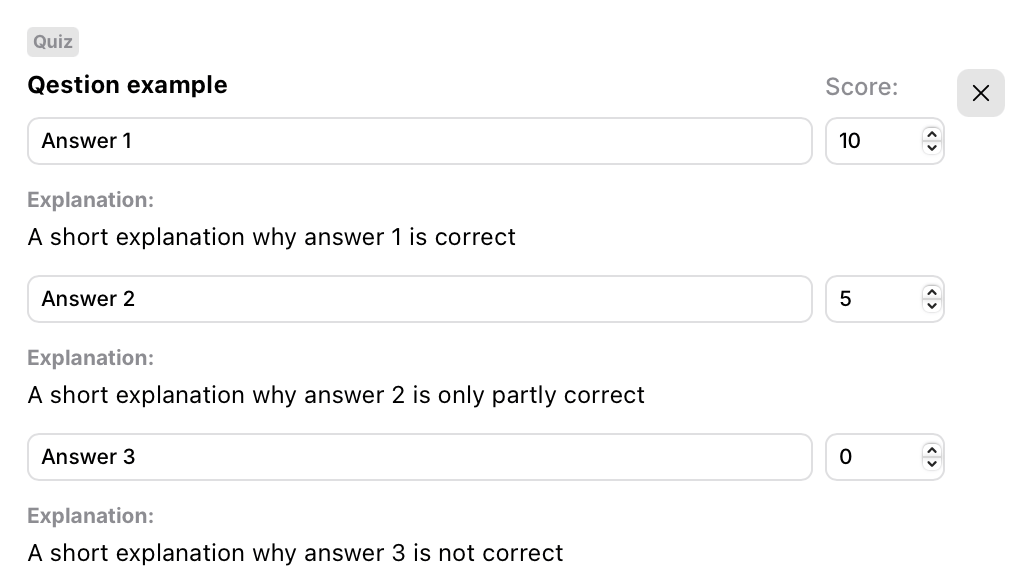 ### Configure the Quiz block
Enter the text of your quiz question in this field.
Add multiple answer choices directly within the Quiz block. Each answer choice has the following fields:
* **Answer text:** Enter the text of the answer choice.
* **Score:** Assign a numerical score to this specific answer choice. This can be:
* **Positive:** Award points for a correct answer.
* **Zero:** No points are awarded or deducted.
* **Negative:** Deduct points for an incorrect answer.
* **Explanation (Optional):** Provide an explanation for this specific answer choice.
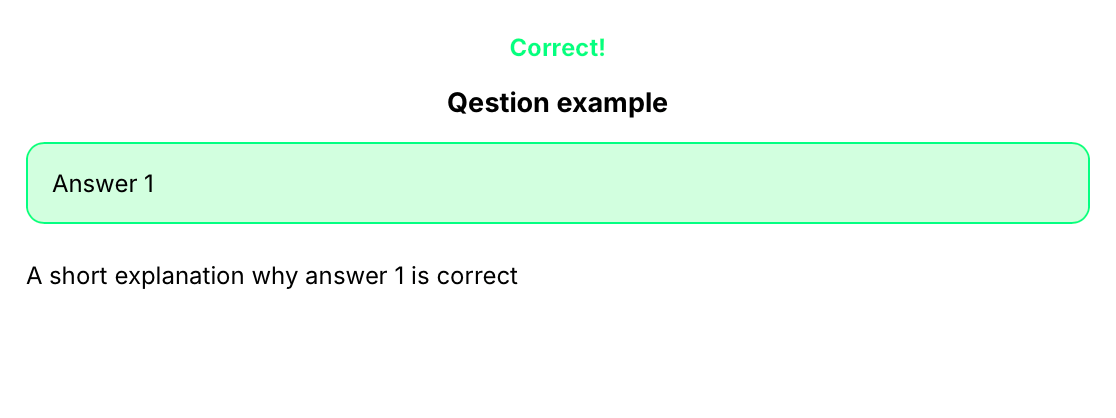
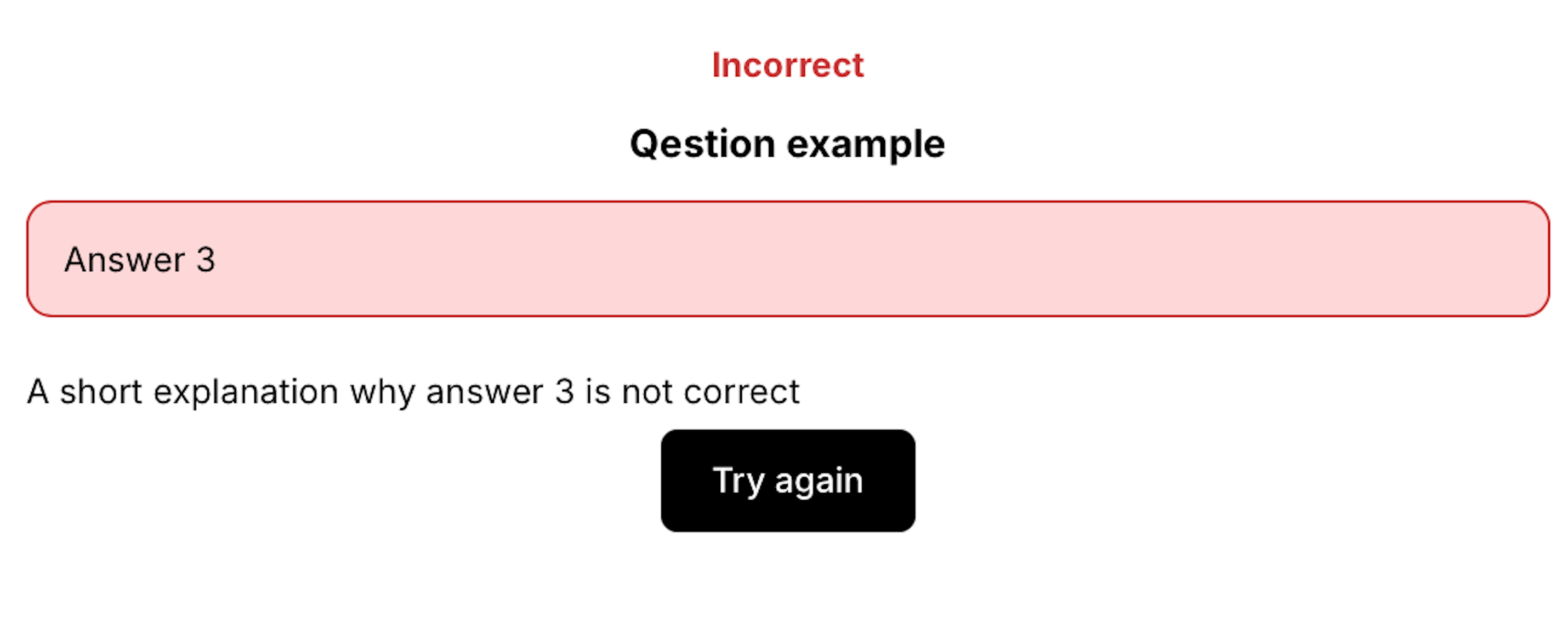
**If an explanation is provided:** The answer choice is treated as part of the quiz, and the score will be applied. The explanation will be shown to the user after they answer the question, providing feedback.
### Configure the Quiz block
Enter the text of your quiz question in this field.
Add multiple answer choices directly within the Quiz block. Each answer choice has the following fields:
* **Answer text:** Enter the text of the answer choice.
* **Score:** Assign a numerical score to this specific answer choice. This can be:
* **Positive:** Award points for a correct answer.
* **Zero:** No points are awarded or deducted.
* **Negative:** Deduct points for an incorrect answer.
* **Explanation (Optional):** Provide an explanation for this specific answer choice.
**If an explanation is provided:** The answer choice is treated as part of the quiz, and the score will be applied. The explanation will be shown to the user after they answer the question, providing feedback.
 **If no explanation is provided:** The answer choice is treated as part of the survey.
* **+ Block:** Use this button to add additional answer choices to your question.
* **Shuffle:** Use this setting in the Form to make the answers appear in random order.
**If no explanation is provided:** The answer choice is treated as part of the survey.
* **+ Block:** Use this button to add additional answer choices to your question.
* **Shuffle:** Use this setting in the Form to make the answers appear in random order.