> ## Documentation Index
> Fetch the complete documentation index at: https://docs.claimr.io/llms.txt
> Use this file to discover all available pages before exploring further.
# Reward settings
> Configure reward types, general settings, and type-specific fields for rewards attached to quests or managed independently.
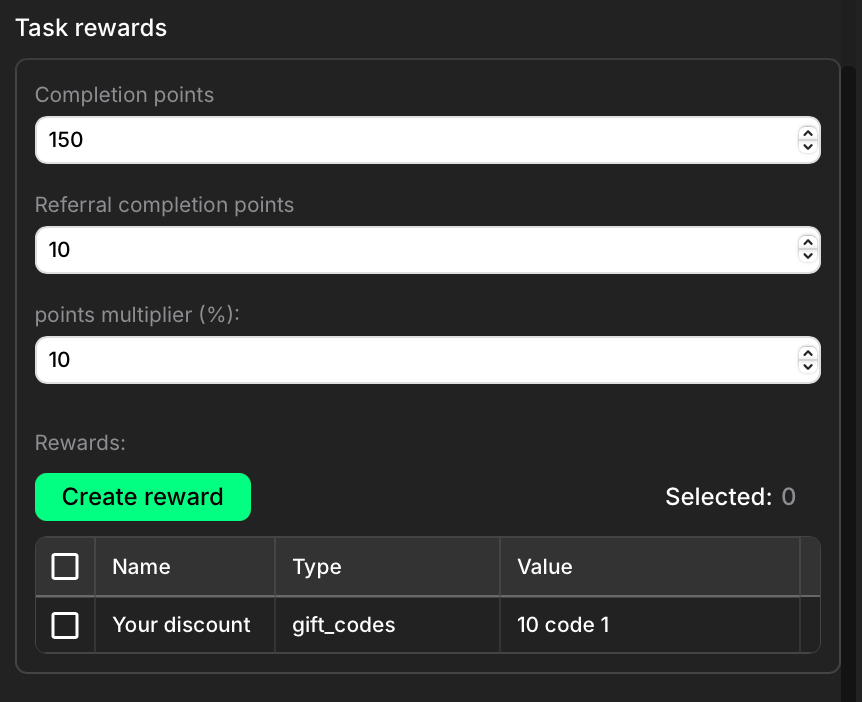
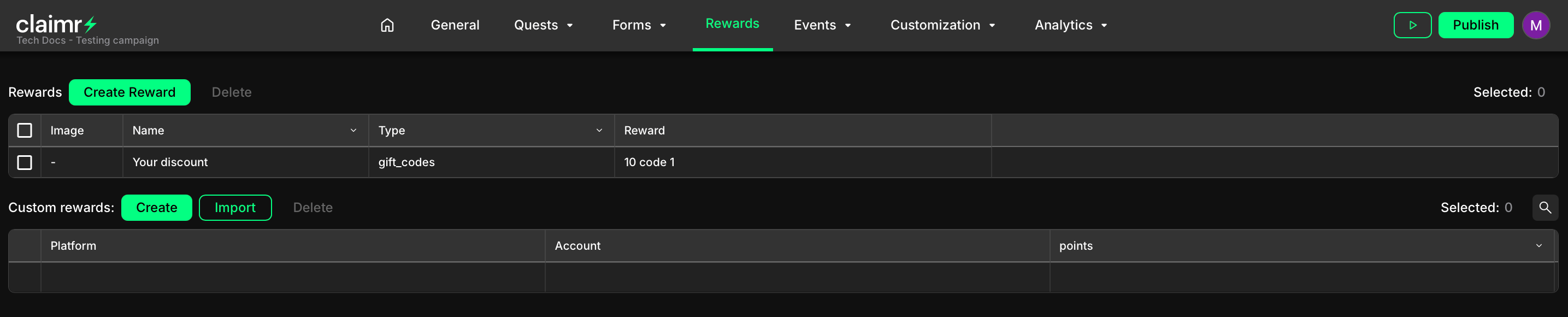
Claimr offers two primary ways to manage rewards for your campaigns:
**Within Quest settings**: You can create and configure rewards directly within a specific quest. These rewards are automatically awarded when a user completes that quest.
 **Through the Rewards section**: You can create and manage rewards independently of any quest through the **Rewards** tab in your campaign dashboard.
 ## General settings
When you click **Create reward**, the full reward configuration panel opens. It contains the following sections:
## General settings
When you click **Create reward**, the full reward configuration panel opens. It contains the following sections:
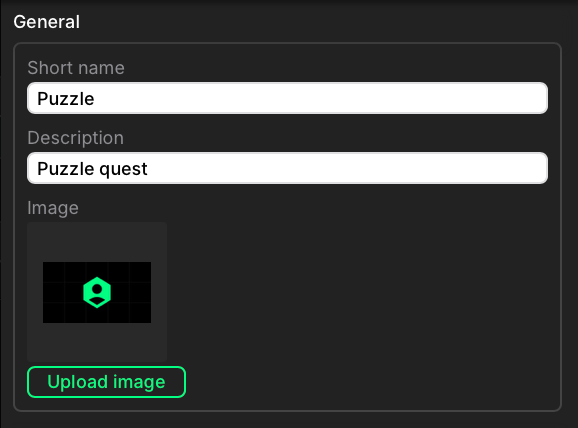 **Short name**
Create a public-facing name for your reward.
**Description**
Add a short summary to help identify the purpose of the reward.
**Image**
Upload an image to visually represent the reward.
## Reward type
Select the reward type to define how it behaves and how it's delivered.
**Short name**
Create a public-facing name for your reward.
**Description**
Add a short summary to help identify the purpose of the reward.
**Image**
Upload an image to visually represent the reward.
## Reward type
Select the reward type to define how it behaves and how it's delivered.
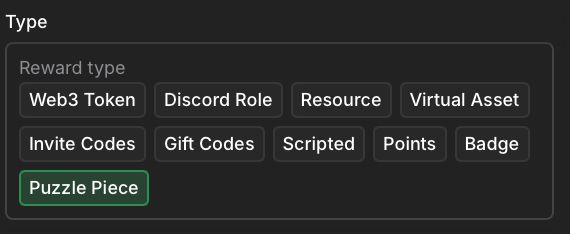 The available types are:
* **Web3 Token**: a digital asset on a blockchain (e.g. ERC-20, NFT)
* **Discord Role**: grants a role in a connected Discord server
* **Resource**: a file or link (e.g. guide, document, video)
* **Virtual Asset**: a digital item used in a game or virtual environment
* **Invite Codes**: one-time codes that unlock access to gated services or communities
* **Gift Codes**: redeemable codes for discounts or digital products
* **Scripted**: custom logic via external scripts or API integrations
* **Points**: adds points to the user's balance
* **Badge**: grants a badge displayed on the user profile
* **Puzzle Piece**: a collectible item used in puzzle-based campaigns
Some reward types require additional setup.
## General configuration
This section appears automatically if the selected reward type requires extra settings:
**Web3 Token**
* Select a network and environment (e.g. Ethereum → Mainnet)
* Choose a contract address
* Set the token value
**Discord Role**
* Add the Claimr bot to your Discord server
* Select the server and fetch available roles
**Resource**
* Add the link to the resource
**Virtual Asset**
* Name the asset
* Set the asset value
**Invite Codes**
* Set the number of codes to generate
**Gift Codes**
* Name the gift (e.g. "5% discount")
* Set the number of codes
**Scripted**
* Configure the script in your developer dashboard
**Points**
* Set the number of points to be awarded
**Badge** and **Puzzle Piece** do not require additional configuration.
## Finalizing your reward
1. Double-check all information to ensure accuracy.
2. Click **Create** to save the reward.
To learn more about managing custom rewards through the Rewards section, visit the [Custom rewards](/rewards/custom-rewards) article.
The available types are:
* **Web3 Token**: a digital asset on a blockchain (e.g. ERC-20, NFT)
* **Discord Role**: grants a role in a connected Discord server
* **Resource**: a file or link (e.g. guide, document, video)
* **Virtual Asset**: a digital item used in a game or virtual environment
* **Invite Codes**: one-time codes that unlock access to gated services or communities
* **Gift Codes**: redeemable codes for discounts or digital products
* **Scripted**: custom logic via external scripts or API integrations
* **Points**: adds points to the user's balance
* **Badge**: grants a badge displayed on the user profile
* **Puzzle Piece**: a collectible item used in puzzle-based campaigns
Some reward types require additional setup.
## General configuration
This section appears automatically if the selected reward type requires extra settings:
**Web3 Token**
* Select a network and environment (e.g. Ethereum → Mainnet)
* Choose a contract address
* Set the token value
**Discord Role**
* Add the Claimr bot to your Discord server
* Select the server and fetch available roles
**Resource**
* Add the link to the resource
**Virtual Asset**
* Name the asset
* Set the asset value
**Invite Codes**
* Set the number of codes to generate
**Gift Codes**
* Name the gift (e.g. "5% discount")
* Set the number of codes
**Scripted**
* Configure the script in your developer dashboard
**Points**
* Set the number of points to be awarded
**Badge** and **Puzzle Piece** do not require additional configuration.
## Finalizing your reward
1. Double-check all information to ensure accuracy.
2. Click **Create** to save the reward.
To learn more about managing custom rewards through the Rewards section, visit the [Custom rewards](/rewards/custom-rewards) article.