> ## Documentation Index
> Fetch the complete documentation index at: https://docs.claimr.io/llms.txt
> Use this file to discover all available pages before exploring further.
# Daily checkin
> Reward users for returning to your quest day after day with configurable daily rewards.
## What are Daily checkin tasks?
Reward users for returning to your quest day after day. Each day, they can click a button to claim a reward: either points, off-chain assets, or both. You can configure different rewards for each day and display a visual calendar to track progress. These tasks are useful for building engagement streaks and rewarding consistency.
**Use Daily Checkin tasks to:**
* Encourage users to return every day
* Set escalating or rotating rewards
* Build habit loops and campaign momentum
* Track user consistency with visual progress
For detailed information about general task settings, including task header, description, rewards, dependencies, and more, refer to [Task Settings](/tasks/task-settings).
## Create a Daily checkin task
To configure a Daily checkin task in Claimr:
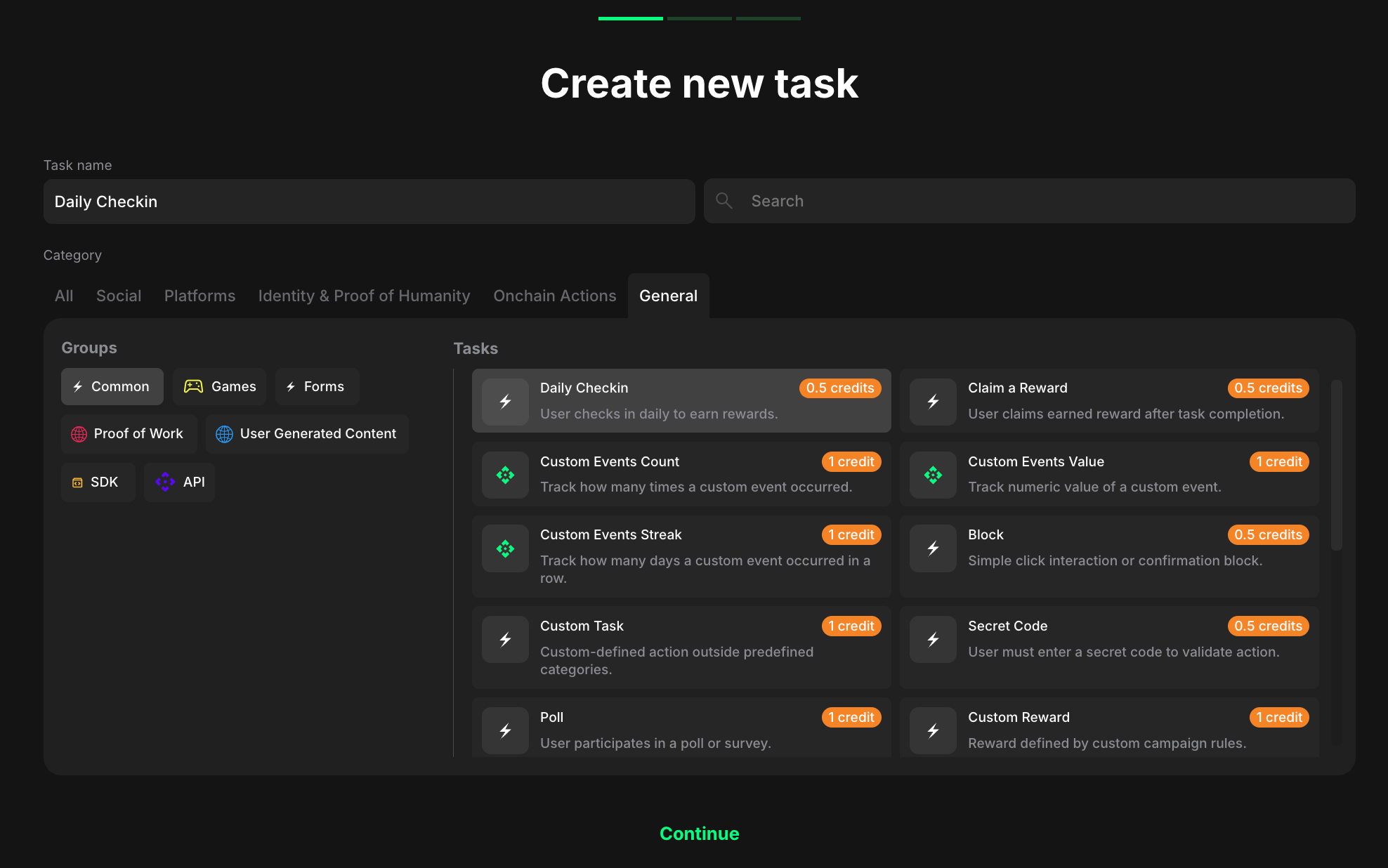 1. From your campaign dashboard, go to the **Quests** tab and click on the quest where you want to add a Daily Checkin task.
2. On the quest settings page, click **+ Create new task**.
3. In the Category section, click **General**.
4. In the Groups section, click **Common**.
5. Select **Daily Checkin** from the Tasks list.
6. Click **Continue**.
## Task settings
1. From your campaign dashboard, go to the **Quests** tab and click on the quest where you want to add a Daily Checkin task.
2. On the quest settings page, click **+ Create new task**.
3. In the Category section, click **General**.
4. In the Groups section, click **Common**.
5. Select **Daily Checkin** from the Tasks list.
6. Click **Continue**.
## Task settings
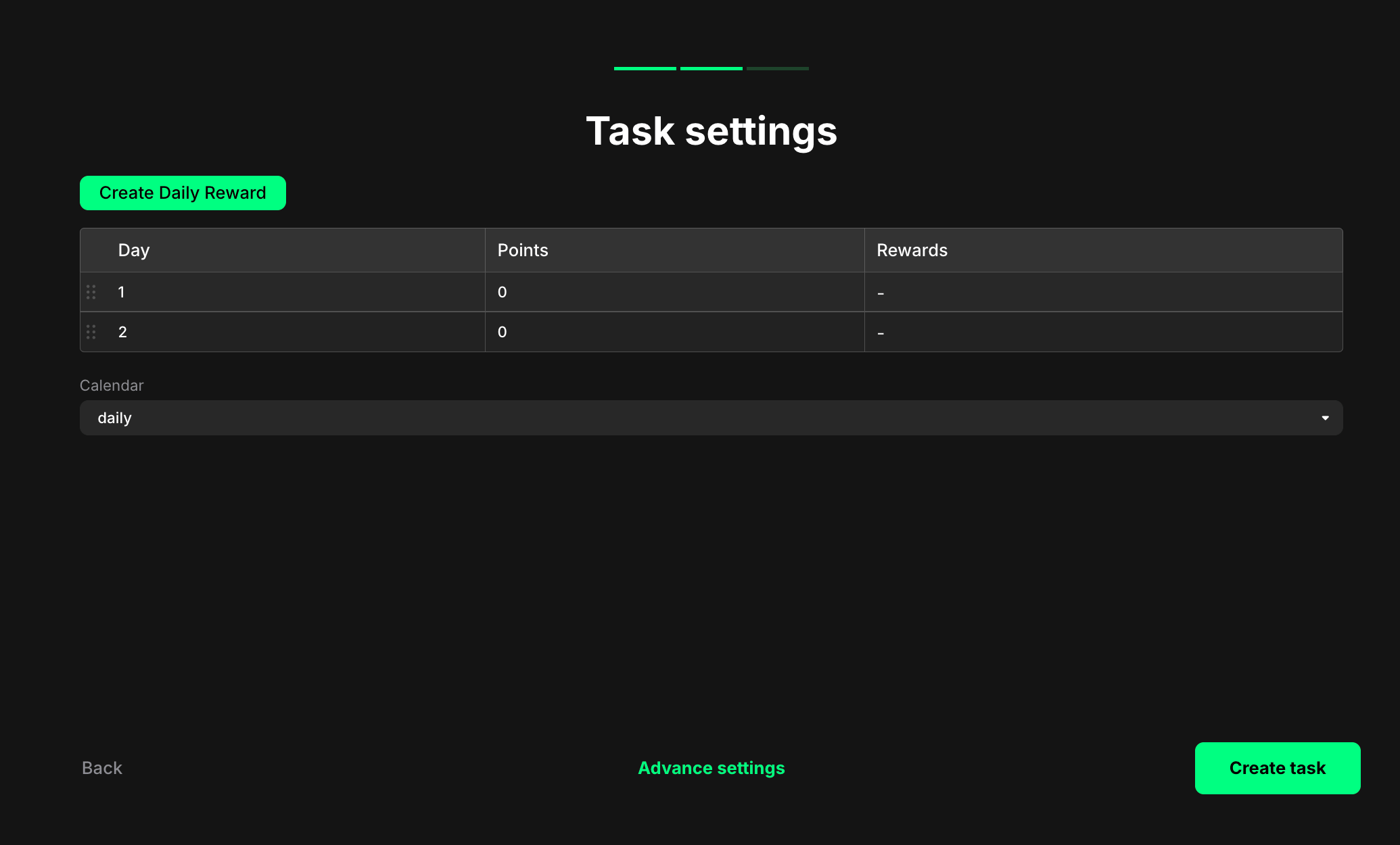 At this stage, you'll see a simplified configuration screen. However, not all settings are available here.
To access full configuration options, click **Create task**, then open the task in edit mode from your quest dashboard. The edit view gives you complete control over each day's points, optional rewards, and calendar display.
**Create Daily Reward**: Click this button to add new days to your check-in cycle.
**Daily reward table**: Use this table to define rewards for each day:
| Column | Description |
| ----------- | ---------------------------------------------------------------------------------------------------------------- |
| **Day** | The day number in the cycle (e.g., 1, 2, 3...) |
| **Points** | The number of points awarded for that day |
| **Rewards** | Additional assets like NFTs or tokens, configured through Claimr's reward system. Shows "-" if no reward is set. |
You can drag and reorder days using the handle icon on the left of each row.
**Calendar**: Choose whether to display the visual calendar:
* **daily** – The calendar will be shown in the campaign widget, displaying all days in the cycle
* **(blank/other)** – The calendar is hidden; only the claim button appears
Rewards will loop in the order defined. After users complete all days, the cycle restarts from Day 1.
### Save and configure
**Back**: Click to return to the previous screen without saving
**Advance settings**: Click to configure additional task settings like dependencies, completion pop-ups, and metadata
**Create task**: Click to save your task and add it to your quest
You can return and modify any reward value or display setting from the quest dashboard at any time.
### How Daily Checkin tasks appear to users
#### When the calendar is enabled
Users see a visual layout showing the full check-in cycle: one tile per day, based on the number of days configured in the task settings. Each tile displays the reward for that day (e.g., 50, 75, 100 points).
**Before claiming:**
At this stage, you'll see a simplified configuration screen. However, not all settings are available here.
To access full configuration options, click **Create task**, then open the task in edit mode from your quest dashboard. The edit view gives you complete control over each day's points, optional rewards, and calendar display.
**Create Daily Reward**: Click this button to add new days to your check-in cycle.
**Daily reward table**: Use this table to define rewards for each day:
| Column | Description |
| ----------- | ---------------------------------------------------------------------------------------------------------------- |
| **Day** | The day number in the cycle (e.g., 1, 2, 3...) |
| **Points** | The number of points awarded for that day |
| **Rewards** | Additional assets like NFTs or tokens, configured through Claimr's reward system. Shows "-" if no reward is set. |
You can drag and reorder days using the handle icon on the left of each row.
**Calendar**: Choose whether to display the visual calendar:
* **daily** – The calendar will be shown in the campaign widget, displaying all days in the cycle
* **(blank/other)** – The calendar is hidden; only the claim button appears
Rewards will loop in the order defined. After users complete all days, the cycle restarts from Day 1.
### Save and configure
**Back**: Click to return to the previous screen without saving
**Advance settings**: Click to configure additional task settings like dependencies, completion pop-ups, and metadata
**Create task**: Click to save your task and add it to your quest
You can return and modify any reward value or display setting from the quest dashboard at any time.
### How Daily Checkin tasks appear to users
#### When the calendar is enabled
Users see a visual layout showing the full check-in cycle: one tile per day, based on the number of days configured in the task settings. Each tile displays the reward for that day (e.g., 50, 75, 100 points).
**Before claiming:**
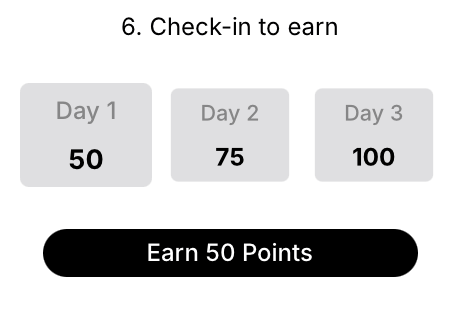 * The current day is active and highlighted
* A button appears showing the number of points available to claim (e.g., "Earn 50 Points")
**After claiming:**
* The current day is active and highlighted
* A button appears showing the number of points available to claim (e.g., "Earn 50 Points")
**After claiming:**
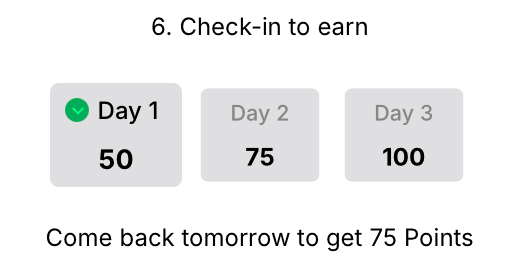 * A green checkmark appears next to the current day
* The button is replaced with a message showing the reward for the next check-in (e.g., "Come back tomorrow to get 75 Points")
Only one check-in can be claimed per day. Users return the next day to continue the cycle, and the calendar updates visually with each interaction.
#### When the calendar is disabled
* The user sees only the check-in button (no grid or visual progress)
* After claiming, the button is replaced with a confirmation message (e.g., "Come back tomorrow") without showing upcoming rewards
**Pro tip**: Use escalating rewards (increasing points each day) to incentivize users to maintain their streak. Set higher rewards on Day 7 or Day 30 to celebrate milestone completions.
* A green checkmark appears next to the current day
* The button is replaced with a message showing the reward for the next check-in (e.g., "Come back tomorrow to get 75 Points")
Only one check-in can be claimed per day. Users return the next day to continue the cycle, and the calendar updates visually with each interaction.
#### When the calendar is disabled
* The user sees only the check-in button (no grid or visual progress)
* After claiming, the button is replaced with a confirmation message (e.g., "Come back tomorrow") without showing upcoming rewards
**Pro tip**: Use escalating rewards (increasing points each day) to incentivize users to maintain their streak. Set higher rewards on Day 7 or Day 30 to celebrate milestone completions.