> ## Documentation Index
> Fetch the complete documentation index at: https://docs.claimr.io/llms.txt
> Use this file to discover all available pages before exploring further.
# Submit an email
> Collect verified user emails by requiring participants to submit their email address and confirm it via a one-time code.
## What are Submit an email tasks?
The Submit an email task allows you to collect verified user emails by requiring participants to submit their email address and confirm it via a one-time code. This ensures that only real users with valid emails can complete the task and earn points.
Use Submit an email tasks to:
* **Grow your email list**: Capture verified user emails for future marketing or community engagement.
* **Gate access to features**: Require email submission before showing high-value tasks or content.
* **Validate users**: Add an extra verification step before rewarding points or tokens.
For detailed information about general task settings, including task name, header, description, rewards, dependencies, and more, refer to our [Task Settings](/tasks/task-settings) article.
## Create a task
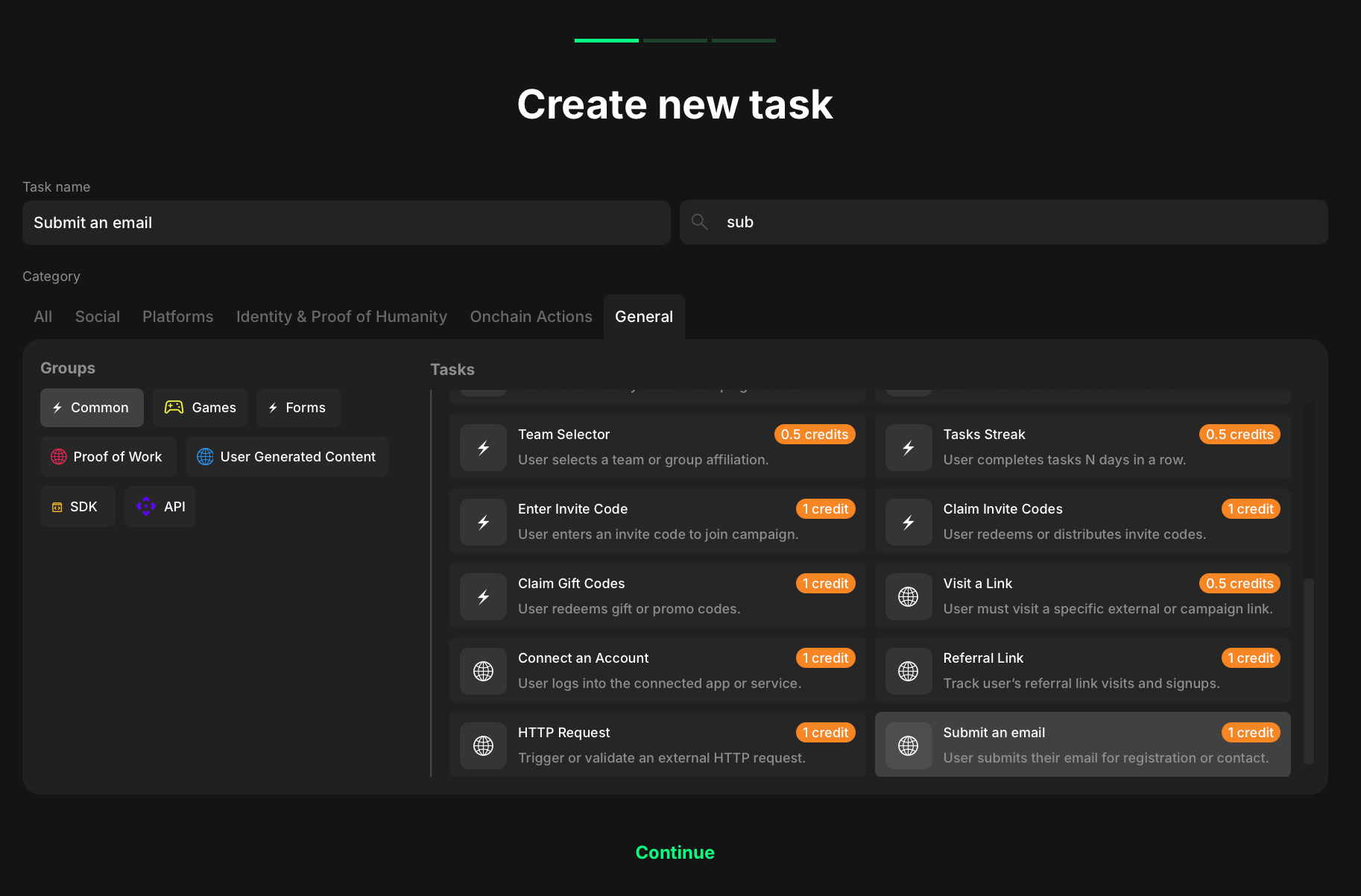 To create a Submit an email task:
1. Go to your quest and click **+ Create new task**.
2. Under the Category section, select **Common**.
3. Choose **Submit an email** from the list of task types.
4. Click **Continue** to proceed to task settings.
Once you've selected both, move on to configuring the specific settings for your task.
To create a Submit an email task:
1. Go to your quest and click **+ Create new task**.
2. Under the Category section, select **Common**.
3. Choose **Submit an email** from the list of task types.
4. Click **Continue** to proceed to task settings.
Once you've selected both, move on to configuring the specific settings for your task.
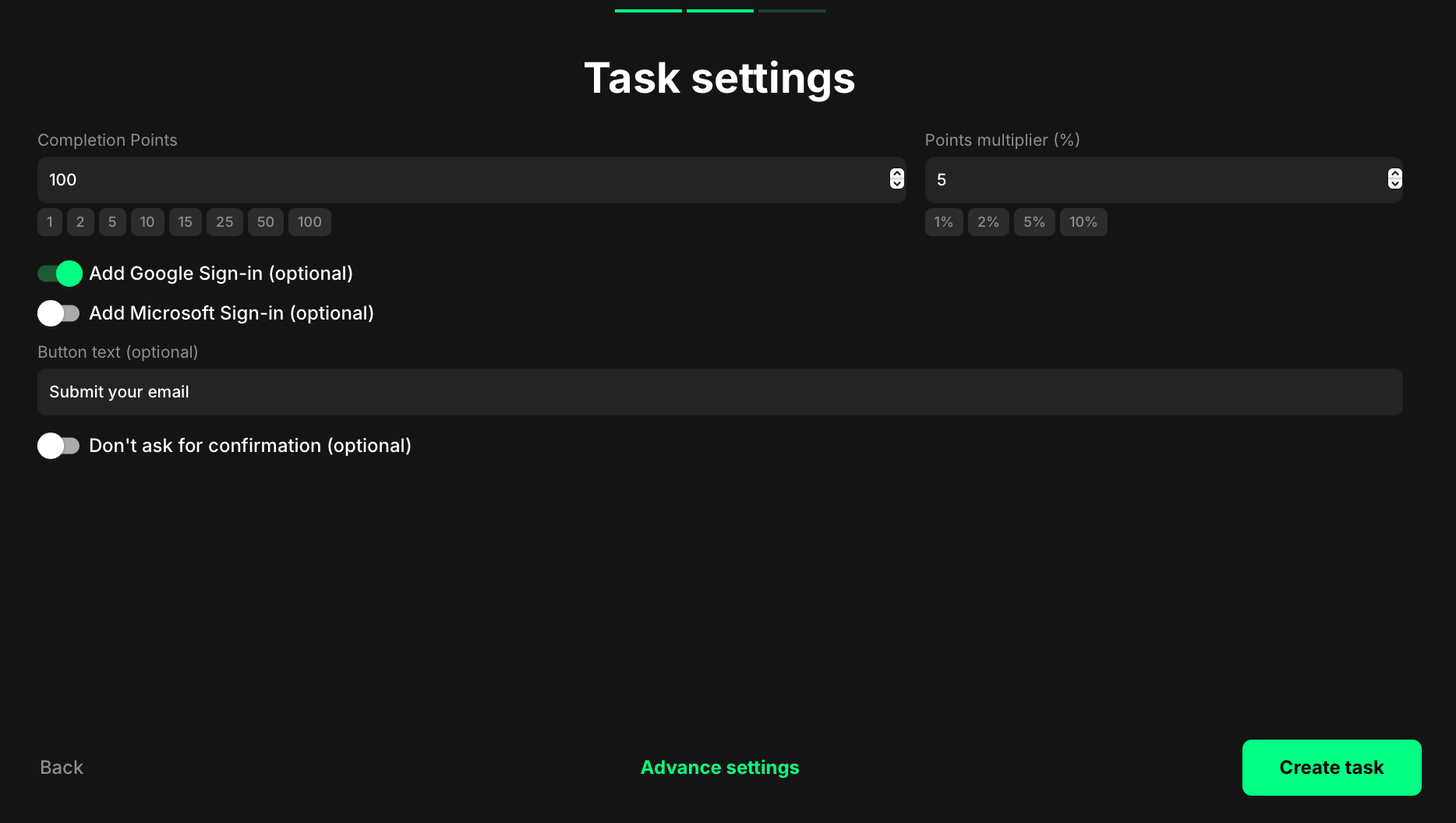 * **Completion points**: The base value users receive after completing the task. This is shown in the interface and tracked in your analytics.
* **Points multiplier (%) (optional)**: Increases the final reward by a set percentage. For example, if the reward is 100 and the multiplier is 5%, the user will receive 105 points.
* **Add Google Sign-in (optional)**: Enable to let users submit a verified email via Google OAuth.
* **Add Microsoft Sign-in (optional)**: Enable to let users submit a verified email via Microsoft OAuth.
* **Button text (optional)**: Enter the call-to-action label shown on the submit button (e.g., "Submit your email").
* **Don't ask for confirmation (optional)**: Enable to complete the task immediately after submission (no extra confirmation step). Disable to show a confirmation prompt before completion.
## How it looks to users
* **Completion points**: The base value users receive after completing the task. This is shown in the interface and tracked in your analytics.
* **Points multiplier (%) (optional)**: Increases the final reward by a set percentage. For example, if the reward is 100 and the multiplier is 5%, the user will receive 105 points.
* **Add Google Sign-in (optional)**: Enable to let users submit a verified email via Google OAuth.
* **Add Microsoft Sign-in (optional)**: Enable to let users submit a verified email via Microsoft OAuth.
* **Button text (optional)**: Enter the call-to-action label shown on the submit button (e.g., "Submit your email").
* **Don't ask for confirmation (optional)**: Enable to complete the task immediately after submission (no extra confirmation step). Disable to show a confirmation prompt before completion.
## How it looks to users
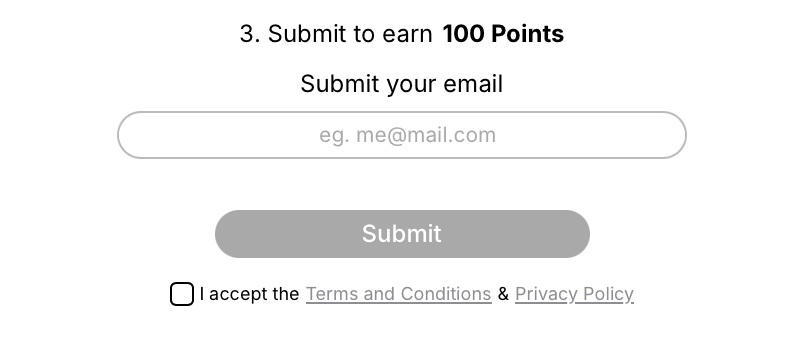 Once the task is live, users will see a simple form:
* A field prompting them to submit their email (with a placeholder such as e.g., [me@mail.com](mailto:me@mail.com))
* A Submit button (disabled until the user accepts the Terms and Conditions and Privacy Policy)
* A required checkbox for legal consent
After submitting their email:
1. The system sends a one-time code to the provided email address.
2. The user must enter this code to verify their submission.
3. Only after entering a valid code is the task marked as complete and points awarded.
This two-step verification ensures higher quality email capture and minimizes fake entries.
Once the task is live, users will see a simple form:
* A field prompting them to submit their email (with a placeholder such as e.g., [me@mail.com](mailto:me@mail.com))
* A Submit button (disabled until the user accepts the Terms and Conditions and Privacy Policy)
* A required checkbox for legal consent
After submitting their email:
1. The system sends a one-time code to the provided email address.
2. The user must enter this code to verify their submission.
3. Only after entering a valid code is the task marked as complete and points awarded.
This two-step verification ensures higher quality email capture and minimizes fake entries.