> ## Documentation Index
> Fetch the complete documentation index at: https://docs.claimr.io/llms.txt
> Use this file to discover all available pages before exploring further.
# Visit a link
> Reward users for simply clicking on a specified URL, with no proof or submission required.
## What are Visit a link tasks?
Visit a Link tasks in Claimr allow you to reward users for simply clicking on a specified URL. These tasks are perfect for driving traffic to a landing page, referral link, article, external app, or any other destination. Once the user visits the link, the task is considered complete: no proof or submission required.
Use Visit a link tasks to:
* **Drive traffic**: Direct users to campaign pages, partner sites, or custom URLs.
* **Promote engagement**: Highlight specific features, announcements, or calls to action.
* **Integrate referral flows**: Use masked or dynamic links to connect with external reward systems.
For detailed information about general task settings, including task name, header, description, rewards, dependencies, and more, refer to our [Task Settings](/tasks/task-settings) article.
## Create a task
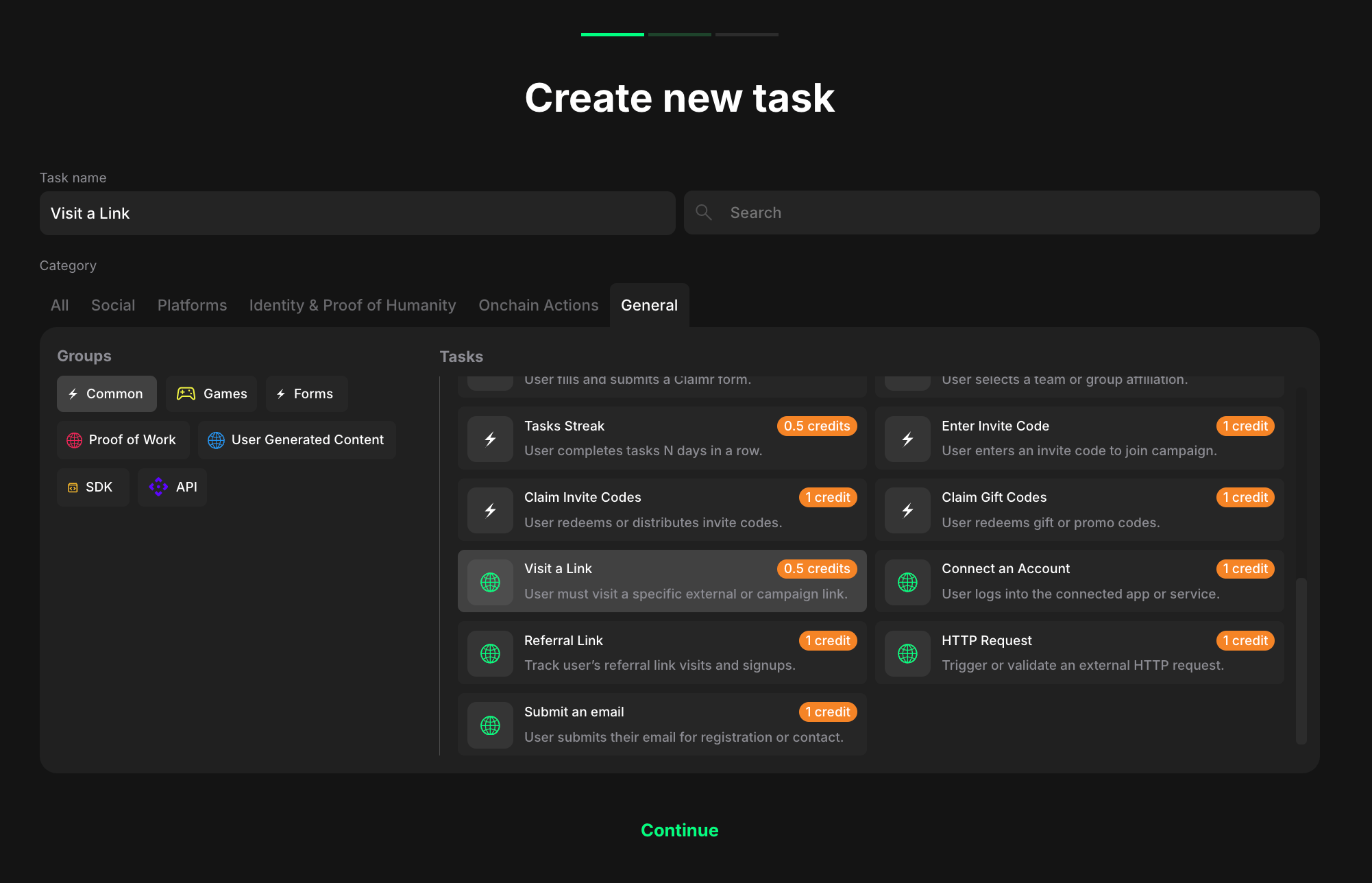 To create a Visit a Link task:
1. Go to your quest and click **+ Create new task**.
2. Under the Category section, select **Web**.
3. Choose **Visit a Link** from the list of task types.
4. Click **Continue** to proceed to task settings.
## Configure a task
Visit a Link tasks offer an extensive set of configuration options. While only the destination link is required, you can fine-tune how the link is displayed and how users interact with it.
To create a Visit a Link task:
1. Go to your quest and click **+ Create new task**.
2. Under the Category section, select **Web**.
3. Choose **Visit a Link** from the list of task types.
4. Click **Continue** to proceed to task settings.
## Configure a task
Visit a Link tasks offer an extensive set of configuration options. While only the destination link is required, you can fine-tune how the link is displayed and how users interact with it.
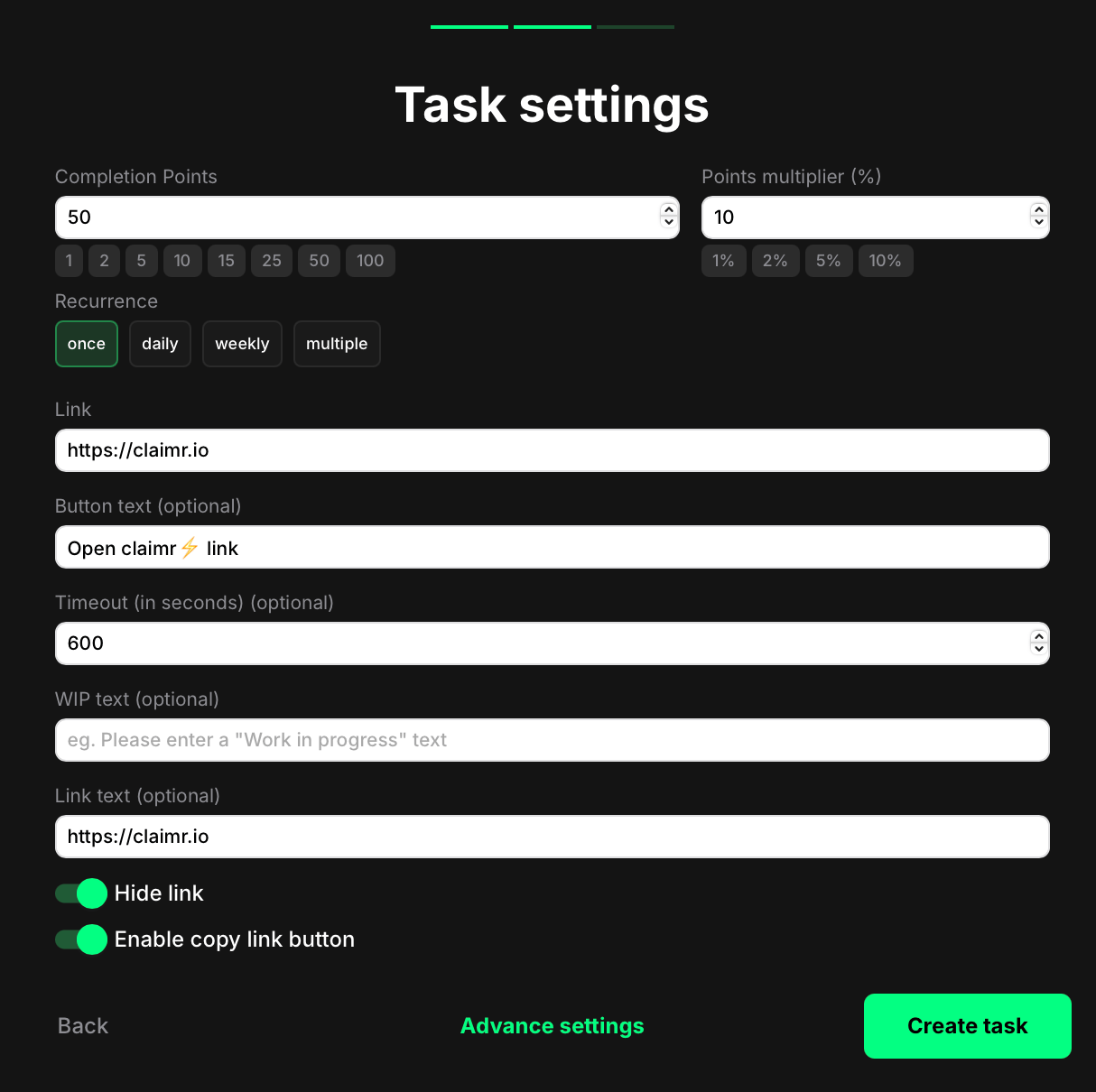 #### Required field
* **Completion points**: This is the base value shown at the top of the game UI. It may or may not match the actual reward the user receives.
* **Points multiplier (%)**: Optional bonus that increases the user's final reward by a percentage. For example, if the selected reward is 500 and the multiplier is 10%, the final payout will be 550 points.
* **Recurrence**: Define how often the task can be completed:
* Once
* Daily
* Weekly
* Multiple times (immediate repeat)
* **Link**: The full URL users will be redirected to.
#### Display options
* **Button text**: Customize the button label that users click to visit the link.
* **Timeout (in seconds)**: Add a delay before the task is marked as complete. For example, setting 600 means the task won't be marked complete until 10 minutes after the click.
* **WIP text**: Show a custom "work in progress" message during the waiting period (only applies if a timeout is set).
* **Link text**: Customize how the link is displayed below the button. Useful when you want to show a branded or shortened link instead of the full destination.
* **Hide link**: Toggle this on to remove the link preview entirely and display only the button.
* **Enable copy link button**: Let users copy the link with one click (appears next to the button).
## How it looks to users
Once the task is live, users will see a button prompting them to open the link.
#### Required field
* **Completion points**: This is the base value shown at the top of the game UI. It may or may not match the actual reward the user receives.
* **Points multiplier (%)**: Optional bonus that increases the user's final reward by a percentage. For example, if the selected reward is 500 and the multiplier is 10%, the final payout will be 550 points.
* **Recurrence**: Define how often the task can be completed:
* Once
* Daily
* Weekly
* Multiple times (immediate repeat)
* **Link**: The full URL users will be redirected to.
#### Display options
* **Button text**: Customize the button label that users click to visit the link.
* **Timeout (in seconds)**: Add a delay before the task is marked as complete. For example, setting 600 means the task won't be marked complete until 10 minutes after the click.
* **WIP text**: Show a custom "work in progress" message during the waiting period (only applies if a timeout is set).
* **Link text**: Customize how the link is displayed below the button. Useful when you want to show a branded or shortened link instead of the full destination.
* **Hide link**: Toggle this on to remove the link preview entirely and display only the button.
* **Enable copy link button**: Let users copy the link with one click (appears next to the button).
## How it looks to users
Once the task is live, users will see a button prompting them to open the link.
 Depending on your settings, they might also see:
* A visible link below the button, with either the raw URL or a custom label.
* A copy icon that allows them to copy the link to clipboard.
* A delay (timeout) before the task can be marked complete.
After clicking the button, the user is taken to your destination URL, and the system logs the action. If you've set a timeout, points will be awarded only after the specified delay.
Depending on your settings, they might also see:
* A visible link below the button, with either the raw URL or a custom label.
* A copy icon that allows them to copy the link to clipboard.
* A delay (timeout) before the task can be marked complete.
After clicking the button, the user is taken to your destination URL, and the system logs the action. If you've set a timeout, points will be awarded only after the specified delay.