> For the complete documentation index, see [llms.txt](https://docs.claimr.io/llms.txt). Markdown versions of documentation pages are available by appending `.md` to page URLs; this page is available as [Markdown](https://docs.claimr.io/how-to/integrating-claimr-widget-into-telegram-mini-app.md).

# Integrating claimr widget into Telegram mini app

## **Introduction**

You can integrate the claimr widget into the Telegram Mini App. This setup allows you to leverage claimr's engagement features seamlessly within the Telegram environment, automatically utilizing the user's Telegram context.

This article demonstrates how to:

* Dynamically inject the claimr widget tailored for Telegram.
* Understand the interaction between the claimr widget and the Telegram Mini App API.
* Configure the required claimr campaign settings for Telegram integration.

**Main files :**

* `src/claimr_wrapper.tsx`: Handles claimr widget injection and configuration.
* `src/example_app.tsx`: Main UI component demonstrating Telegram API initialization.

**Ensure you have the following installed:**

* Node.js (v18+ recommended) – [Install Node.js](https://nodejs.org/)
* npm or yarn – Comes with Node.js (or [install Yarn separately](https://yarnpkg.com/getting-started/install))

## **Running the project**

Open a terminal and follow these steps:

1. **Navigate to the project folder:**

   ```bash
   cd path/to/claimr-tg-app-example
   ```
2. **Install dependencies:**

   Using npm:

   ```bash
   npm install
   ```

   Using Yarn:

   ```bash
   yarn
   ```
3. **Start the development server:**

   Using npm:

   ```bash
   npm start
   ```

   Using Yarn:

   ```bash
   yarn start
   ```
4. **View in browser:** The app will be available at: `http://localhost:3000`&#x20;

{% hint style="warning" %}
Note: For full Telegram Mini App functionality testing, you'll need to run this within the Telegram environment.
{% endhint %}

### **Optional: Build for production**

To create a production-ready build:

```bash
npm run build
```

or:

```bash
yarn build
```

This will create a `build/` folder.

## **claimr Widget integration (`claimr_wrapper.tsx`)**

The `ClaimrWrapper` component is responsible for dynamically injecting the claimr widget script into your application page.

**Script Source**

The widget script is loaded from: `https://widgets.claimr.io/claimr.min.js`

**Script Attributes**

It’s injected with the following custom attributes:

```tsx
 script.setAttribute('data-container', CLAIMR_CONTAINER_ID);
 script.setAttribute('data-organization', 'claimr');
 script.setAttribute('data-campaign', 'telegram-mini-app');
 script.setAttribute('data-addons', 'sup,eap,eup,pvm,dcc');
 script.setAttribute('data-autoresize', 'true');
 script.setAttribute('data-platform', 'telegram');
```

**Purpose of attributes:**&#x20;

This lets the widget know:

* where to render (container ID),
* which organization and campaign to load,
* which features (addons) to enable,
* and that it’s running in a Telegram context.

The wrapper ensures this script is injected only once per session.

## **Telegram mini app behavior (`example_app.tsx`)**

This component demonstrates initializing the Telegram Mini App API to ensure the webview behaves correctly within Telegram:

```tsx
useEffect(() => {
  window.Telegram?.WebApp?.expand();
  window.Telegram?.WebApp?.enableClosingConfirmation();
  window.Telegram?.WebApp?.disableVerticalSwipes();
}, []);
```

These standard Telegram Mini App API functions:

* `expand()`: Maximizes the Mini App window.
* `enableClosingConfirmation()`: Prompts the user before they close the Mini App.
* `disableVerticalSwipes()`: Prevents vertical swipes from accidentally closing or navigating away from the Mini App.

## **How it works (User view)**

1. A Telegram user opens your Mini App containing the claimr integration.
2. The `ClaimrWrapper` injects the widget script with the `data-platform='telegram'` attribute.
3. The claimr widget initializes and reads the `window.Telegram.WebApp` context to automatically identify the Telegram user (using their Telegram ID and other available data).
4. The widget displays relevant tasks or quests based on the campaign configuration and the identified user.
5. If necessary for specific tasks, the widget might prompt the user to link other accounts (like Discord, email, or a wallet) through separate flows within the widget.
6. Task completions and results are synced back to claimr's backend, associated with the user's Telegram identity.

## <mark style="color:yellow;">**Campaign configuration: required settings**</mark>

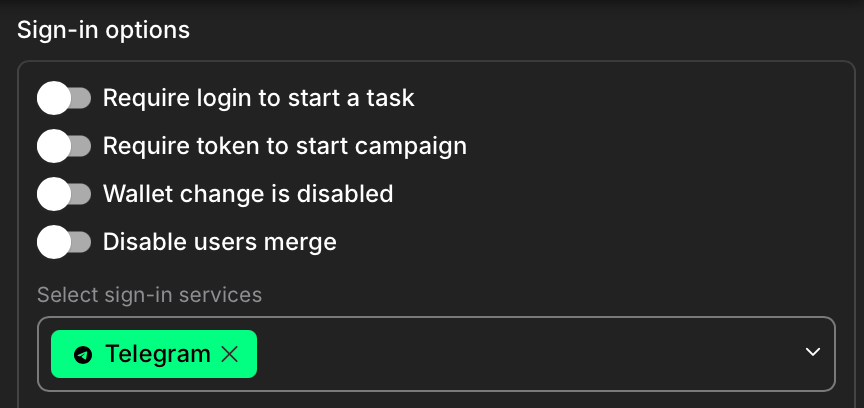
To ensure the claimr widget functions correctly within your Telegram Mini App and automatically recognizes users, specific campaign settings are required.

<figure><img src="/files/bqX0LHXfsYTuzcRXOggY" alt="" width="375"><figcaption></figcaption></figure>

1. **Navigate to Sign-in options:**
   * Open your claimr dashboard.
   * Go to your specific campaign.
   * Click on **Settings**.
   * Select **Sign-in options**.
2. **Set the following parameter:**
   * **Select sign-in services:** Ensure that **Telegram** is selected in this field. This explicitly allows users to authenticate and interact with your campaign using their Telegram identity provided by the Mini App environment.


---

# Agent Instructions
This documentation is published with GitBook. GitBook is the documentation platform designed so that both humans and AI agents can read, navigate, and reason over technical content effectively. Learn more at gitbook.com.

## Querying This Documentation
If you need additional information that is not directly available in this page, you can query the documentation dynamically by asking a question.

Perform an HTTP GET request on the current page URL with the `ask` query parameter, and the optional `goal` query parameter:

```
GET https://docs.claimr.io/how-to/integrating-claimr-widget-into-telegram-mini-app.md?ask=<question>&goal=<endgoal>
```

`ask` is the immediate question: it should be specific, self-contained, and written in natural language.
`goal` is optional and describes the broader end goal you are ultimately trying to accomplish on behalf of the user. GitBook uses it to tailor the answer towards what is most useful for that goal.

The response will contain a direct answer to the question and relevant excerpts and sources from the documentation.

Use this mechanism when the answer is not explicitly present in the current page, you need clarification or additional context, or you want to retrieve related documentation sections.