> For the complete documentation index, see [llms.txt](https://docs.claimr.io/llms.txt). Markdown versions of documentation pages are available by appending `.md` to page URLs; this page is available as [Markdown](https://docs.claimr.io/extra/raffles.md).

# Raffles

### What are Raffles?

Raffles are special events that allow you to randomly select winners from a defined user group.&#x20;

Each raffle works as an independent draw based on eligibility conditions such as connected logins, completed quests or tasks, and accumulated points. It is used to form a list of users who participate in a draw. The system then automatically selects the winner(s) according to the configured logic.

Users do not see raffles in the app interface: participation happens automatically based on activity and eligibility.

### Configuration steps

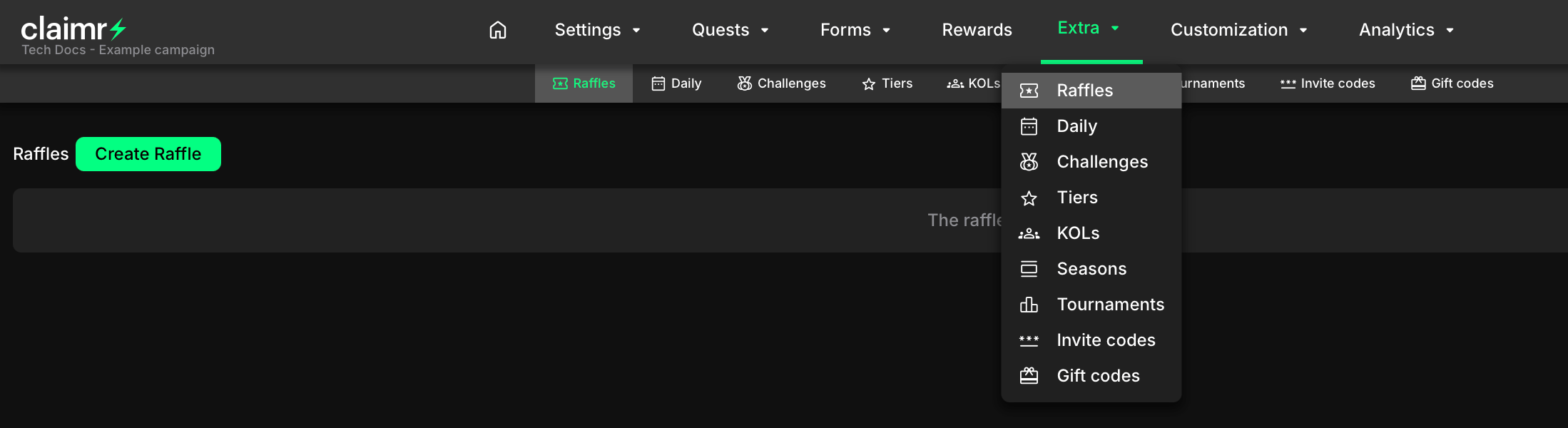
1. In the header menu, go to **Extra** and select **Raffles**.

<figure><img src="/files/XHW3zW7lr0Y1wHPWr5V8" alt=""><figcaption></figcaption></figure>

2. Click Create Raffle Button. This opens the raffle settings window.
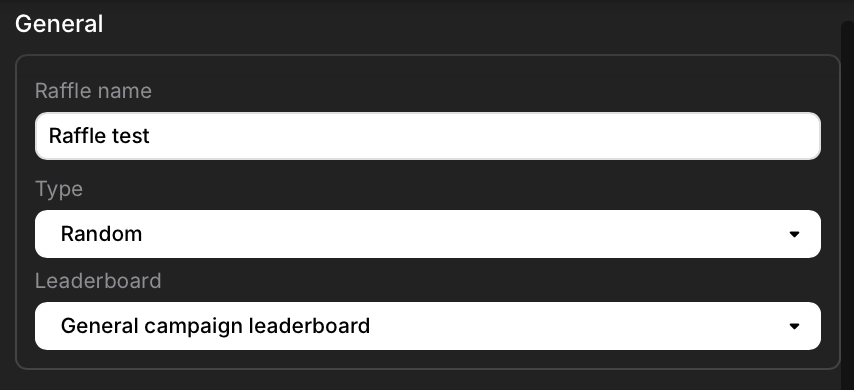
3. Configure the following fields

<figure><img src="/files/HKC8yJZgWG1kX1JjRGMS" alt="" width="375"><figcaption></figcaption></figure>

**Raffle name**\
Enter the raffle name.

**Type**\
Select how the winner(s) will be determined.

* Hiscores – selects winners based on the highest number of points.
* Random – selects winners completely at random.
* Random based on points – selects winners randomly but with higher probability for users who have more points.

**Leaderboard**\
Select the leaderboard from which participants will be drawn.

* General campaign leaderboard – includes all users participating in the campaign.
* Tournament leaderboard – includes only users who are part of active tournaments.

<figure><img src="/files/cTUxi7OXI7A24B7KpOpp" alt="" width="375"><figcaption></figcaption></figure>

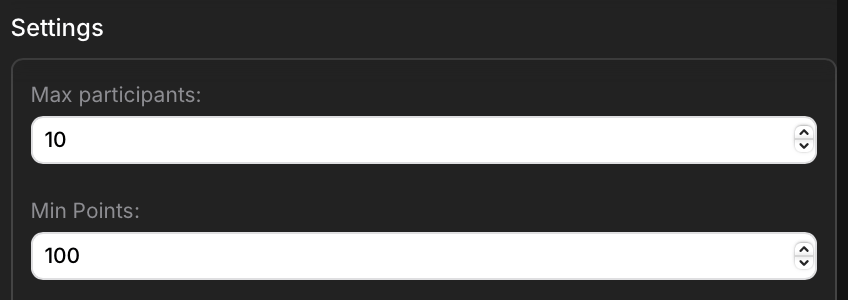
**Max participants**\
Define the maximum number of users allowed to qualify for the raffle. For example, if there are 20 eligible participants but the limit is set to 10, only the top 10 will qualify as winners.

**Min points**\
Set the minimum number of points required for a user to enter the raffle.

<figure><img src="/files/k75BcJZLPDoxPGblN36G" alt="" width="375"><figcaption></figcaption></figure>

**Required logins**\
Select the connected platforms users must have to qualify for the raffle.<br>

<figure><img src="/files/QZ2gKyZdQTVI4NI2DfHl" alt="" width="375"><figcaption></figcaption></figure>

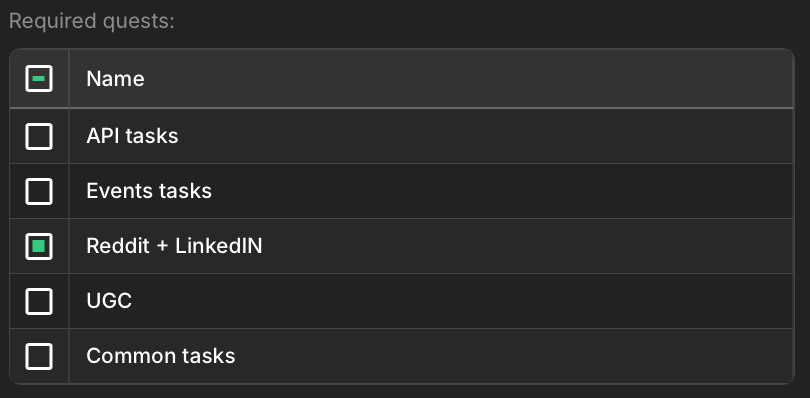
**Required quests**\
Select the quests users must complete to become eligible.

<figure><img src="/files/RCGzqTPxu91N6uMaCUrh" alt="" width="375"><figcaption></figcaption></figure>

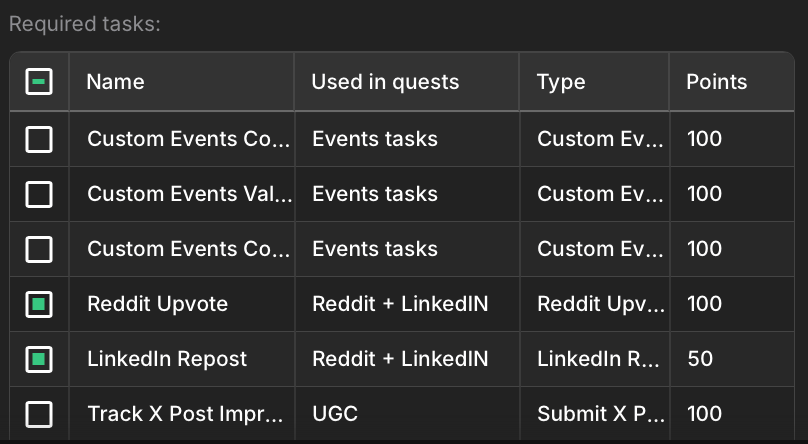
**Required tasks** \
Select the tasks users must complete to qualify. Tasks can be linked to quests or used independently.

When all fields are configured, click Create. The raffle will appear in the list of raffles.

#### Raffle status and management

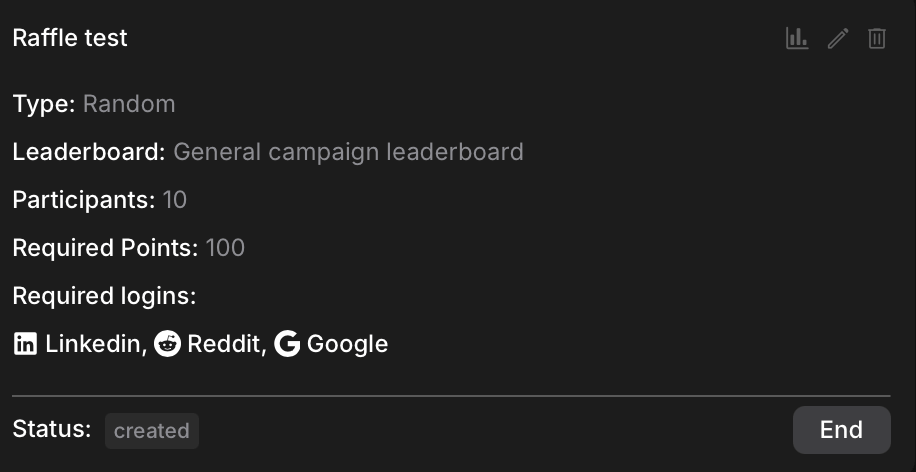
Once the raffle is created, it appears as a card in your Raffles dashboard. \
On the raffle card, you can see:

<figure><img src="/files/zQb2XkR8itt4FMkmr09S" alt="" width="375"><figcaption></figcaption></figure>

* The raffle status
* The selected type and leaderboard
* The number of participants
* The required points threshold
* The required logins, quests, and tasks

**Raffles statuses**:

* Created - the raffle is configured but not yet finalized. Raffles remain in created status until they are closed.
* Closed (ended) - the raffle is completed, and results are available for review.

Once closed, the system compiles the participant list based on all configured conditions and determines the winners according to the selected Type.

Raffles can be managed using the available actions:

* End – close the raffle and generate the results.
* Edit – modify raffle settings.
* Delete – remove the raffle.
* Analytics – open participant details and winner information.

#### Analytics

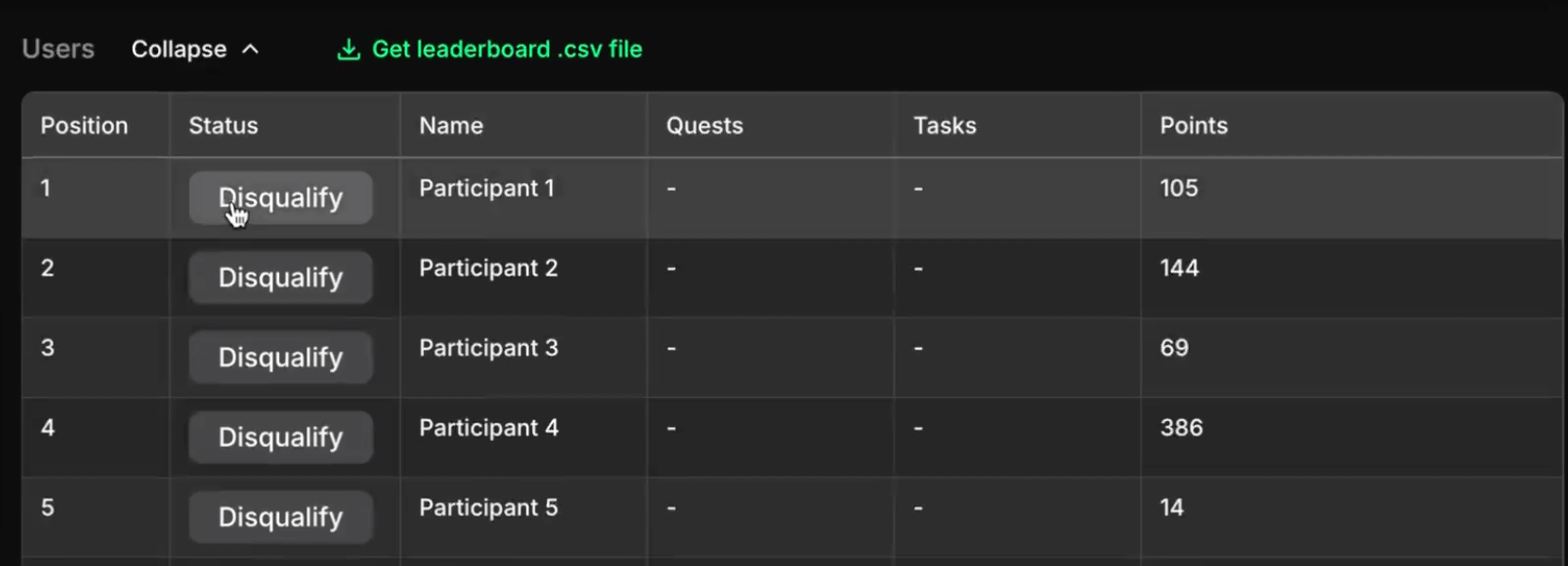
From the raffle card, click the Analytics icon in the upper corner to view participant data.
<figure><img src="/files/71d9ckuw7IZPyLqjIZ4g" alt="" width="563"><figcaption></figcaption></figure>

The leaderboard table displays:

* Position – participant ranking in the raffle.
* Status – allows you to manually disqualify or restore users.
* Name – participant name.
* Quests – completed quests (if applicable).
* Tasks – completed tasks (if applicable).
* Points – total points earned.

Users marked in gray are excluded from the export file and do not appear in the list of winners.

Click **Get leaderboard .csv** file to export the final participant data, including usernames, connected platforms, and point totals. Only qualified users (within the defined participant limit and meeting all requirements) are included in the exported file.

#### User view

Raffles are invisible to users in the app interface. Participation and winner selection are handled entirely in the admin panel. You can optionally use the exported data to announce winners or manage prize distribution externally.


---

# Agent Instructions
This documentation is published with GitBook. GitBook is the documentation platform designed so that both humans and AI agents can read, navigate, and reason over technical content effectively. Learn more at gitbook.com.

## Querying This Documentation
If you need additional information that is not directly available in this page, you can query the documentation dynamically by asking a question.

Perform an HTTP GET request on the current page URL with the `ask` query parameter, and the optional `goal` query parameter:

```
GET https://docs.claimr.io/extra/raffles.md?ask=<question>&goal=<endgoal>
```

`ask` is the immediate question: it should be specific, self-contained, and written in natural language.
`goal` is optional and describes the broader end goal you are ultimately trying to accomplish on behalf of the user. GitBook uses it to tailor the answer towards what is most useful for that goal.

The response will contain a direct answer to the question and relevant excerpts and sources from the documentation.

Use this mechanism when the answer is not explicitly present in the current page, you need clarification or additional context, or you want to retrieve related documentation sections.