
What are descriptions?
Descriptions are text fields used across Claimr modules, including campaigns, groups, contests, tasks, and forms. They allow you to add instructions, tags, contextual details, and media that participants see when interacting with your campaign. While the text editor looks the same across modules, each description field is specific to its context (for example, campaign description vs. task description).Description editor
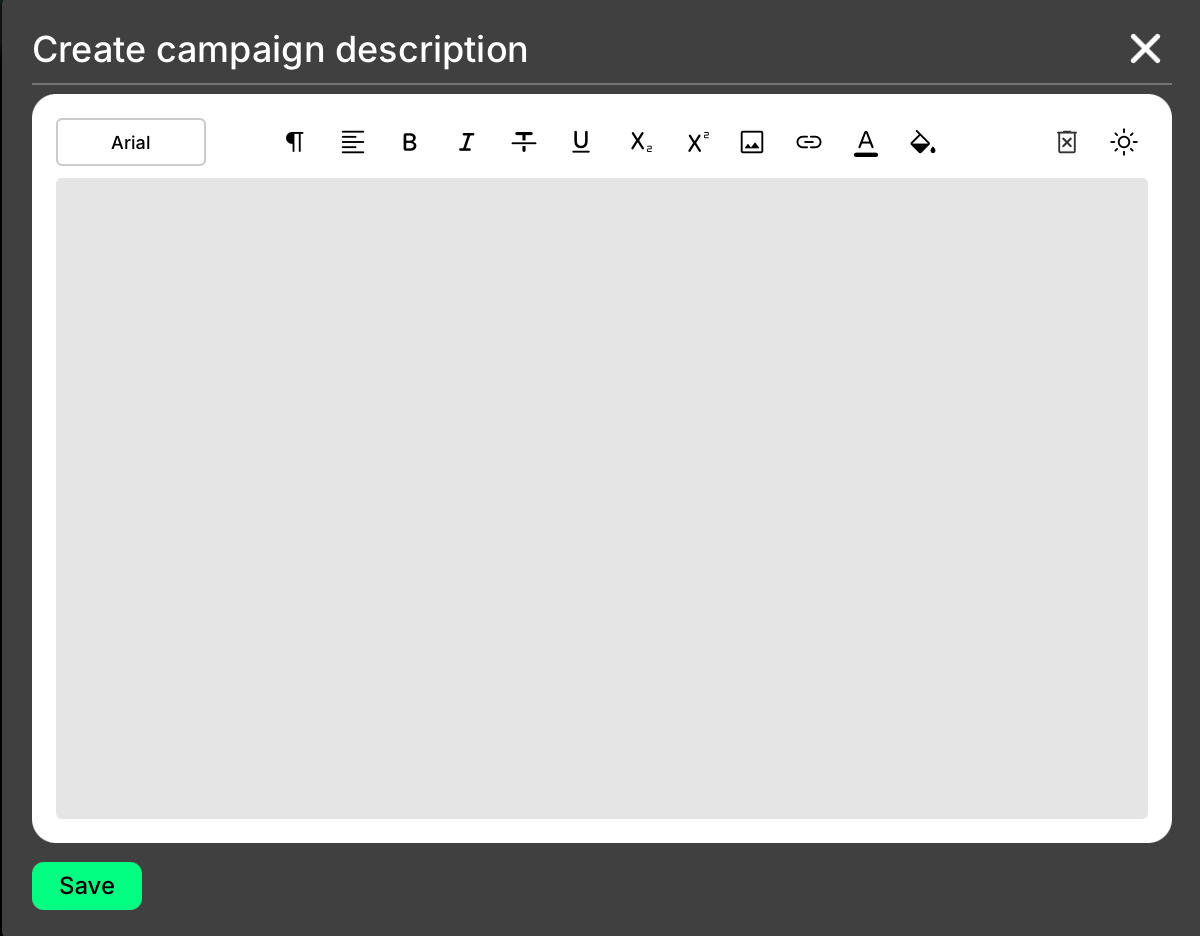
- Format text (fonts, styles, alignment, sub/superscript)
- Change text and background colors
- Add images
- Add links
Dark and light modes
Descriptions support both Light and Dark modes.- The default text color is black.
- When using Dark mode, black text may not be visible. In this case, you should manually select a light or bright text color to ensure readability.
- The editor does not automatically adjust text colors - you are responsible for setting colors that are visible in both modes.
Description tags
Descriptions support tags, which allow you to insert dynamic values. Tags personalize the experience for each participant by displaying campaign- or user-specific data.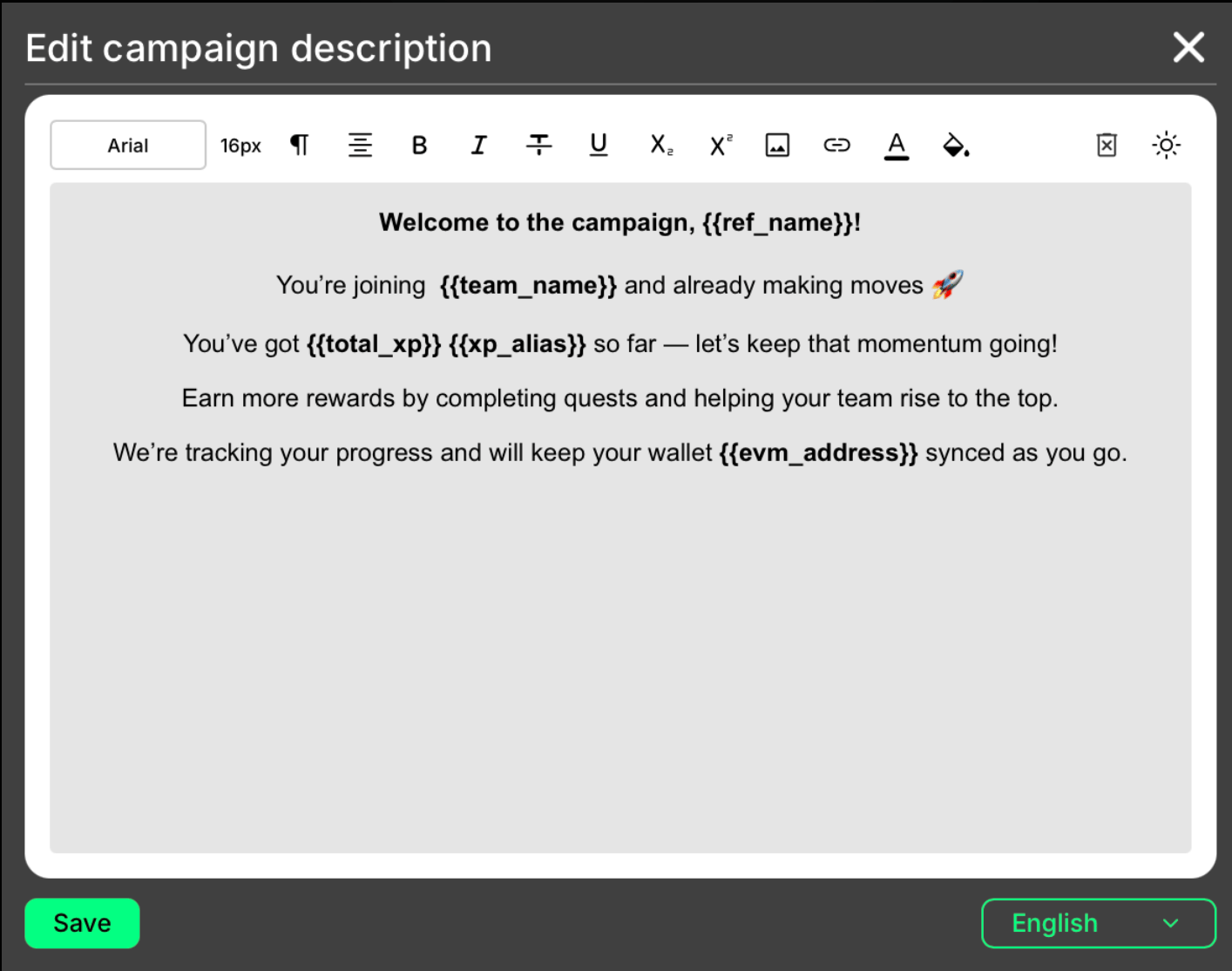
How to use tags
- Insert a tag directly into the text editor.
- Save your changes.
- When participants view the campaign, the tag will be replaced with the correct value.
Available tags
1. User-related tags
Display information about the current user and their profile attributes.{{claimr_id}}: Displays the unique Claimr user ID.{{user_name}}: Displays the user’s profile name.{{evm_address}}: Shows the user’s connected EVM wallet address (if available).{{ref_name}}: Displays the name of the user who referred the current user.{{team_name}}: Shows the name of the team the user belongs to.{{rank}}: Displays the user’s current rank in the campaign.{{leaderboard_position}}: Shows the user’s position on the campaign leaderboard.{{campaign_progression}}: Displays the user’s campaign progression status.
2. Points-related tags
These tags display information about experience points (XP) and other custom point types.{{total_xp}}: Displays the user’s total accumulated experience points (XP) in the campaign.{{xp_alias}}: Shows the campaign’s custom XP label.{{ref_xp}}: Displays the XP earned from referrals.{{task_xp}}: Displays the XP earned from a specific (selected) task.{{points_[PointID]_XP}}: Displays the user’s balance of an additional point type. This tag is specific to the customizable points you created. The PointID must match the ID you entered manually when creating the point.
3. Campaign-level tags
These tags provide general statistics about the campaign.{{participants}}: Displays the total number of participants in the campaign.
4. Referral-related tags
Track user referrals and rewards earned through referrals.{{ref_count}}: Shows the total number of referrals the user has made.{{ref_xp}}: Displays the XP earned from referrals.
5. Quest and task-related tags
Show quest and task completions, as well as rewards.{{completed_quests}}: Shows how many quests the user has completed.{{quests}}: Displays the total number of quests available in the campaign.{{max_quest_reward}}: Displays the maximum reward available for a single quest. Works only within the selected quest.{{task_xp}}: Displays the XP earned from a specific (selected) task.
6. API task-specific tags
Specific to API tasks and display scores, counts, and requirements.{{api_task_total_score}}: Shows the total score across all API tasks.{{api_task_count}}: Displays the number of API tasks completed.{{api_task_user_score}}: Shows the user’s score for an API task.{{api_task_user_total_count}}: Displays the total number of API tasks completed by the user.{{api_task_min_value}}: Displays the minimum value required for an API task.
7. Event-related tags
These tags display data collected from event-based tracking.{{events_value}}: Displays the value from event-based tracking.{{events_max_value}}: Shows the maximum event value reached.{{events_last_value}}: Displays the last recorded event value.{{events_count}}: Shows the total number of events recorded.{{events_max_count}}: Shows the maximum number of events reached.{{events_last_count}}: Shows the last recorded event count.
Make sure all tags are entered exactly as written to be recognized.