
Group dashboard
Once your group is created and saved, it appears on the dashboard.
- View group details: The group’s name, and any configured settings.
- Add quests: Click + Create quest to add a new quest directly to this group.
- Manage existing quests: If you have existing quests, they will be displayed.
- Edit group settings: Click the edit button (pencil) to change the group’s settings.
- Manage existing tasks: If you have existing tasks, they can be opened by clicking the corresponding button.
General
This section allows you to configure the basic parameters for your group.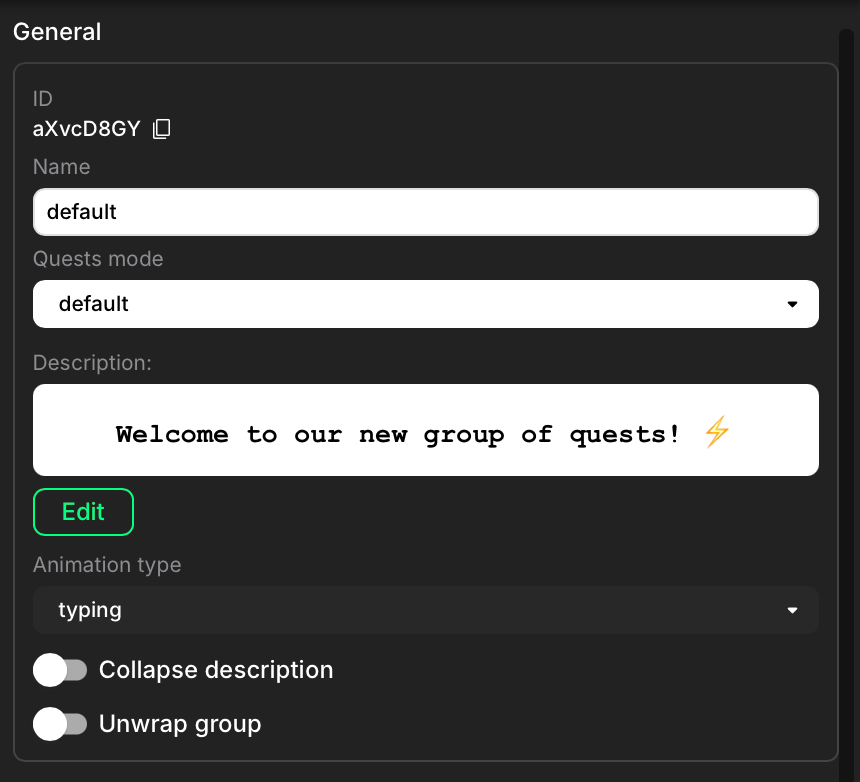
- ID: A unique identifier for the group, automatically generated by Claimr. You can copy it using the icon on the right.
- Name: The name of your group, displayed to users. Choose a name that is clear, concise, and descriptive of the quests within the group.
-
Quests Mode: Determines how quests within the group are presented and completed. Click the dropdown menu and select one of the following options:
- Default: All quests in the group that are not marked as “Hidden” are immediately visible and available to users. There are no restrictions on the order of completion.
- Immediate: Quests within the group become available sequentially. Once a user completes a quest, the next quest in the group is immediately unlocked.
- Daily: A new quest within the group becomes available at the start of each day (based on your configured time zone). This creates a time-gated progression through the group’s content.
- Description: A brief explanation of the group’s purpose, theme, or the type of quests it contains. This helps users understand what to expect within the group. How to edit: Click Create description (if no description exists) or Edit (if one already exists) below the Description field. This opens a text editor where you can write and format your description. Click Save to keep your new or updated description. For more details on descriptions and tags, visit Descriptions: creation, usage, tags.
- Animation type: Select typing from the available animation types. When selected, the description displays with a typing animation in the widget.
-
Collapse description toggle: Control how the description is displayed.
- On: The description is collapsed, showing only a short preview. Users need to click to expand it.
- Off: The full description is displayed by default.
-
Unwrap toggle: Control how tasks are displayed to users on your campaign page.
- On: Tasks are immediately visible to users.
- Off: Tasks are presented within their respective quests, and users need to click on those quests to view the tasks inside.
Settings
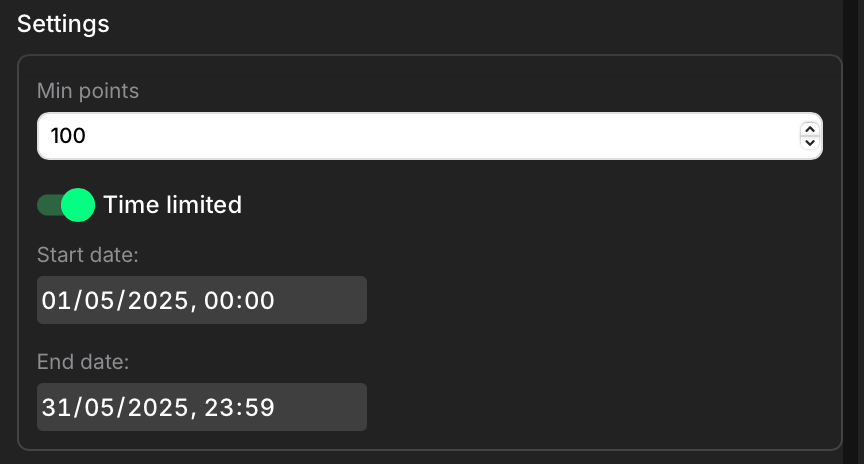
- Min points: Define the minimum number of points a user must have before they can access the quests within this group.
- Time limited toggle: Switch on this toggle to activate the time limit feature.
- Start date: Set the date the grouped quests should start. Use the time picker to set the exact hour and minute for the launch.
- End date: Set the date your grouped quests should finish. Use the time picker to set the precise hour and minute for the end.
Tags settings
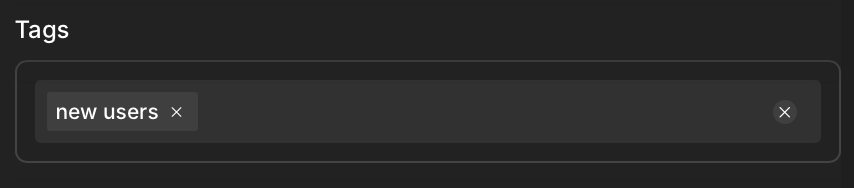
- What it is: Tags are labels you can assign to this specific group of quests. They enable you to dynamically control the visibility of this entire group (and all quests within it) for different users or user segments when used with specific
data-attributes in your widget integration script. - How to use: Enter a tag name in the field (e.g.,
new_users,beta_testers,europe_only). To add multiple tags, separate them with a comma. To remove a tag, click the x next to its name. - Purpose: Assigning tags to your groups (and quests) in the Claimr admin panel, when used with the
data-show-tagsanddata-hide-tagswidget attributes, allows you to:- Control visibility: Show or hide this entire group for different users or segments.
- Organize and segment: Use tags for internal categorization or to target content delivery (e.g., show this group only to users who match the
new_userstag passed in the script). - A/B test content: Direct different user segments to alternatively tagged groups of quests.
- Manage access: Restrict or grant access to this group based on user tags.
To find out more about tags and attributes, read Widget attributes and Customize user experience with tags and attributes.
Advanced settings
This section provides additional options for customizing your quest group.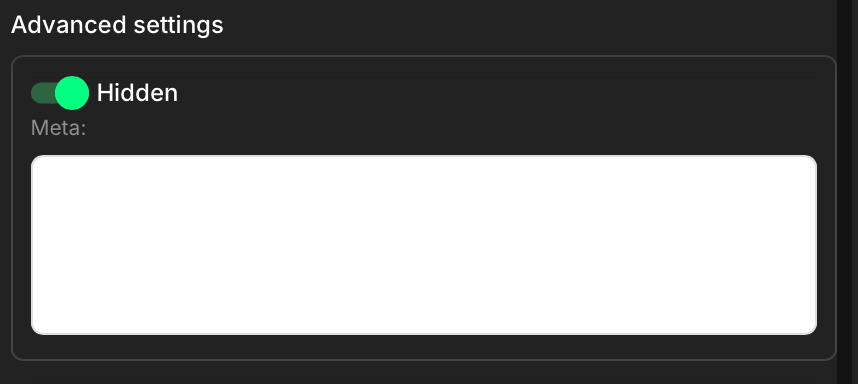
Group advanced settings
Action buttons
- Update saves any changes you’ve made to the group settings.
- Cancel discards any unsaved changes.
- Delete Group permanently deletes the group. Use this with caution!
Manage tasks within groups
The Manage tasks button provides a centralized way to view, edit, and delete tasks within your current campaign, regardless of which group they belong to.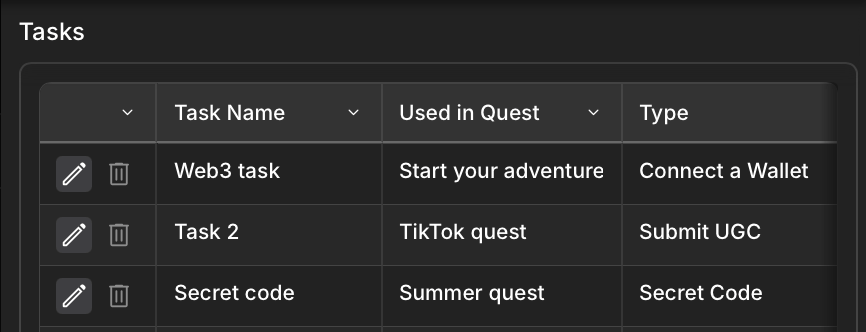
Task list
- Access the task list: From the Groups dashboard, click Manage tasks in the top right corner. This opens a table displaying all tasks in the campaign.
- View task information: The table shows the following information for each task:
- Task name
- Used in quest (the name of the quest the task is used in)
- Type of the task (Connect a Wallet, Submit UGC, Poll, etc.)
- Points users can get
- Delete button
- Edit button: Click it next to the task you want to modify. This opens a modal window containing all the settings for that task. You can edit any of the task’s settings.