
What are tournaments?
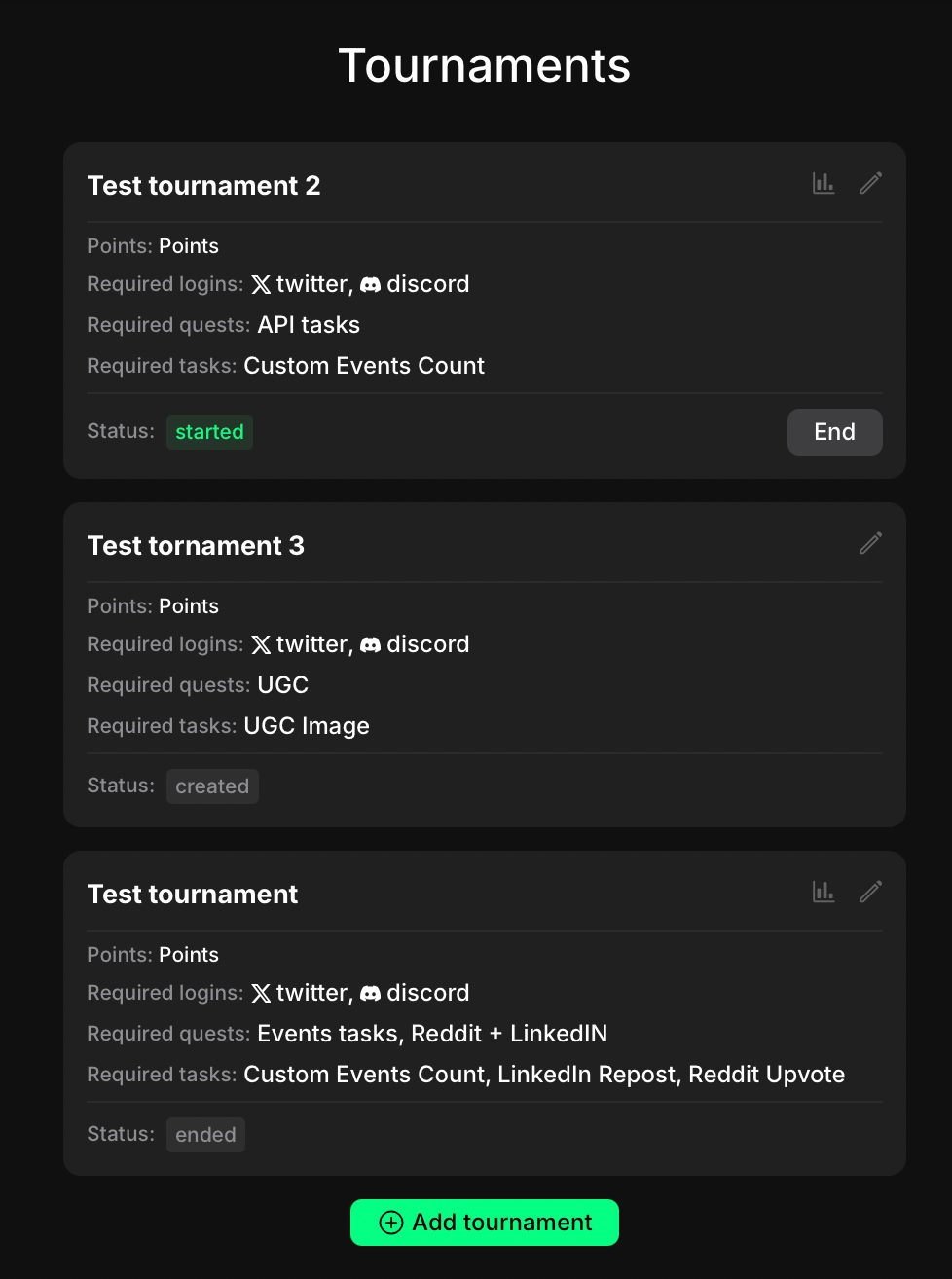
Tournaments are temporary events that you create and manage from the admin panel. Each tournament runs as a separate leaderboard session, independent of the standard leaderboard. This allows you to track user activity within a defined time frame. Only one tournament can be active at a time. All tournaments can be reviewed in the Analytics section.Configuration steps
In the header menu, go to Extra and select Tournaments. Click + Add Tournament. This opens the tournament settings window.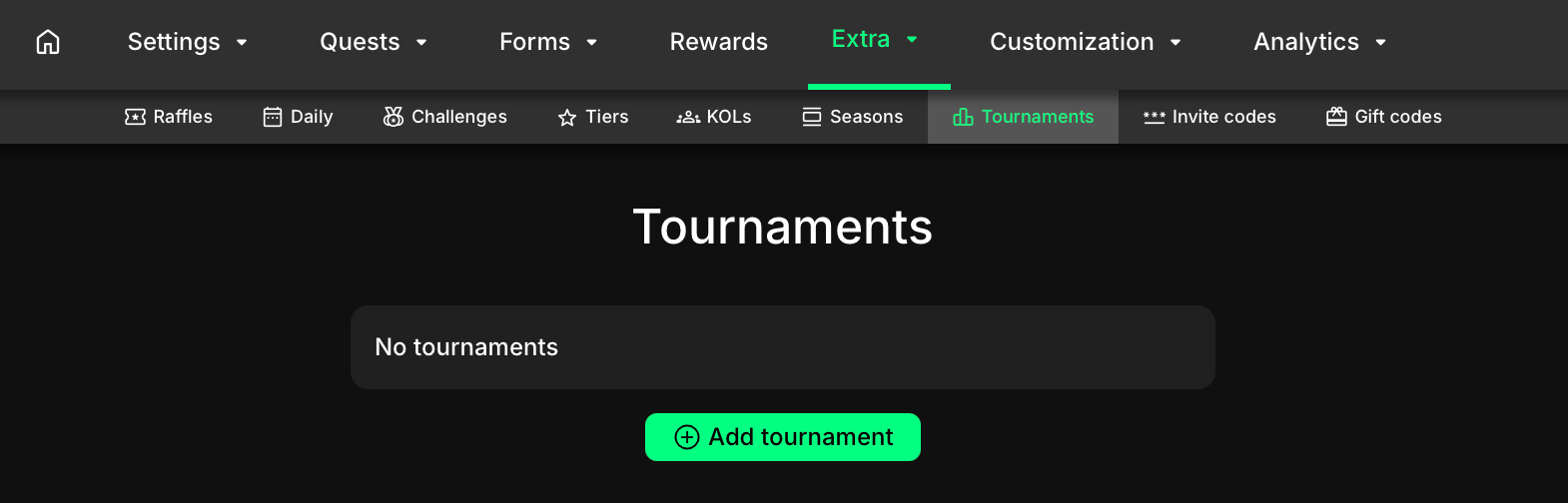
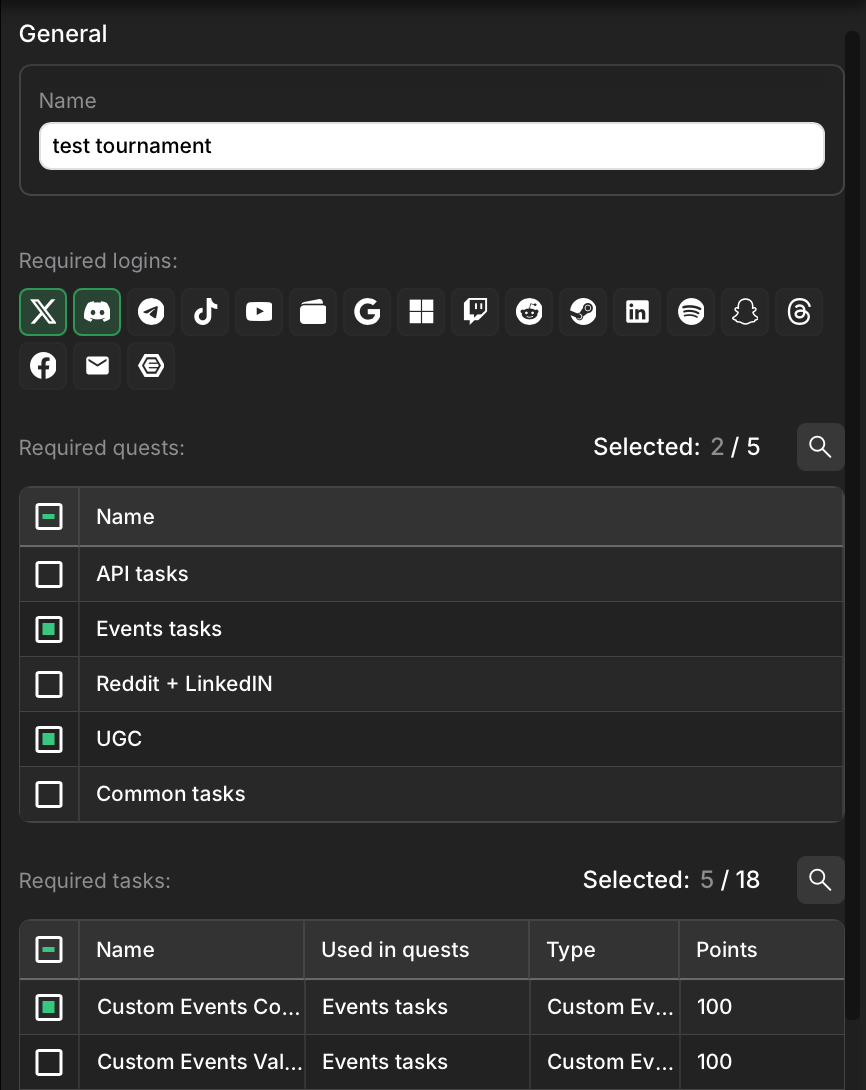
- Name: enter the tournament name.
- Required logins: select the connected platforms that users must have to be eligible for the tournament leaderboard.
- Required quests: select the quests that users must complete to qualify.
- Required tasks: select the individual tasks that users must complete. Tasks can be linked to quests or used independently.
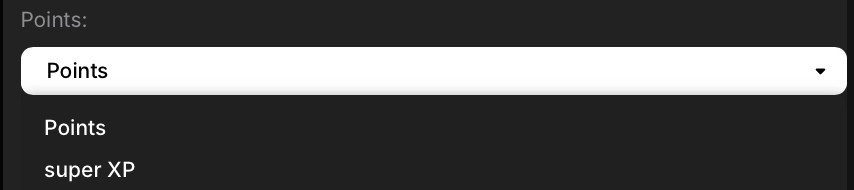
- Points type: if your campaign has multiple point types configured in Points settings (e.g., XP plus additional customizable points), select which point type will be used to calculate the tournament leaderboard.
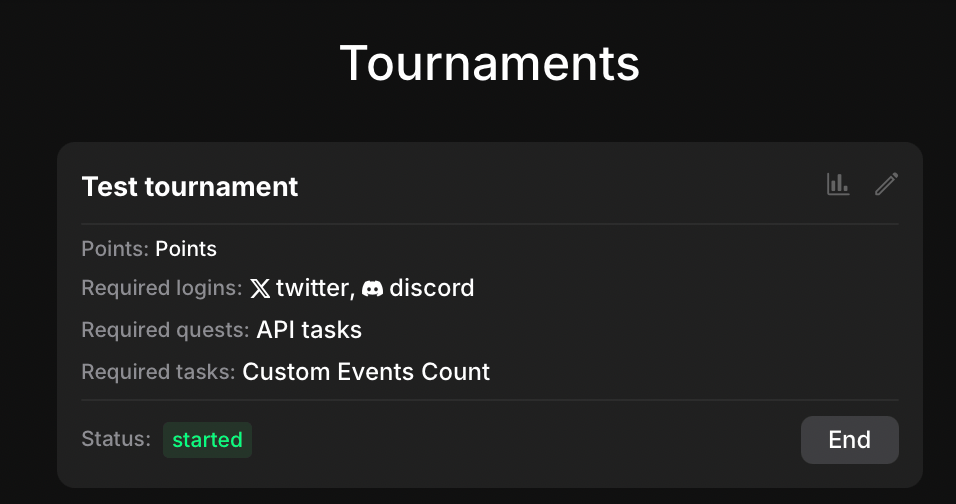
- Start - activate the tournament. A dedicated leaderboard will be created.
- End - finish the tournament. The leaderboard is closed and stored as historical data.
- Edit - change the tournament name.
- Delete - remove the tournament.
Completion logic
- Only one tournament can run at the same time.
- Created tournaments remain in status created until started.
- When started, the status changes to started and all user activity contributes to the tournament leaderboard.
- When ended, the status changes to ended and the final leaderboard is stored for analytics.
Analytics
-
You can access tournament analytics in two ways:
- In the header menu, go to Analytics and select Tournaments.
- From the Tournaments view, click the analytics icon in the upper corner of a specific tournament card.
- The overview table will open showing all tournaments with their name and status. Clicking a tournament opens its leaderboard.
-
The leaderboard is displayed as a dynamic table with the following columns:

- Name - username or identifier.
- Points - total points earned.
- Connected accounts - Twitter, wallet, Discord, or other linked accounts (columns appear dynamically depending on available data).
- You can sort the table, copy wallet addresses, and export the leaderboard to a .csv file.
- Clicking a user opens detailed information about that participant.
User view
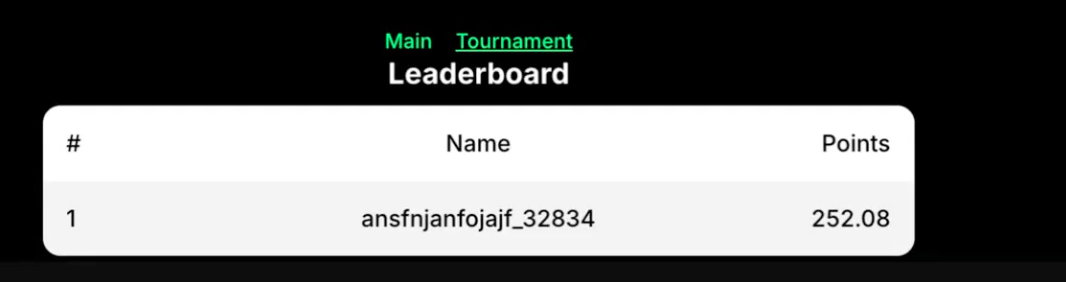
- In the app leaderboard, a Tournament tab appears next to the Main leaderboard when a tournament is active.
- Users can switch between the main leaderboard and the tournament leaderboard to see rankings.
- Tournament leaderboards have the same structure and options as the main leaderboard.