> For the complete documentation index, see [llms.txt](https://docs.claimr.io/llms.txt). Markdown versions of documentation pages are available by appending `.md` to page URLs; this page is available as [Markdown](https://docs.claimr.io/extra/challenges.md).

# Challenges

## Understanding claimr **Challenges**

A challenge is a focused objective or set of tasks that users can undertake within your campaign. It adds an element of excitement and competition, encouraging users to go above and beyond the standard campaign activities.

### **Benefits of using challenges**

**Increased engagement:** Provide an extra layer of gamification, encouraging users to participate more actively in your campaigns.

**Targeted actions:** Design challenges to drive specific user actions, such as completing tasks, exploring content, or making referrals.

**Rewarding achievements:** Provide a sense of accomplishment and reward users for their efforts.

## **Configuring challenges**

<figure><img src="/files/GAVnKdJGUntA2tw4geNK" alt="" width="563"><figcaption><p>Challenge section</p></figcaption></figure>

1. **Access the challenges section:** Navigate to the **Events** section in the claimr admin panel and select the **Challenges** tab.
2. **Create a new challenge:** Click <mark style="color:green;">**Create Challenge**</mark> to add a new one. A sidebar panel with settings will appear.&#x20;
3. **Set challenge details:**

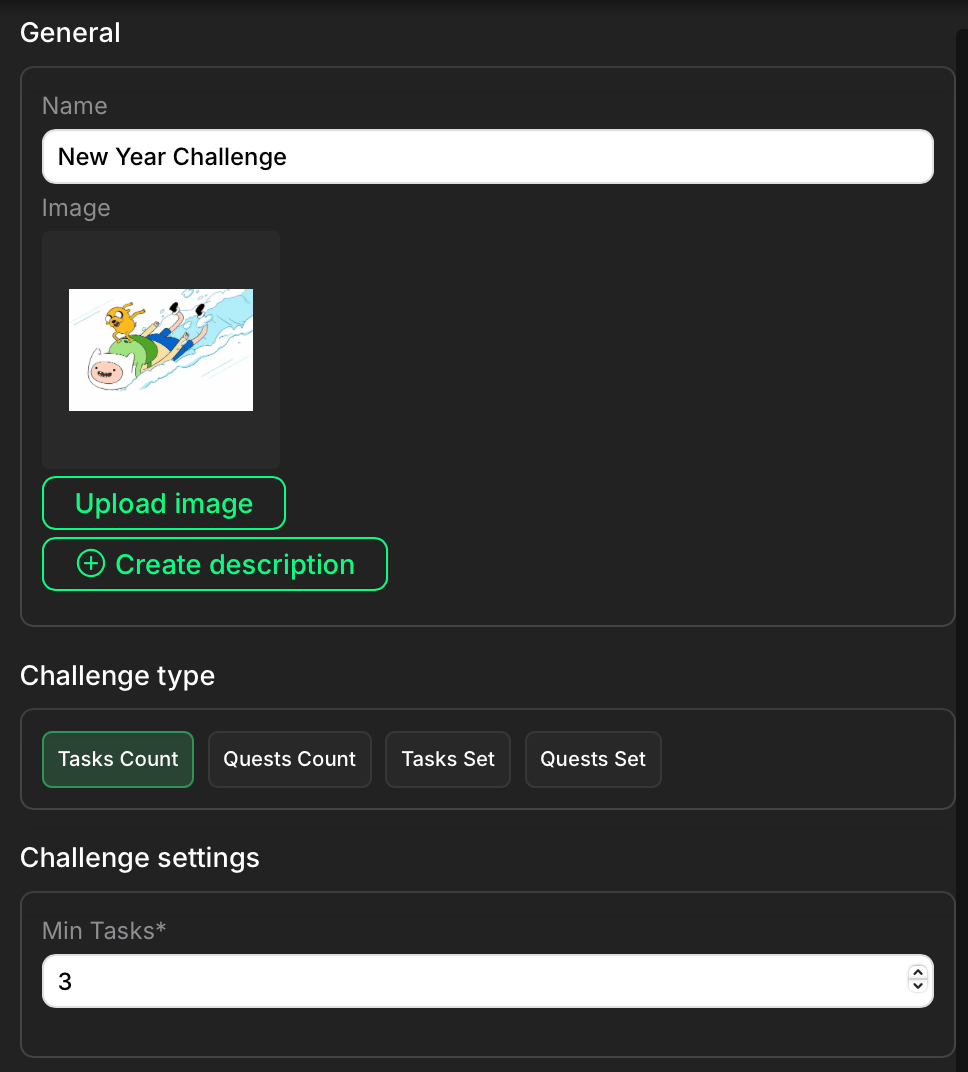
<figure><img src="/files/rZv3hVKDlfx5LVsQkZFx" alt="" width="375"><figcaption><p>Challenge settings</p></figcaption></figure>

* **Name:** Provide a clear and concise name for the challenge.
* **Image:** Upload an image or icon that represents the challenge.
* **Description:**  Add **a** brief explanation of the purpose or theme. This helps users understand what to expect within this challenge. \
  Click **Create description** (if no description exists) or **Edit** (if a description already exists) below the Description field. This will open a text editor where you can write and format your description. Remember to click **Save** to keep your new or updated description. For more details on descriptions and tags, visit our article [Descriptions: creation, usage, tags](/descriptions-creation-usage-tags.md)&#x20;
* **Challenge type:** Choose the type of challenge:

  Tasks Count: Tracks the number of tasks a user must complete.

  Quests Count: Tracks the number of quests a user must complete.

  Tasks Set: Requires users to complete a specific set of tasks.

  Quests Set: Requires users to complete a specific set of quests.
* **Configure Challenge Settings:** Depending on the challenge type, configure specific settings. For example, if you chose "Tasks Count," you'll need to specify the minimum number of tasks required in the "Min Tasks" field.
* **Set Rewards:** Define the rewards that users will earn for completing the challenge. You can include XP, as well as extra rewards like NFTs or gift codes.

4. **Save the Challenge:** Click the "Create" button to save your new challenge.

{% hint style="warning" %}
To make your challenges appear in the widget and function correctly, ensure you have enabled the necessary add-on in your claimr campaign settings. For more information, visit [Widget configurations](/widget/widget-configurations.md)
{% endhint %}

## **Presenting challenges to users**

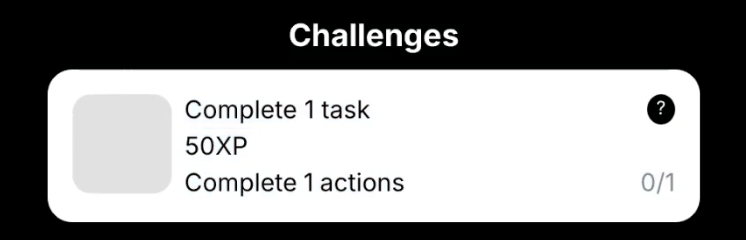
<figure><img src="/files/QUHjE5aNsxeJXvvkBQYr" alt="" width="373"><figcaption><p>Example: Not completed challenge</p></figcaption></figure>

Challenges are presented to users as interactive tiles within the claimr widget. These tiles include:

**Challenge name and description:** A brief description of the challenge and what users need to do to complete it.

**Reward:** Clearly displays the reward that users will earn for completing the challenge.

**Progress counter:** A visual indicator that shows the user's progress towards completing the challenge.

## **How users interact with challenges**

Users view the challenge tile in the widget. They attempt to complete the challenge requirements. The challenge tile's progress bar updates as the user makes progress. Once the user completes the challenge, they receive the associated reward.


---

# Agent Instructions
This documentation is published with GitBook. GitBook is the documentation platform designed so that both humans and AI agents can read, navigate, and reason over technical content effectively. Learn more at gitbook.com.

## Querying This Documentation
If you need additional information that is not directly available in this page, you can query the documentation dynamically by asking a question.

Perform an HTTP GET request on the current page URL with the `ask` query parameter, and the optional `goal` query parameter:

```
GET https://docs.claimr.io/extra/challenges.md?ask=<question>&goal=<endgoal>
```

`ask` is the immediate question: it should be specific, self-contained, and written in natural language.
`goal` is optional and describes the broader end goal you are ultimately trying to accomplish on behalf of the user. GitBook uses it to tailor the answer towards what is most useful for that goal.

The response will contain a direct answer to the question and relevant excerpts and sources from the documentation.

Use this mechanism when the answer is not explicitly present in the current page, you need clarification or additional context, or you want to retrieve related documentation sections.