
Before you start
Make sure you have:- A task created within your quest
- A clear understanding of what action you want users to complete
- Your reward structure planned
Access task settings
1
Navigate to your quest
From your campaign dashboard, go to the Quests tab and click on the quest containing the task you want to configure.
2
Find your task
Locate the task in your quest’s task list.
- Edit: Open the task settings panel (click this to configure your task)
- View: Preview how the task appears to users
- Copy: Duplicate the task with all its settings
- Delete: Remove the task from your quest
3
Open task settings
Click Edit to open the task settings panel. The panel opens with task-specific settings visible and other sections collapsed.
Task info
View your task’s basic identification details at the top of the settings panel.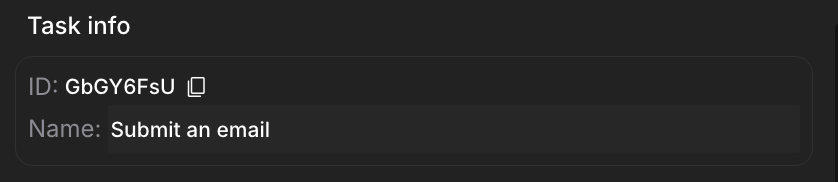
Task settings
Configure the specific behavior for this task type. These settings vary depending on which task you created. For detailed configuration options specific to each task type, visit the corresponding task article.General settings
Configure how your task appears and communicates with users. Click the + icons to expand each option.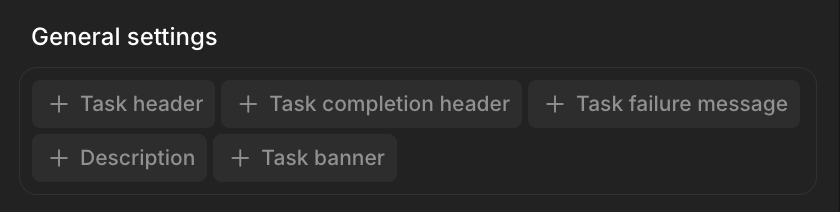
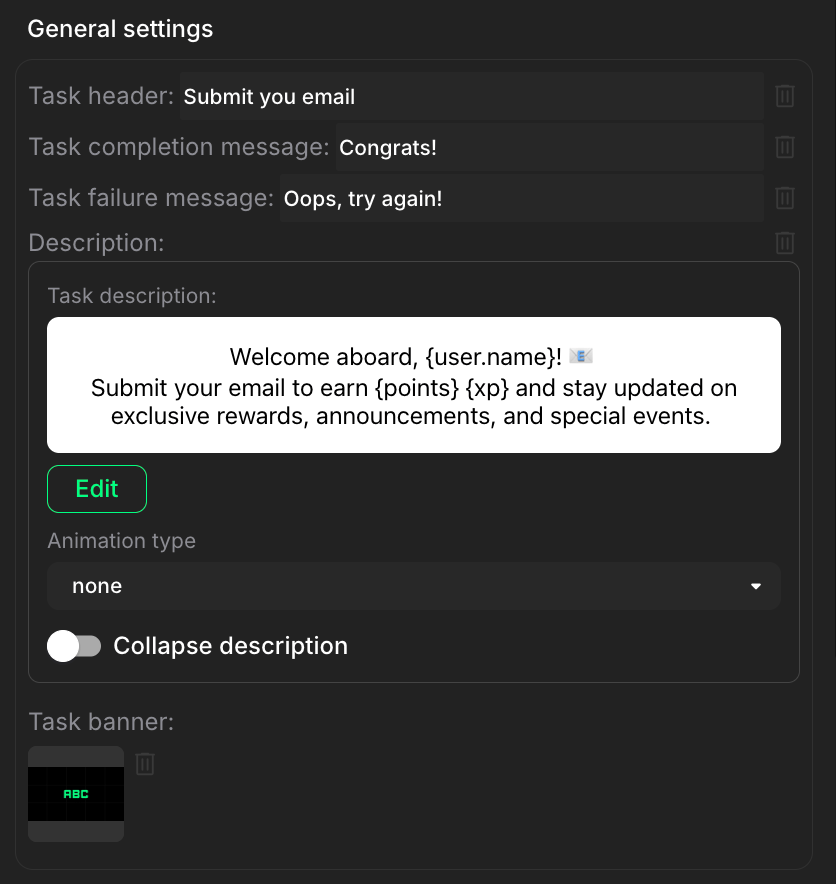
Task header
Click + Task header to add the main instruction users see for this task. Enter short, action-oriented text that clearly tells users what to do. Keep it concise and direct. Task header tags Use these tags within the task header to display reward information:{points}: Displays the number of points users will earn{icon}: Displays the icon associated with points in your campaign{xp}: Displays the name or label used for points in your campaign (e.g., “XP”, “Tokens”)
{points} {xp}”
Click the trash icon to remove the task header.
Task completion message
Click + Task completion message to add the message users see after successfully completing the task. Enter text that acknowledges their achievement and encourages next steps. Use the same tags available in task headers:{points}, {icon}, {xp}
Click the trash icon to remove the completion message.
Task failure message
Click + Task failure message to add a message shown when users fail to complete the task. Enter friendly, helpful text that guides users to try again. Click the trash icon to remove the failure message.Description
Click + Description to open a rich text editor where you create detailed task instructions.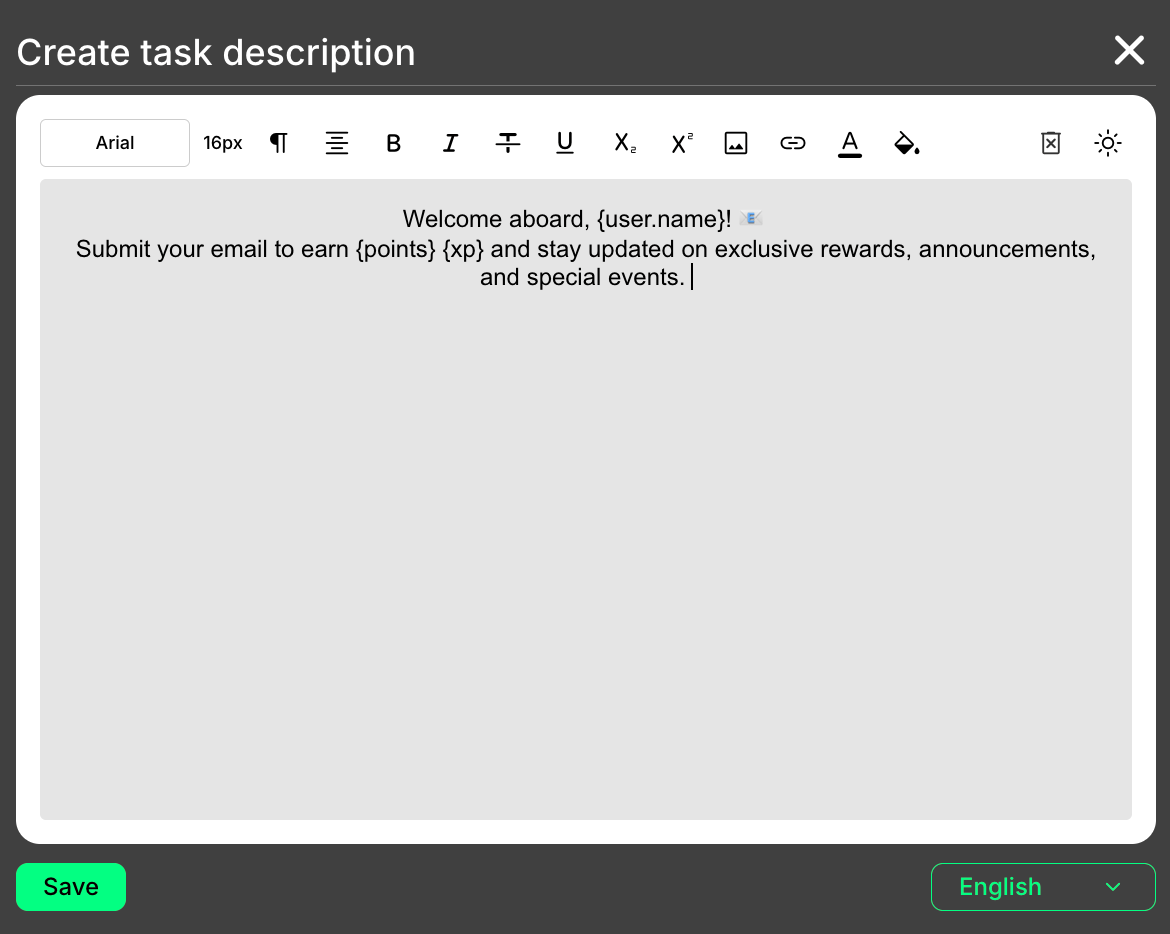
- Click + Description to open the text editor
- Enter your description using the formatting tools
- Select text style and color
- Add links or images as needed
- Click Save when finished
- “typing” displays the text with a typing animation effect
- “none” shows the description immediately
- Toggle off: Full description is visible immediately
- Toggle on: Description shows condensed with a “Show more” option
Use the task description to highlight benefits, provide clear examples, and include any helpful resources. The clearer your instructions, the higher your completion rate.
Task description tags
Personalize your task descriptions and dynamically display information relevant to each user, making the task experience more engaging and tailored. How to use tags Insert the tag directly into the text editor when creating or editing the task description. Simply type the tag (e.g.,{user.name} or {user.points}). Save your changes to the task description.
When a user views the task, the tags automatically replace with the corresponding information specific to that user.
To see all available tags, visit the Descriptions: creation, usage, tags article.
Make sure all tags are correctly formatted so they are recognized and processed by Claimr.
Task banner
Click + Task banner to upload a visual image for your task card. Upload an eye-catching image that represents your task or campaign theme.- Click the image thumbnail to edit or replace
- Click the trash icon to remove the banner
- Use high-quality images that match your brand
Task rewards
Define how users earn points and rewards for completing this task. Click + to expand the Task rewards section.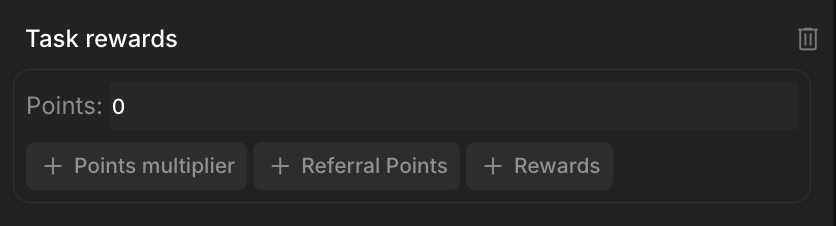
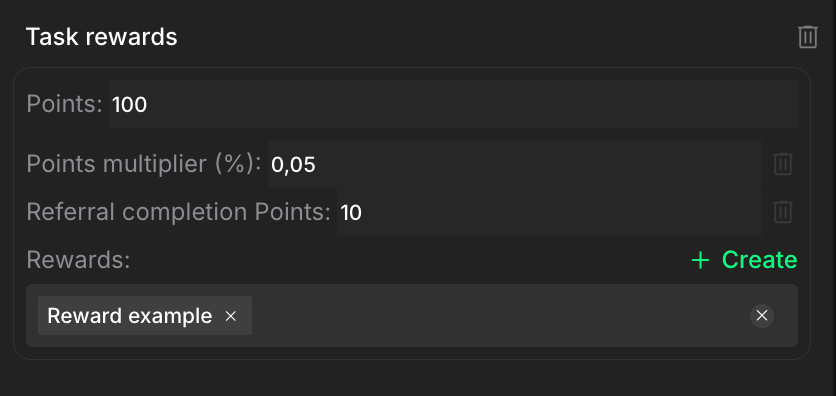
Points
Enter the base reward given when a user successfully completes the task. Consider the effort required. Align with your campaign’s point economy.Points multiplier
Click + Points multiplier to add a percentage boost to the base reward. Enter a percentage value to increase the points. Example: 100 points with 5% multiplier = 105 total points.Referral points
Click + Referral Points to set bonus points for users who referred someone that completes this task. Enter the number of points awarded to the referrer when their invitee completes this task. Encourage users to share your campaign and reward community growth.Rewards
Click + Rewards to set up custom rewards beyond points. Click + Create to open the reward creation dialog where you can:- Name your reward
- Upload an image
- Choose reward type (Web3 token, Discord role, gift code, etc.)
- Configure network or value as needed
Completion pop-up
Show users a custom message immediately after they complete your task. Click + to expand the Completion pop-up section.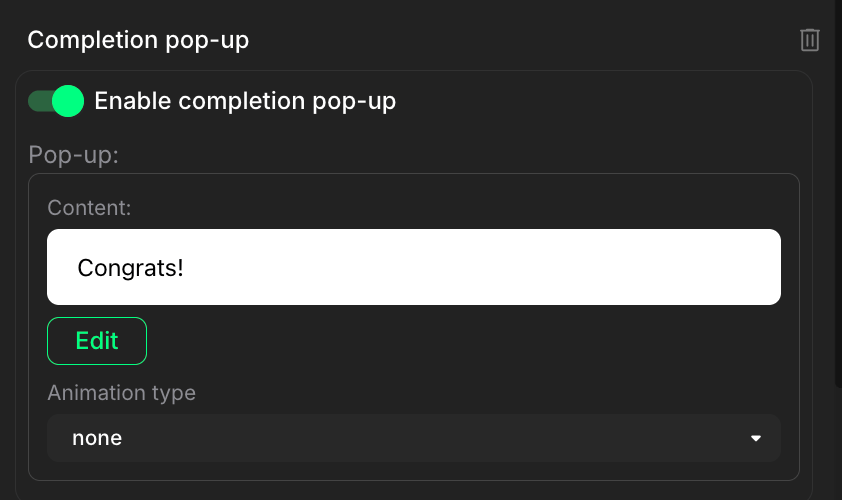
Use the completion pop-up to reinforce achievement, celebrate user success, give next steps, or drive further engagement.
Dependencies
Control the flow of your campaign by specifying which tasks must be completed before this one becomes accessible. Click + to expand the Dependencies section.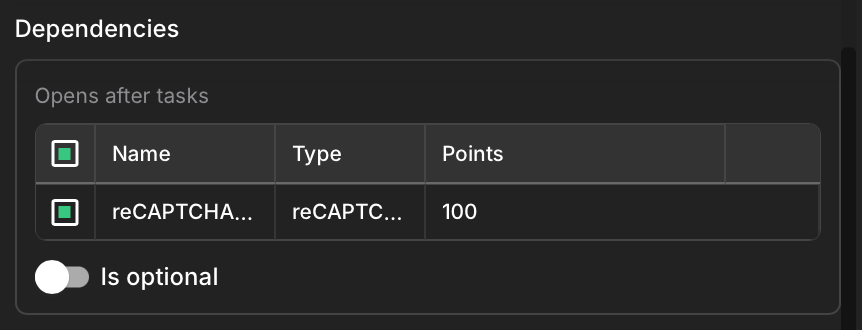
- Toggle off: Users must complete all prerequisite tasks
- Toggle on: Users can skip prerequisites
Create a strategic path for users to follow by chaining tasks together. This builds engagement progressively and ensures users don’t skip important steps.
Advanced settings
Add internal metadata and tracking information not visible to users. Click + to expand the Advanced settings section.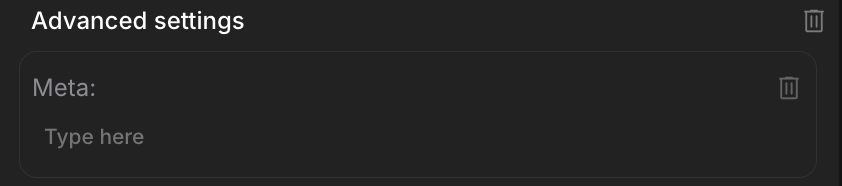
Save and preview
After configuring your task settings: Save changes: Click the green Save changes button at the bottom to apply all your configurations. Close: Click Close to exit without saving changes. Preview: Click Preview to see how your task appears to users.- Opens in a new tab
- Shows desktop, tablet, and mobile views
- Toggle between device types to ensure your task looks and functions seamlessly across all devices
What to do next
Now that your task is configured:- Test your task - Complete it yourself to verify everything works
- Add more tasks - Build out your complete quest journey
- Monitor performance in the Data analytics section - Track completion rates and user engagement