> For the complete documentation index, see [llms.txt](https://docs.claimr.io/llms.txt). Markdown versions of documentation pages are available by appending `.md` to page URLs; this page is available as [Markdown](https://docs.claimr.io/tasks/linkedin-tasks.md).

# LinkedIn tasks

## What are LinkedIn tasks?

LinkedIn tasks in Claimr allow you to reward users for interactind with your LinkedIn content directly from the feed. These tasks are verified automatically once the user connects their LinkedIn account and completes the repost action via claimr.

#### Use LinkedIn tasks to:

* Amplify your brand: Let your followers help spread updates, partnership news, and major announcements within professional circles.
* Drive engagement: Boost impressions and reposts on targeted posts to strengthen your organic reach.
* Automate reward validation: Eliminate manual review by tracking reposts directly through the LinkedIn embed.

## Create LinkedIn task

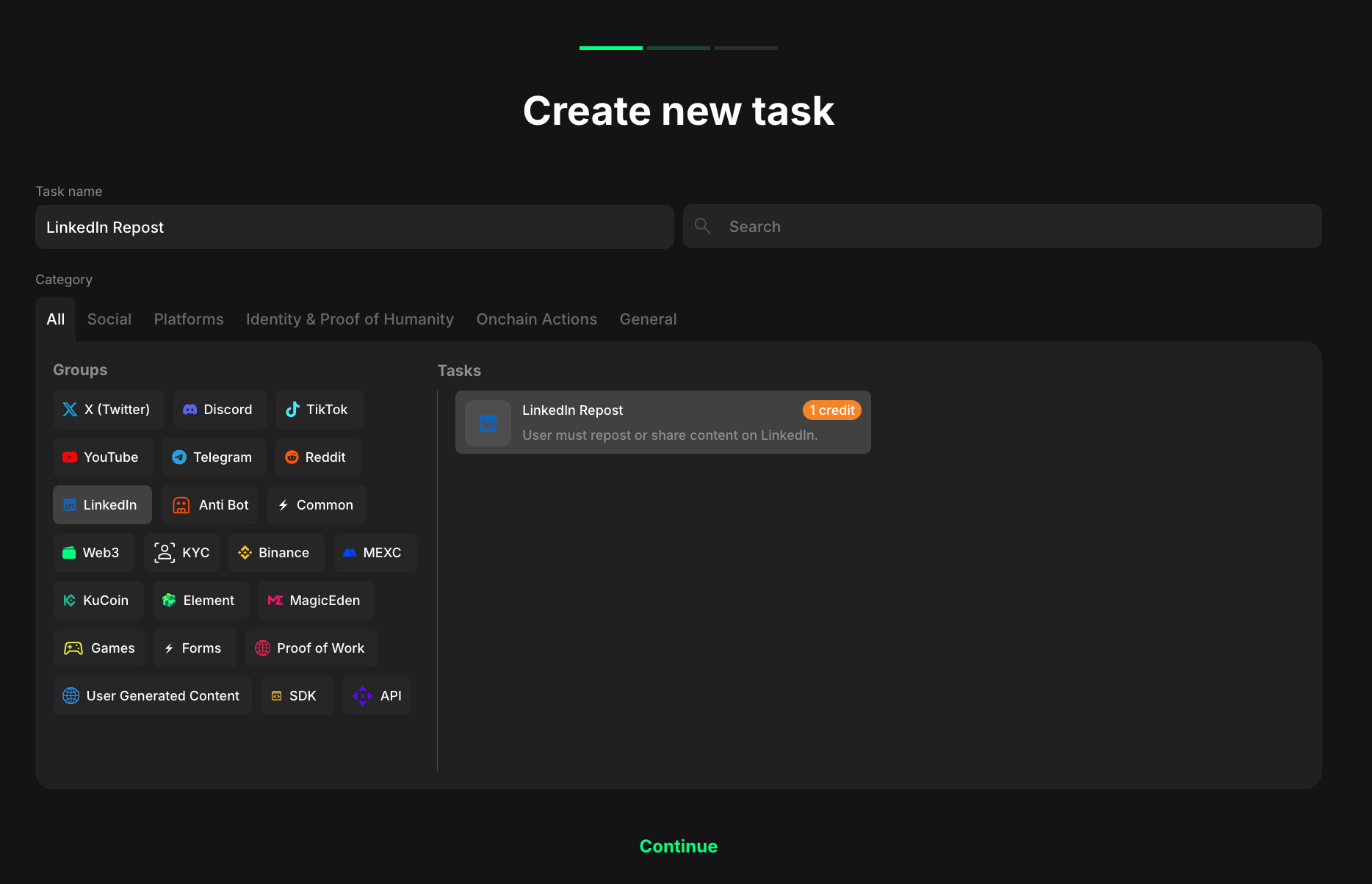
Choose the specific type of task you want to create for your campaign.&#x20;
<div data-full-width="false"><figure><img src="/files/g0mbZiLyJcdg7pmCtlU3" alt="" width="563"><figcaption></figcaption></figure></div>

1. Select <mark style="color:green;">**LinkedIn**</mark> to indicate that the task will be completed with this specific platform.
2. Considering your aim, select the specific task type from the expanded list.

## Configurate Task settings

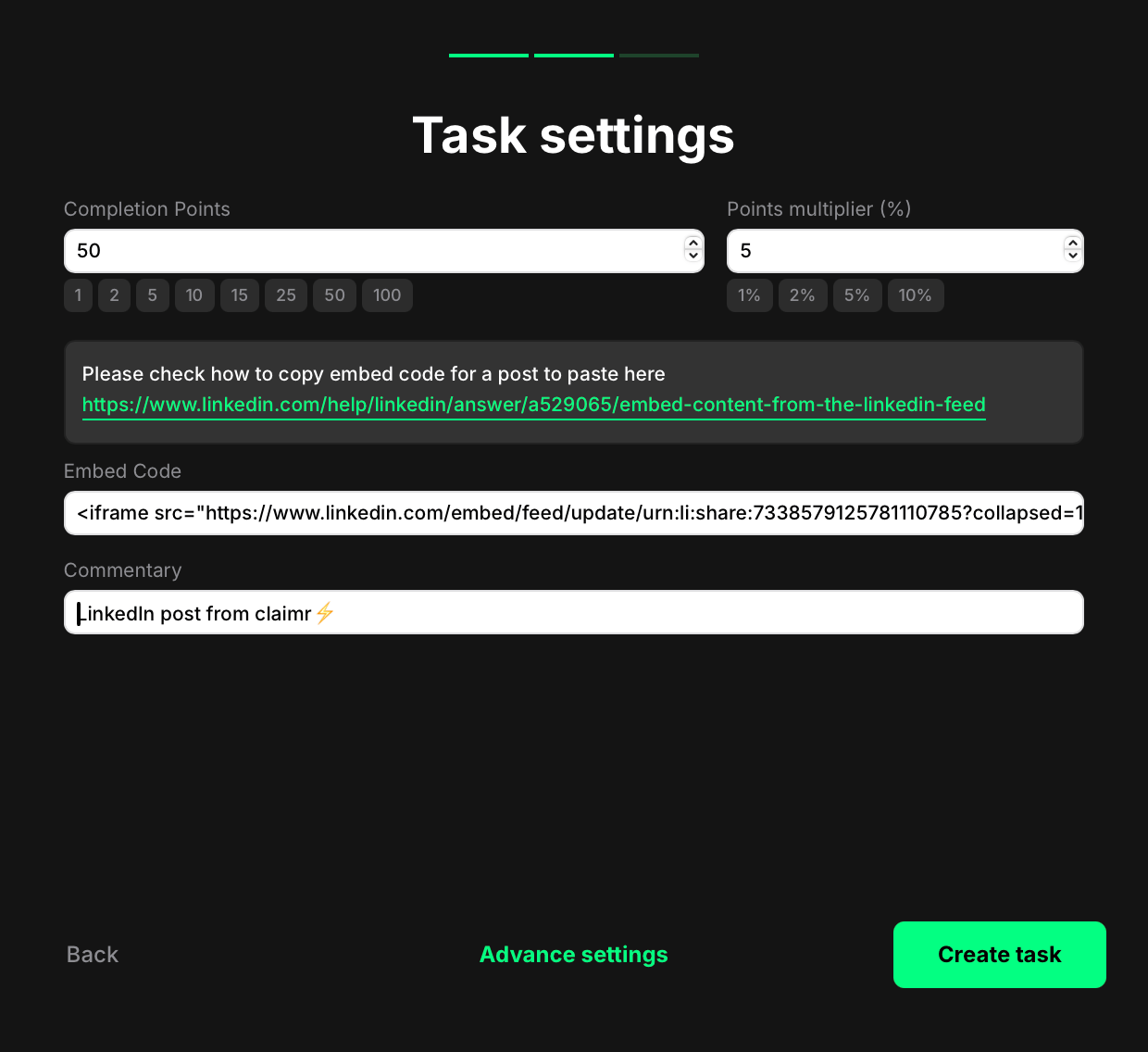
You’ll now be able to configure the repost task based on your reward structure and post type:
<figure><img src="/files/UsFGh3rj6K5ILapV5PUI" alt="" width="375"><figcaption></figcaption></figure>

* Completion Points: Set how many points a user earns for reposting the LinkedIn post.
* Points multiplier (%): Add an optional bonus. The multiplier increases the base reward by a percentage. For example, if your completion points are set to 100 and your multiplier is 5%, the final reward is 105 points.&#x20;
* Embed Code: Paste the LinkedIn embed iframe for the post you want users to share.

  [📌 Need help? Here’s how to copy a LinkedIn embed code](https://www.linkedin.com/help/linkedin/answer/a529065/embed-content-from-the-linkedin-feed)
* Commentary: Add a brief description for context.

Once you’re done:

* Click <mark style="color:green;">**Create task**</mark> to save and add it to your quest right away. You’ll now see the task listed in your quest. From there, you can reorder it, delete it, or edit it anytime.
* Or click <mark style="color:green;">**Advanced settings**</mark> to continue configuring more options specific to the selected task type.&#x20;

## User experience

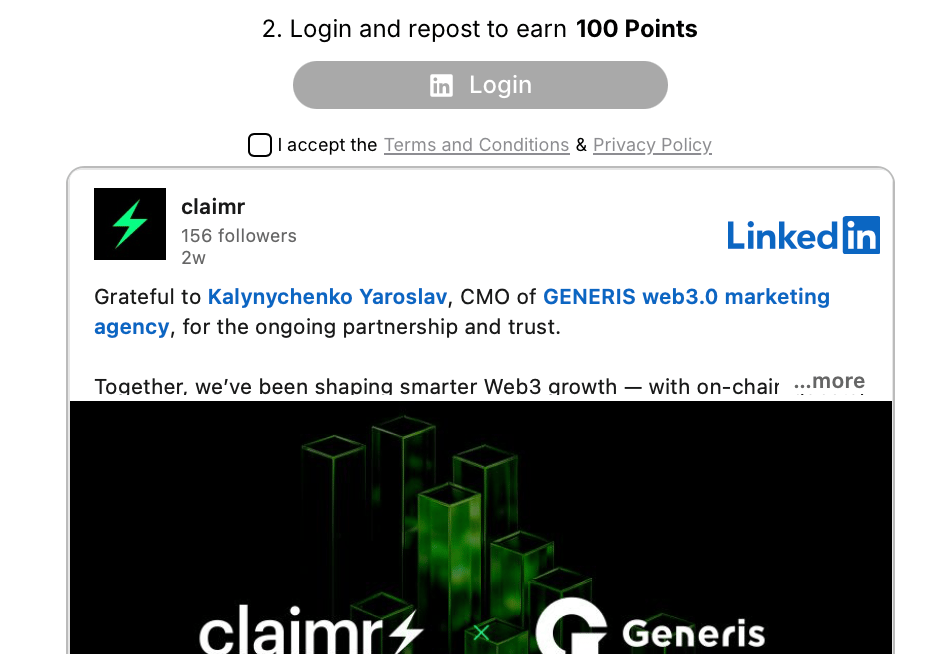
Here’s how it looks from the user’s side:
<figure><img src="/files/BhOB0w7oQVN6i51idfx5" alt="" width="375"><figcaption></figcaption></figure>

1. The user logs in and connects their LinkedIn account.
2. They see the embedded LinkedIn post inside the widget.
3. After clicking Login and Repost, they automatically receive the assigned points.

This process ensures that reposts are verified and trackable, without requiring manual submission.


---

# Agent Instructions
This documentation is published with GitBook. GitBook is the documentation platform designed so that both humans and AI agents can read, navigate, and reason over technical content effectively. Learn more at gitbook.com.

## Querying This Documentation
If you need additional information that is not directly available in this page, you can query the documentation dynamically by asking a question.

Perform an HTTP GET request on the current page URL with the `ask` query parameter, and the optional `goal` query parameter:

```
GET https://docs.claimr.io/tasks/linkedin-tasks.md?ask=<question>&goal=<endgoal>
```

`ask` is the immediate question: it should be specific, self-contained, and written in natural language.
`goal` is optional and describes the broader end goal you are ultimately trying to accomplish on behalf of the user. GitBook uses it to tailor the answer towards what is most useful for that goal.

The response will contain a direct answer to the question and relevant excerpts and sources from the documentation.

Use this mechanism when the answer is not explicitly present in the current page, you need clarification or additional context, or you want to retrieve related documentation sections.
