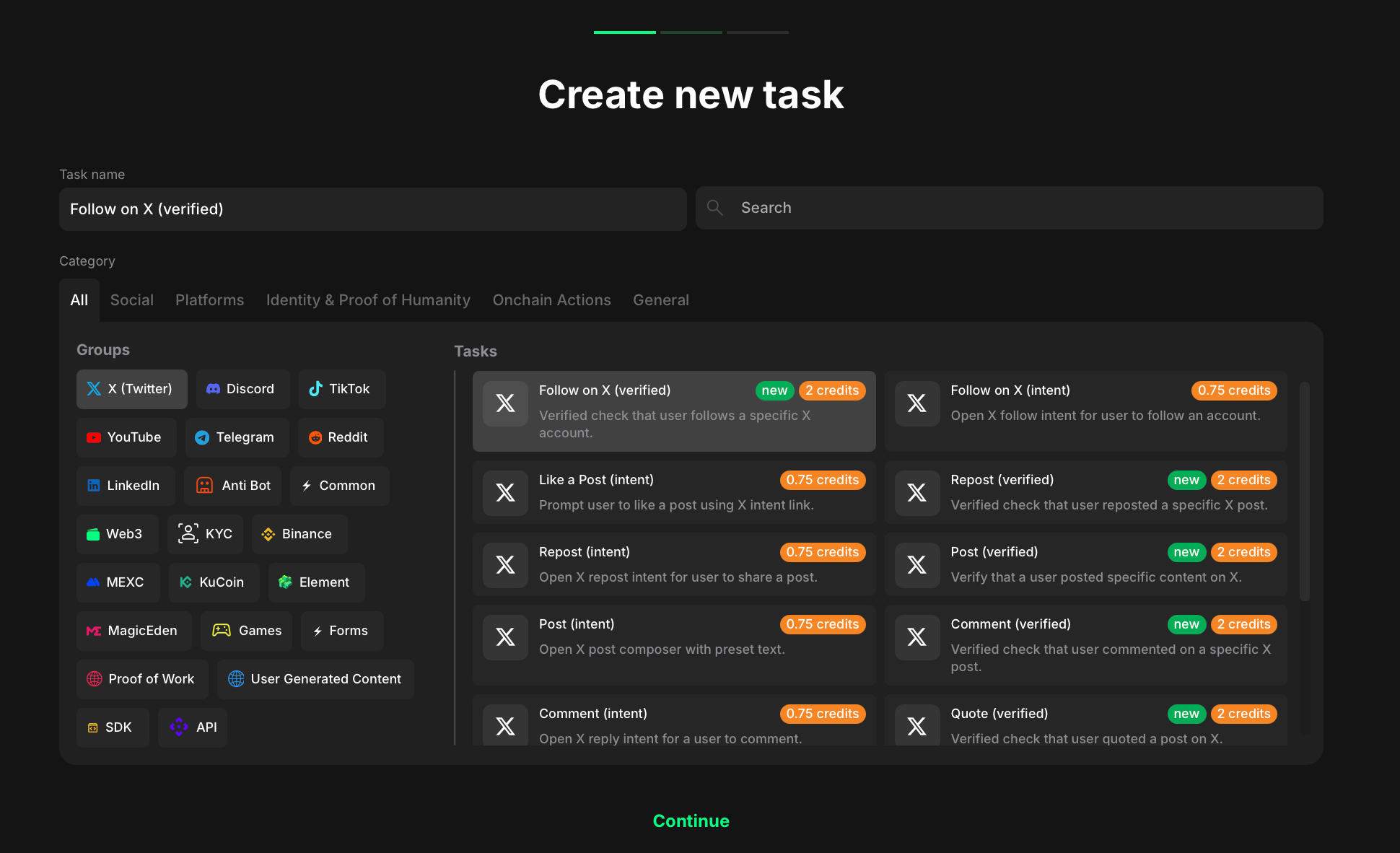
Add a new task to your quest, select the right type, and configure the core settings before customizing it further in the task-specific settings.
Tasks are what bring your quest to life. They guide users to take specific actions, like joining a Telegram channel, submitting a video, or connecting their wallet, and reward them for completing each step.In Claimr, you can choose from a wide range of task types across multiple platforms. Whether you’re building a social campaign or collecting Web3 data, creating a task is quick and flexible.
1
Open your quest
From your campaign dashboard, go to the Quests tab and click on the quest you’d like to work on. This opens the quest’s settings page.
2
Create a new task
On the quest settings page, click the + Create new task button. This opens the task builder where you’ll configure your task.
3
Select the task's category and type
Start by selecting a task category: Telegram, Web3, Events, etc. Each category includes one or more task types that define what the user needs to do.
Task type section
After you select the task type:
A task name will be filled in automatically based on the type you chose.
You can edit the name if you’d like.
Once you’re ready, click Continue to move to the setup.
4
Configure basic settings
Now you’ll set up the core settings for your task.
All tasks include:
Completion Points: How many points a user earns for completing this task.
Points multiplier (%): Optional bonus to boost the base reward.
Recurrence: Choose whether the task can be completed once, daily, weekly, or multiple times.
Additional settings may appear depending on the task type you selected in the previous step. For example, social tasks may ask for a post link.
5
Finalize your task
At this point, you have two options:
Click Create task to save and add it to your quest right away. You’ll now see the task listed in your quest. From there, you can reorder it, delete it, or edit it anytime.
Or, click Advanced settings to continue configuring more options specific to the selected task type.
Use these tags within the task header and the task completion message to display information about the reward, provide personalized feedback, and acknowledge the user’s achievement:
{points}: Displays the number of points the user earned for completing the task.
{icon}: Displays the icon associated with the points in your campaign.
{xp}: Displays the name or label used for points in your campaign.
Click + Create description and a text field will appear. Enter your description, select the style and the colour of your text, and add links or pictures. Once you’re ready, click Save to save your changes. Use the Preview button (top right) to see how your task will look to participants.
Use the task description to highlight the benefits of completing the task, both for the user and your campaign. Clearly explain the rewards or incentives they can earn.
Personalize your task descriptions and dynamically display information relevant to each user, making the task experience more engaging and tailored.How to use tags
Insert the tag: Simply type the tag directly into the text editor when creating or editing the task description.
Save your changes: Once you’ve added the tags, save your changes to the task description.
View the result: When a user views the task, the tags will be dynamically replaced with the corresponding information.
Available tags:
{{ref_name}}: Displays the name of the user who referred the current user to the campaign (if applicable). This can be useful for creating personalized welcome messages or acknowledging referrals.
{{team_name}}: Shows the name of the team the user belongs to. This tag can be used to foster a sense of community and encourage team participation.
{{total_xp}}: Displays the user’s total accumulated experience points (XP) within the campaign. This tag can be used to show users their overall progress and motivate them to earn more points.
{{xp_alias}}: Shows the name or label used for XP in your campaign. This allows you to customize the terminology to match your campaign’s theme or branding.
{{participants}}: Displays the total number of participants in the campaign. This tag can create a sense of community and encourage friendly competition.
{{evm_address}}: Shows the user’s connected EVM (Ethereum Virtual Machine) compatible wallet address, if available. This can be useful for displaying personalized information related to the user’s wallet or blockchain activity.
Make sure all tags are correctly formatted so they are recognized and processed by Claimr.
Control the visibility of your task description for participants.
Toggle off: The full description will be visible to anyone viewing your task.
Toggle on: The description will be condensed, showing only a brief summary. Participants will need to click “Show more” to expand and read the full description.
This is a great way to keep your task card looking clean and uncluttered, while still giving interested users the option to learn more.
Keep your users informed by customizing a pop-up message they see immediately after completing a task. Use it to reinforce achievement, give next steps, or drive further engagement.
To set it up:
Toggle Enable completion pop-up.
Click Create. This opens a rich-text editor.
Add your message - include visuals, formatting, links, or call-to-action content.
Click Save.
Add an animation visual effect to make the pop-up more engaging.
Control when a task becomes available. Use checkboxes to link prerequisite tasks.
For detailed information about each setting and tag, read the Task settings article.
Once you’re done configuring all fields, click Create task to save it and return to your quest overview. You can edit, delete, or reorder tasks anytime from the Quest page.