> For the complete documentation index, see [llms.txt](https://docs.claimr.io/llms.txt). Markdown versions of documentation pages are available by appending `.md` to page URLs; this page is available as [Markdown](https://docs.claimr.io/tasks/anti-bot-tasks.md).

# Anti-bot tasks

## What are Anti-bot tasks?

Anti-bot tasks in Claimr are designed to prevent automated submissions and ensure real users are interacting with your campaign. These tasks help you validate that a participant is a human (not a bot) before they proceed to more valuable or sensitive tasks in your quest.

Use Anti-bot tasks to:

* Add a friction point: Require users to complete a CAPTCHA check to filter out bots.
* Protect high-value tasks: Set dependencies so that users must first pass the CAPTCHA before accessing reward-heavy or critical tasks.
* Improve campaign integrity: Reduce the risk of fake completions or fraudulent submissions.

> For detailed information about general task settings, including task name, header, description, rewards, dependencies, and more, refer to our [Task Settings](/tasks/task-settings.md) article.

## **Task type**

Choose the specific type of task you want to create for your campaign.&#x20;
<figure><img src="/files/NOux30ytty88ls55YFIG" alt="" width="563"><figcaption></figcaption></figure>

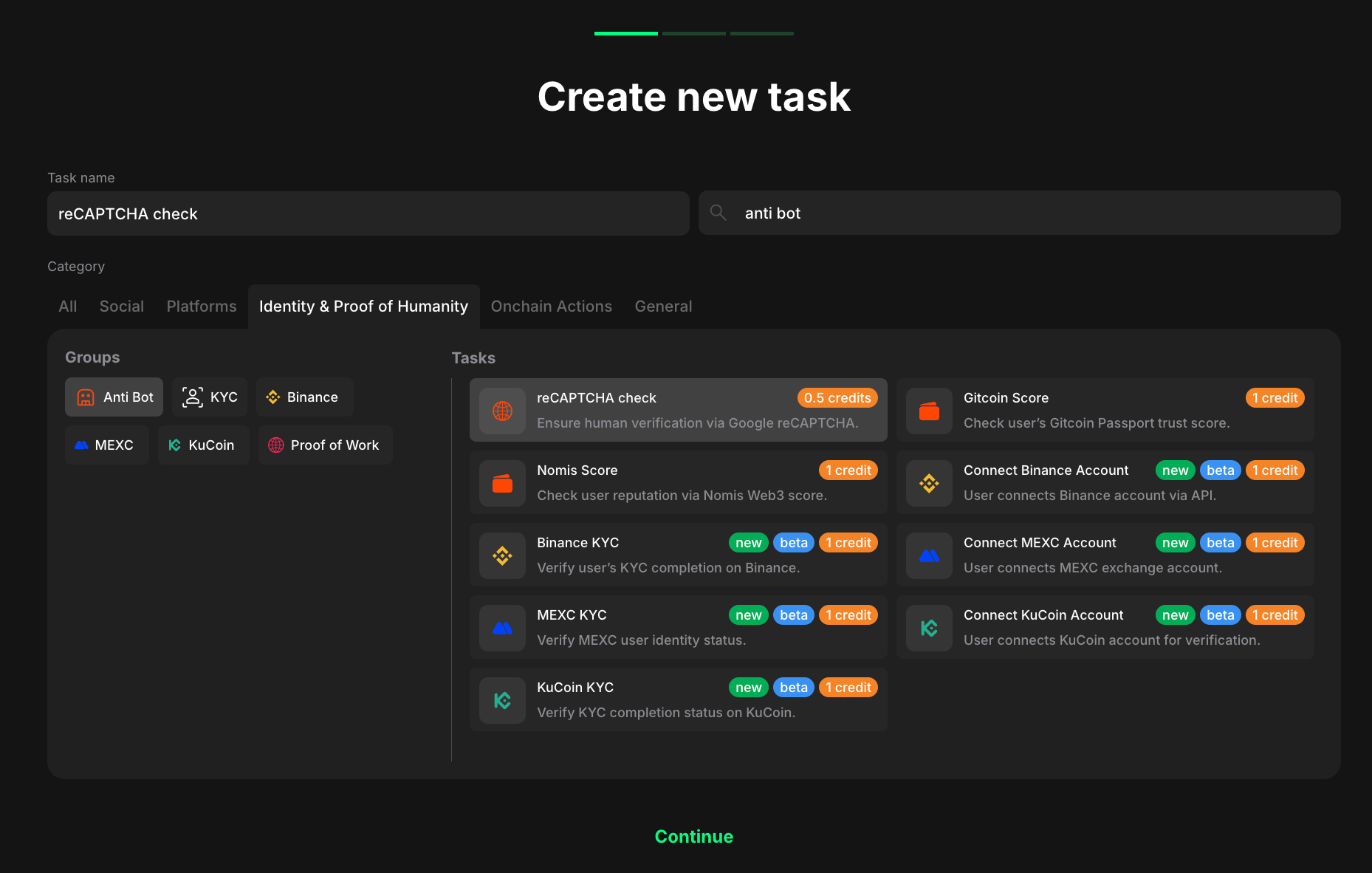
1. Go to your quest and click <mark style="color:green;">**+ Create new task**</mark>.
2. Select <mark style="color:green;">**Anti Bot**</mark> <mark style="color:$info;">under the</mark> <mark style="color:green;">**Identity and Proof of humanity.**</mark>
3. Considering your aim, select the specific task type from the expanded list.
4. Click <mark style="color:green;">**Continue**</mark> to proceed to task settings.

## reCAPTCHA check

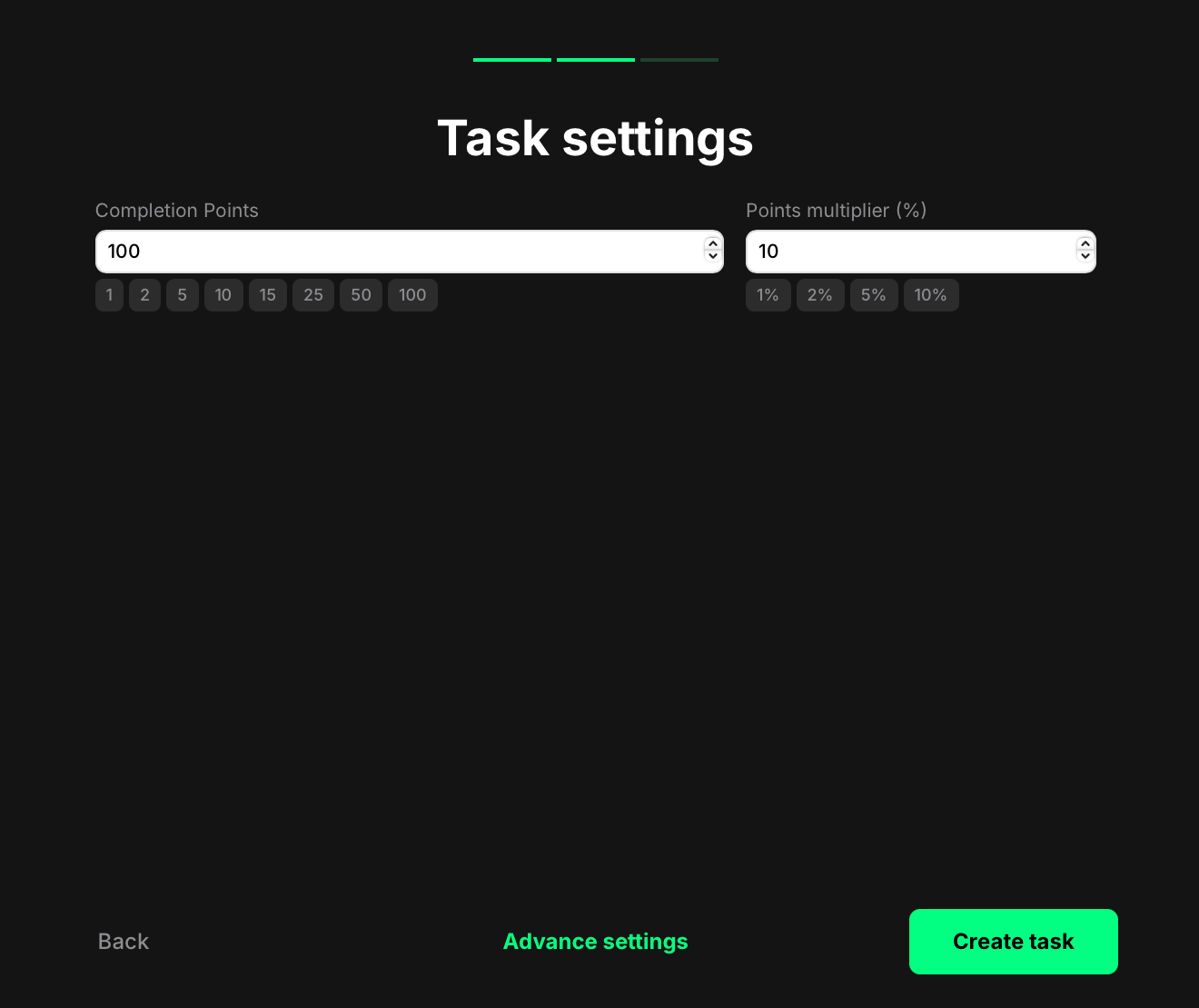
Since reCAPTCHA tasks are focused on verification, they have only two task-specific configuration fields.&#x20;
<figure><img src="/files/b4amoFShBqI49vEdacfu" alt="" width="375"><figcaption></figcaption></figure>

* Completion points: The number of points awarded once the user passes the CAPTCHA.
* Points multiplier (%) *(optional)*: Boost the final reward by a percentage if needed. For example, setting 10% will give a user 110 points instead of 100.

Once you’re done:

* Click <mark style="color:green;">**Create task**</mark> to save and add it to your quest right away. You’ll now see the task listed in your quest. From there, you can reorder it, delete it, or edit it anytime.
* Or, click <mark style="color:green;">**Advanced settings**</mark> to continue configuring more options specific to the selected task type.&#x20;

## Control access using dependencies

Want to use reCAPTCHA as a gatekeeper? Make completion of the Anti-bot task required before showing other tasks.

To do this:

1. Go to the task you want to protect.
2. Open its **settings.**
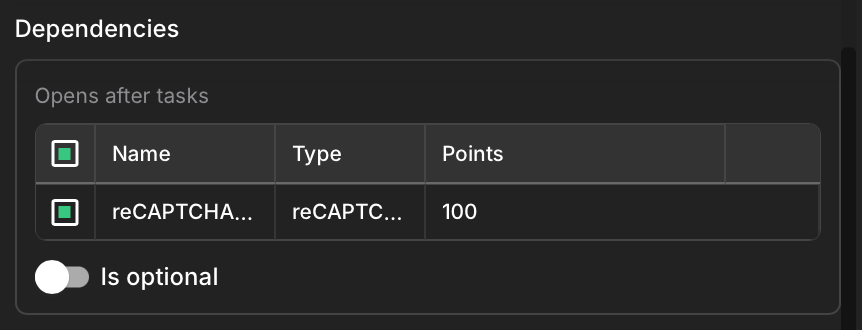
3. Scroll to the **Dependencies** section.

<figure><img src="/files/YVUnrnzs1Qt5dRNprnsr" alt="" width="375"><figcaption></figcaption></figure>

4. In the **Open after tasks field**, select your reCAPTCHA task.
5. Make sure the reCAPTCHA task appears before the protected task in the campaign list.

## How it looks to users

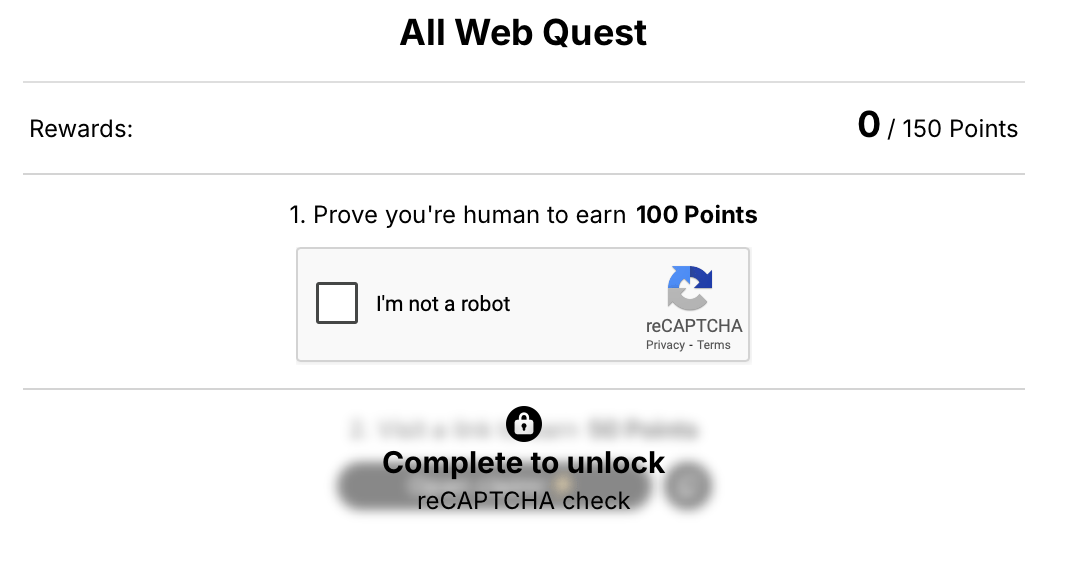
Users will first see the Anti-bot task. Once the task is completed:

* Users instantly earn the points you’ve assigned
* The system marks them as valid users
* Any dependent task becomes visible and can be accessed immediately
<figure><img src="/files/vljJpDoW7tctrnaCQZBh" alt="" width="375"><figcaption></figcaption></figure>

If the Antibot task is placed before high-value tasks in your campaign and properly linked with dependencies, users won’t even notice the behind-the-scenes logic — just a smooth and secure experience.


---

# Agent Instructions
This documentation is published with GitBook. GitBook is the documentation platform designed so that both humans and AI agents can read, navigate, and reason over technical content effectively. Learn more at gitbook.com.

## Querying This Documentation
If you need additional information that is not directly available in this page, you can query the documentation dynamically by asking a question.

Perform an HTTP GET request on the current page URL with the `ask` query parameter, and the optional `goal` query parameter:

```
GET https://docs.claimr.io/tasks/anti-bot-tasks.md?ask=<question>&goal=<endgoal>
```

`ask` is the immediate question: it should be specific, self-contained, and written in natural language.
`goal` is optional and describes the broader end goal you are ultimately trying to accomplish on behalf of the user. GitBook uses it to tailor the answer towards what is most useful for that goal.

The response will contain a direct answer to the question and relevant excerpts and sources from the documentation.

Use this mechanism when the answer is not explicitly present in the current page, you need clarification or additional context, or you want to retrieve related documentation sections.