> For the complete documentation index, see [llms.txt](https://docs.claimr.io/llms.txt). Markdown versions of documentation pages are available by appending `.md` to page URLs; this page is available as [Markdown](https://docs.claimr.io/tasks/web3-tasks/verify-transactions.md).

# Verify transactions

Use this task for incentivizing on-chain interactions with your smart contracts, rewarding users for participating in specific DeFi protocols, or tracking contributions to a DAO.

### Before you start

Make sure you have:

* A quest created within your campaign
* The contract address for the transaction you want to verify
* The Method ID of the specific function users should call
* Knowledge of which blockchain network the transaction should occur on

### Create the task

Follow the steps in[ Web3 tasks ](/tasks/web3-tasks.md)to navigate to the task creation screen, select **Web3** from the Groups section, and choose **Verify Transactions**.

### Task settings

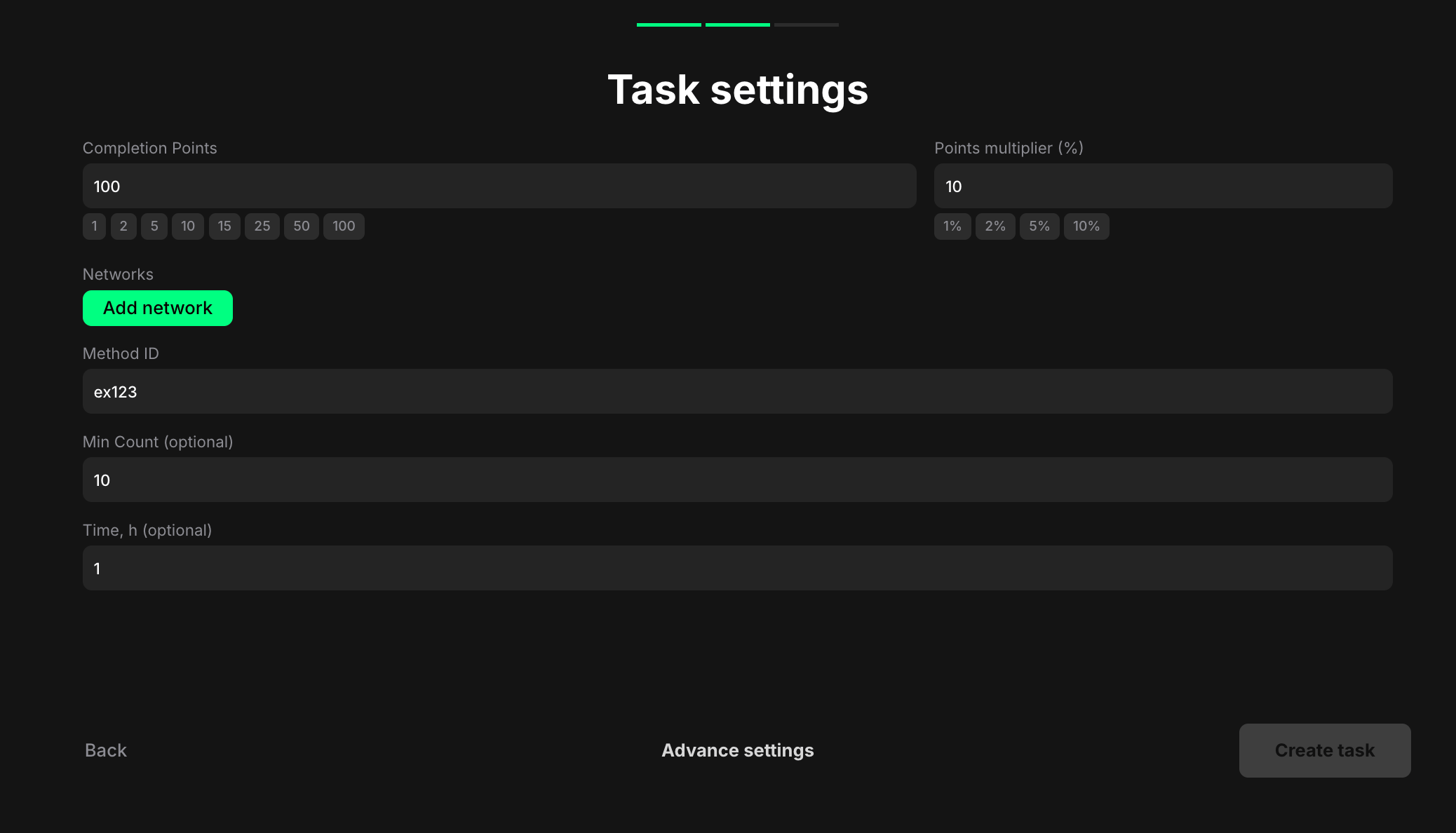
<figure><img src="/files/bsNpjRWISqFW64D9gfAG" alt="" width="563"><figcaption></figcaption></figure>

**Completion points**: Set the number of points awarded when the user completes the task.

**Points multiplier (%)**: Add a percentage-based bonus to the total reward. For example, a 10% multiplier increases the final reward by 10%.

**Networks**: Select the blockchain network on which the transaction should occur. Click **Add network** to add multiple networks. \
For each network, you'll need to specify the Contract Address. This ensures that the task accurately verifies transactions across all relevant networks

**Method ID**: Enter the unique identifier that specifies which function within a smart contract is being called during a transaction. This is a short code derived from the function's name and the types of its parameters

**How to find Method ID**:

1. Locate the transaction on a blockchain explorer (like Etherscan)
2. Click on the transaction hash to view its details
3. Look for the "Input Data" section
4. The Method ID is usually displayed at the beginning of the input data string (starting with "0x")

**Min Count (optional)**: Specify the minimum number of times this transaction must be executed. Leave blank if a single transaction is sufficient

**Time, h (optional)**: Set a time window in hours for counting transactions. If specified, only transactions made within this time period will count

### **Pro tips**

* Provide clear instructions on how to execute the specific transaction, including any necessary steps like connecting a wallet, accessing the relevant dApp or smart contract, and providing the required parameters
* Specify the purpose of the transaction, the smart contract involved, and any relevant links (e.g., to the dApp or blockchain explorer) in the task description
* If the task involves interacting with smart contracts, emphasize security best practices and remind users to verify the transaction details before executing


---

# Agent Instructions
This documentation is published with GitBook. GitBook is the documentation platform designed so that both humans and AI agents can read, navigate, and reason over technical content effectively. Learn more at gitbook.com.

## Querying This Documentation
If you need additional information that is not directly available in this page, you can query the documentation dynamically by asking a question.

Perform an HTTP GET request on the current page URL with the `ask` query parameter, and the optional `goal` query parameter:

```
GET https://docs.claimr.io/tasks/web3-tasks/verify-transactions.md?ask=<question>&goal=<endgoal>
```

`ask` is the immediate question: it should be specific, self-contained, and written in natural language.
`goal` is optional and describes the broader end goal you are ultimately trying to accomplish on behalf of the user. GitBook uses it to tailor the answer towards what is most useful for that goal.

The response will contain a direct answer to the question and relevant excerpts and sources from the documentation.

Use this mechanism when the answer is not explicitly present in the current page, you need clarification or additional context, or you want to retrieve related documentation sections.