
What is campaign localization?
It is the process of translating and culturally adapting your campaign’s text and user interface into multiple languages. Essentially, it means making your campaign accessible and understandable to people who speak different languages. Using campaign localization offers several key benefits:- Reach a global audience: By providing content in various languages, you can significantly expand your campaign’s reach beyond a single linguistic group. This allows participants worldwide to engage with your campaign in a way that feels natural to them.
- Enhance user experience: Participants are more likely to interact with and understand your campaign when it’s presented in their native language. This creates a more inclusive, user-friendly, and effective experience, leading to higher engagement and satisfaction.
- Seamless integration: Create and link custom translations to any text field within your campaign. The platform then automatically displays the correct translation based on the user’s active language. Plus, many system-level components are already translated by default, simplifying the process even further.
- By creating custom keys in Customization → Localization
- By using the dedicated editor for Rich Text blocks (in forms, descriptions, challenges, etc.)
Add languages to your campaign
First, declare which languages your campaign will support.1
Navigate to the campaign
Navigate to the specific Campaign you want to localize.
2
Go to Settings
Go to the campaign Settings.
3
Open the Languages section
Locate the Languages section. To make changes, click the edit icon (a pencil) on the right.
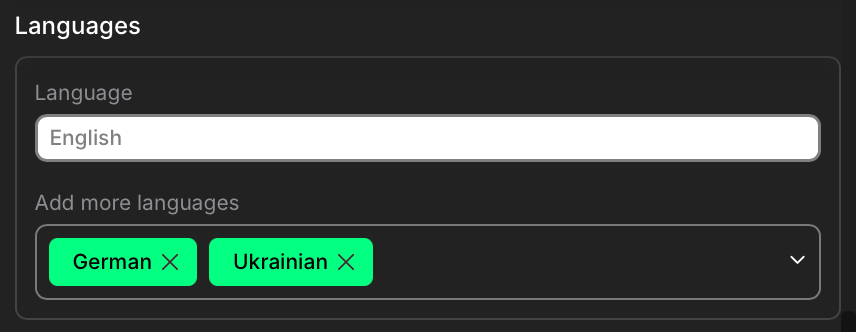
- The Language field shows the campaign’s default language.
- Click into the Add more languages field to see a dropdown list of available languages. Select one or more languages to add.
4
Save your changes
Click Update to save your changes. The Languages section will now display the default language and all additional languages you have enabled.
Enable the language selector
In your campaign settings, turn on the Show language selector toggle. This adds a small language menu to the corner of the widget, so users can switch languages anytime.Preview translations during setup
While configuring your campaign, you can test how the widget appears in different languages using the built-in preview language selector. This option shows all available translations - even if not added to your live settings - and helps you check formatting and alignment.set_language method
You can control the widget language manually using the methodset_language(language). This lets you align the widget with the rest of your site or app based on user preferences.
Customize localization
Create a custom key

- Create a key with any convenient name (for example:
my_custom_group_name). - Add the value for this key. For instance, for the key
my_custom_group_name, you would enter “Name meiner Gruppe”.
Use your custom key
Now, this key can be used anywhere in the system where there are name fields visible to the end-user:- Group names
- Button names
- Quest names
- Action names
- Task descriptions
- Any other text displayed in the widget
group_name as the value for the “Name” field.
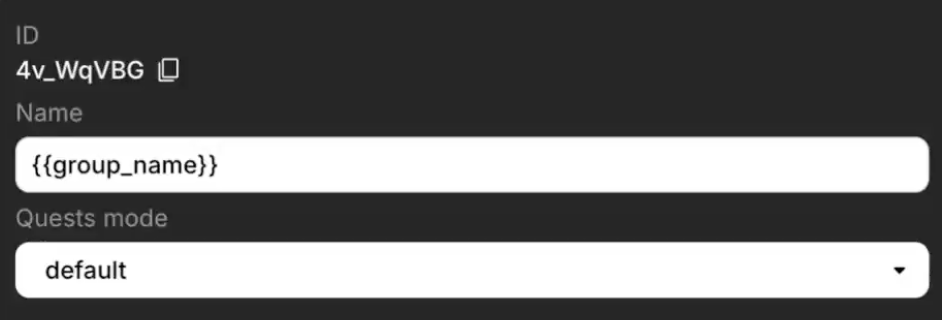
{{task.name}} will automatically insert the current task’s name based on the active language.
This works for various object types such as task, group, quest, and action.
How it works in the interface
After the key has been added and applied to elements:- In the widget, the system automatically inserts the translation according to the active language.
- If the user changes the language, the translation updates automatically.
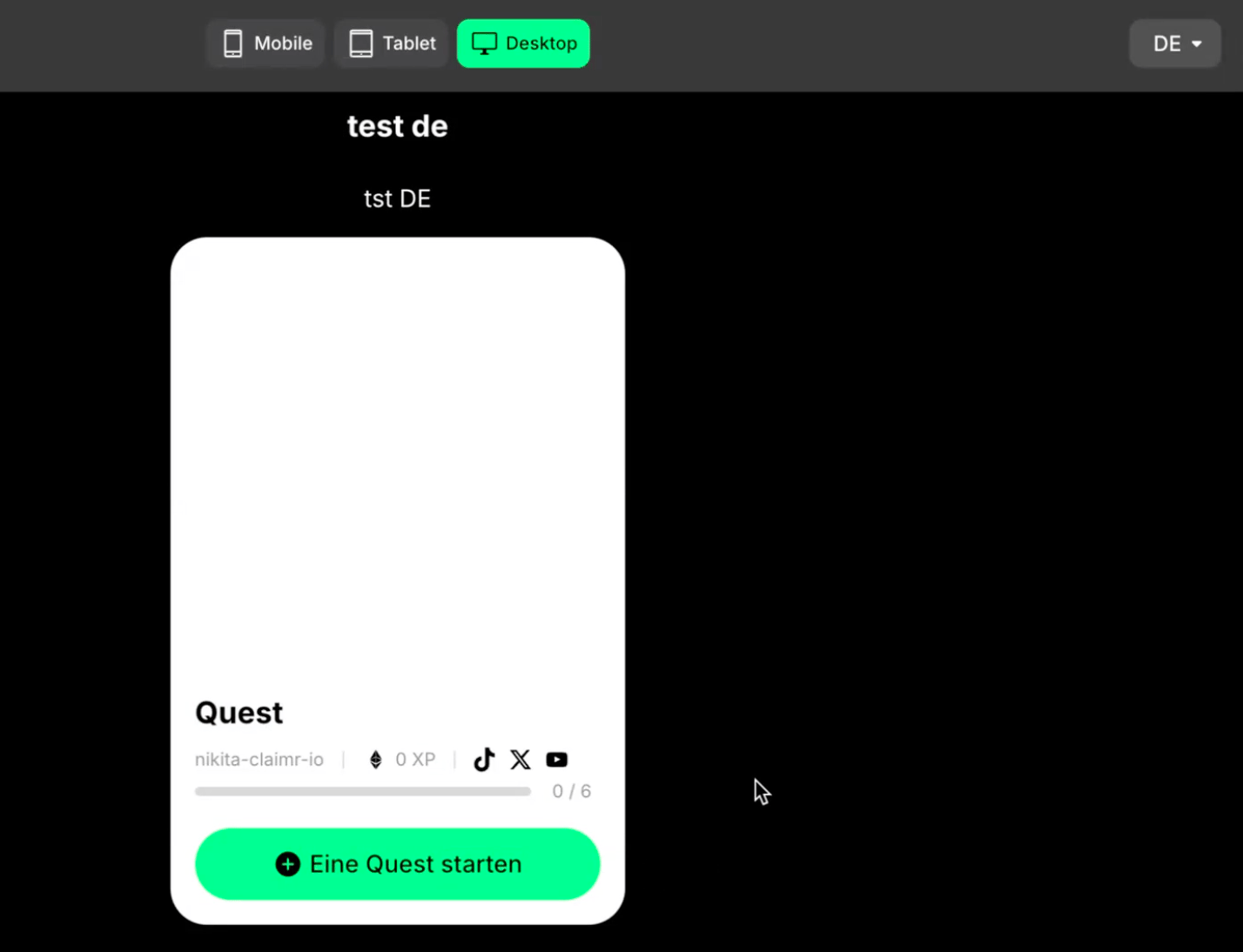
Quest card displaying content in German when selected
Localize descriptions
Rich text descriptions are formatted content blocks used in forms, group descriptions, quest descriptions, and other areas where detailed text, images, or special formatting are needed. This localization method is separate from using custom translation keys for simple text strings, as it manages the entire formatted content block per language. Firstly, ensure you have enabled languages for your campaign before localizing rich text descriptions. Refer to the “Add languages to your campaign” section for instructions.1
Access the Rich text editor
Navigate to where you need to create or edit a rich text description. The rich text editing window will open.
2
Enter your default language content
The editor defaults to English. Create your complete description in English, using all available rich text formatting tools (bold, lists, images, etc.).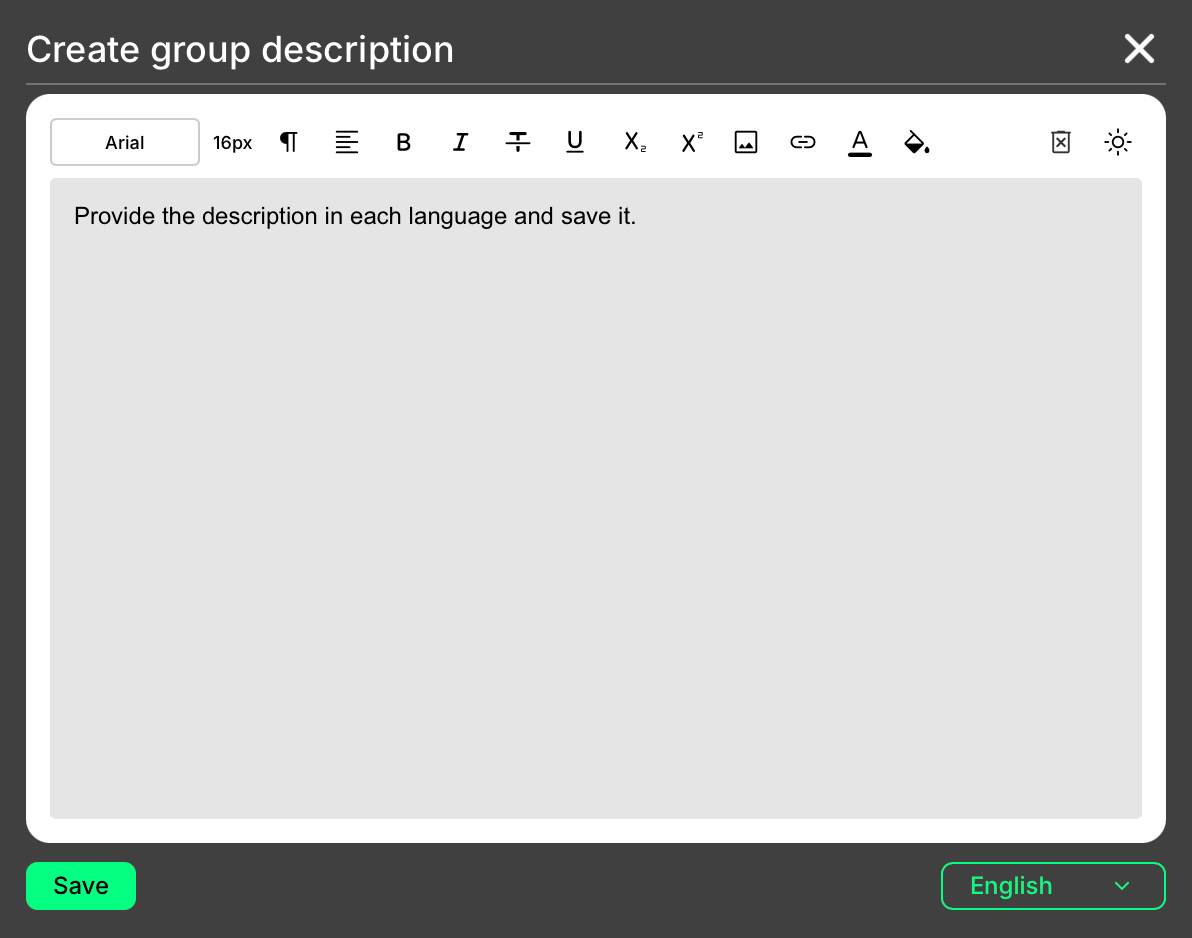
3
Switch languages
Use the language selector in the bottom right corner of the editor to switch to another active language.
4
Add localized content
The content area will clear. Enter the full description for the newly selected language. You are creating an independent, formatted content block for each language.
5
Repeat for all languages
Continue switching between languages and creating a unique rich text description for each.
6
Save your changes
Click the Save button. A single save action saves all the localized versions you’ve created within that rich text block.
How it works in the interface
After the localized rich text descriptions are saved:- In the widget, the system automatically displays the correct rich text description based on the active language.
- If the user changes the language using the built-in language switcher, the rich text content updates automatically.
Rich text descriptions do not use custom localization keys. You directly input the full content for each language in the editor.