
Understanding Groups
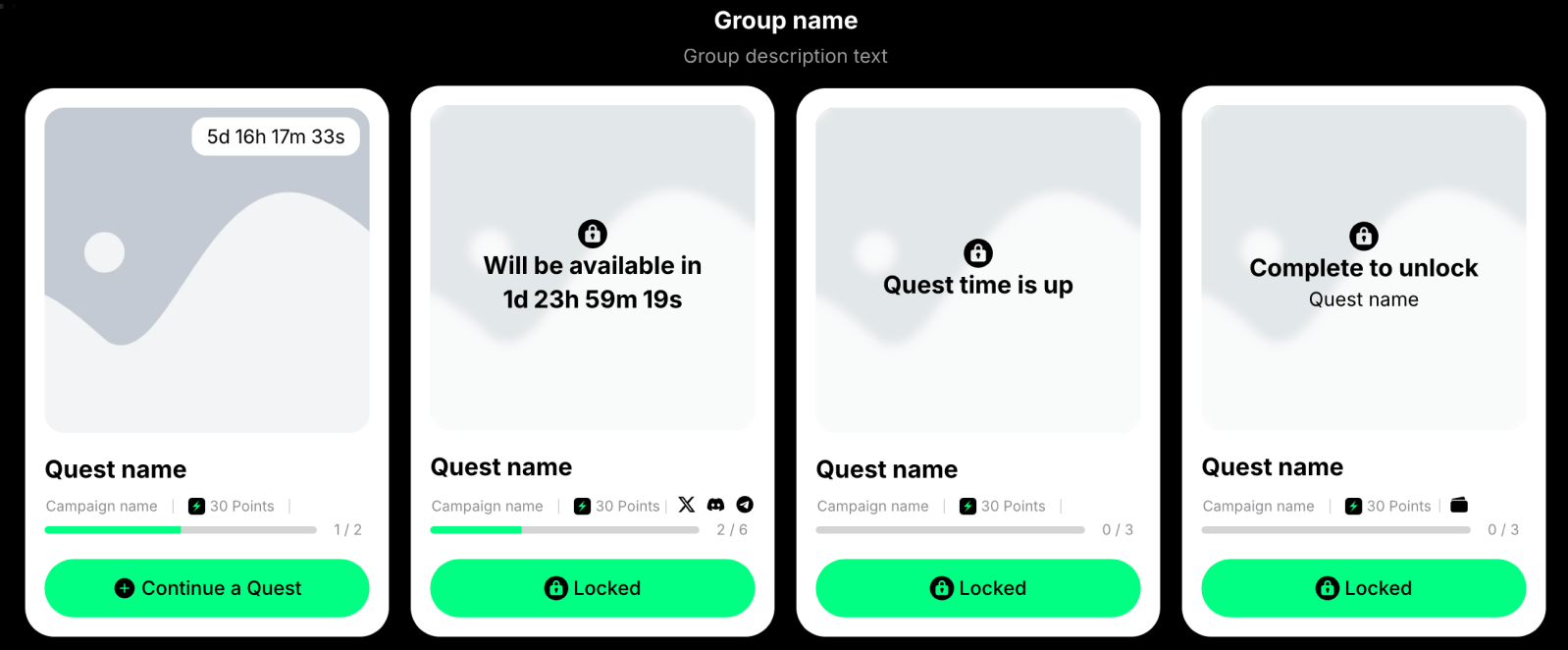
Example: Quest group with its title and description
Group state indicators
Like individual tasks, quest groups in Claimr can also have different states, which should be clearly communicated to the user through visual cues and messaging. Possible states for a quest group:- Active: The quest group is currently accessible, and users can participate in its quests. This is often indicated by a distinct visual style, such as a brightly colored header or a prominent “Active” label.
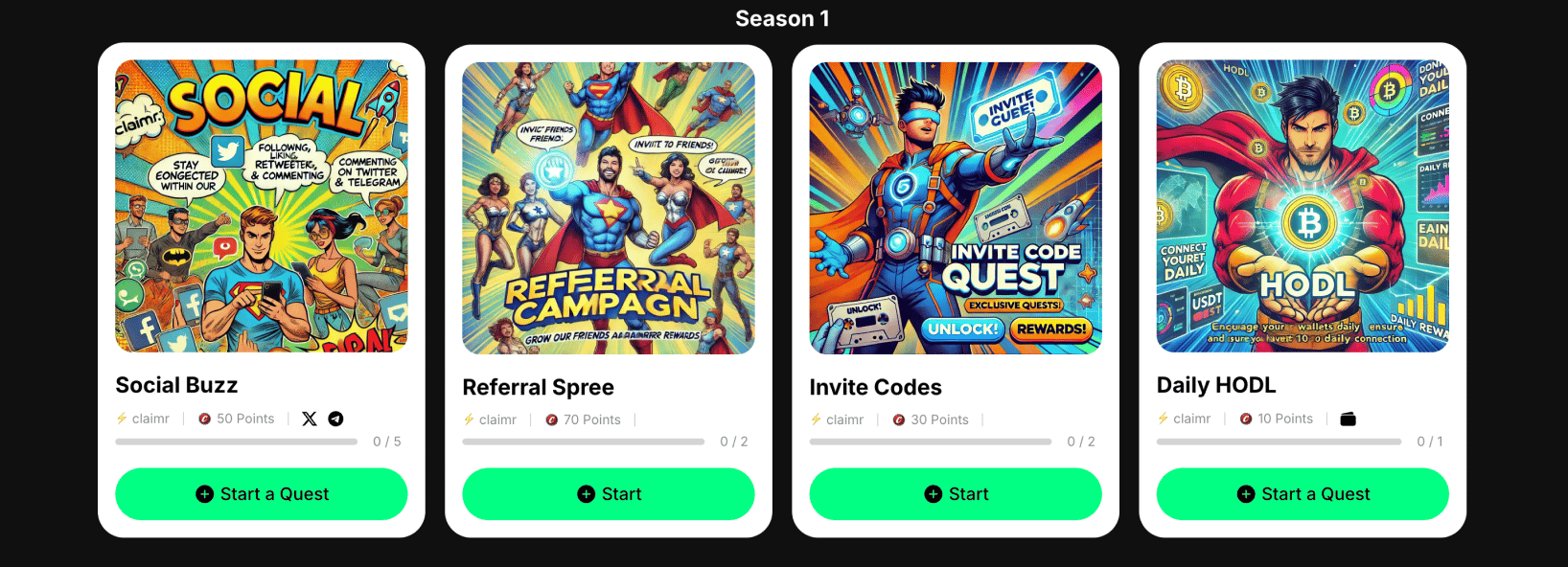
Active quest group example
- Completed: The user has successfully completed all the quests within this group. This might be visually represented with a checkmark, a trophy icon, or a “Completed” label.
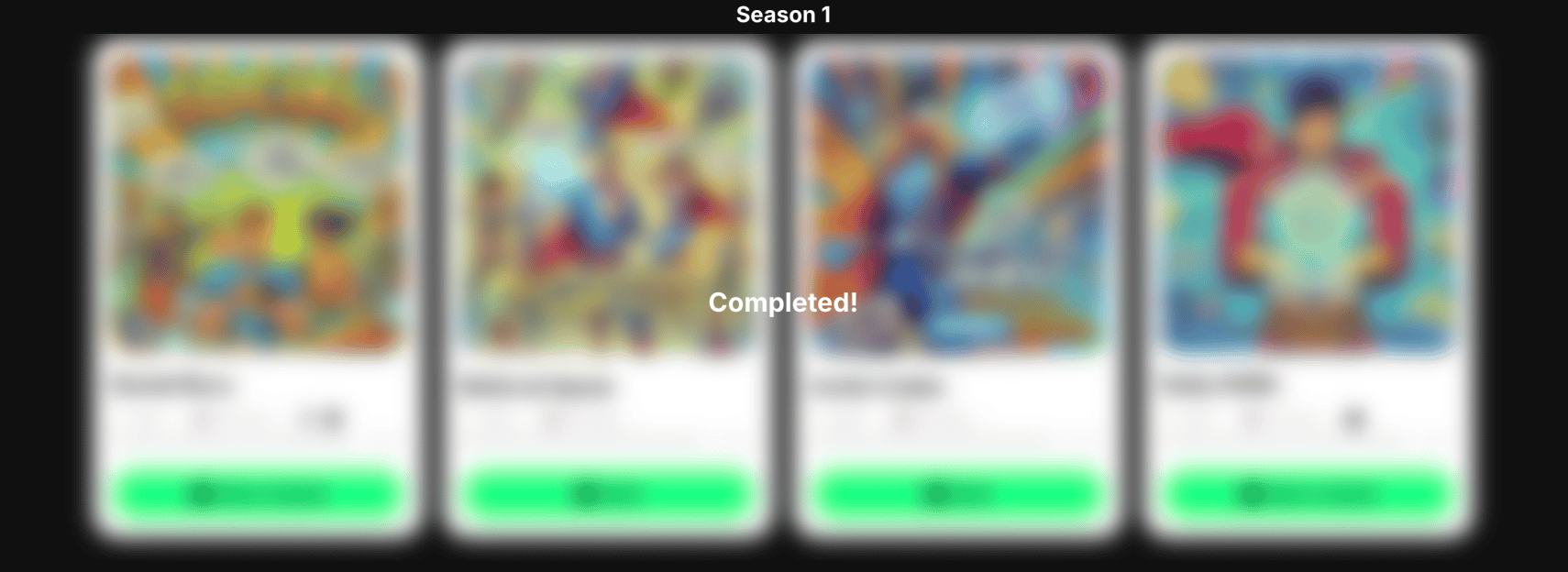
Completed quest group example
- Locked: The quest group is currently inaccessible due to certain conditions. There are a few common reasons for a group to be locked:
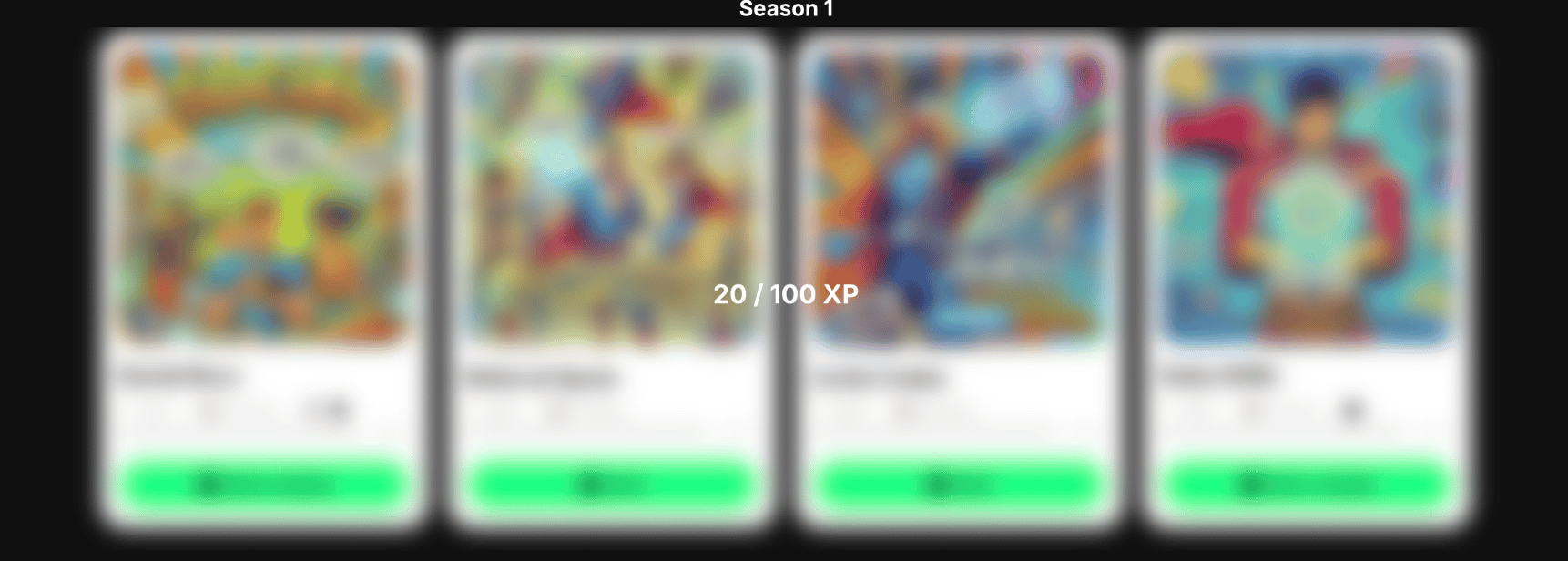
Locked: not enough points quest group example
- Not enough points: Users need to earn a specific number of points or complete other quests to unlock this group. This is often visually indicated with a lock icon or a progress bar showing how many points are still needed.
- Timer: The quest group is locked until a specific time or date. This can be represented with a timer or a countdown clock, clearly showing when the group will become available.
- Inactive (Upcoming): The quest group is not yet active but will become available at a scheduled time in the future. This can be indicated with a “Coming Soon” label or a date and time for when the group will become active.
- Inactive (Past): The quest group is no longer active and is not available for participation. This might be visually de-emphasized or have a label indicating it’s expired or past.
- Visual clarity: Use distinct colors, icons, or labels to clearly differentiate between each state.
- Accessibility: Ensure the indicators are easily distinguishable for users with visual impairments, utilizing sufficient contrast and screen-reader-friendly descriptions.
- Consistency: Maintain a consistent visual style for state indicators across all quest groups and individual quests within your campaign.
- Informative tooltips or labels: Consider using tooltips or concise labels to provide additional context or information about the reason for a locked state (e.g., “Unlocks after completing [Quest Name]”).
Group header
Provides a clear and concise title for the group, summarizing its theme or focus.- Clarity: Use descriptive and easily understandable language.
- Visual prominence: Make the header visually distinct to differentiate it from individual quests.
Group description
Provides additional context or information about the group.- Conciseness: Keep the description brief and focused.
- Informative: Clearly convey the theme or purpose of the group.
Quest cards
Each quest within the group is represented by a quest card.- Visual clarity: Use clear visuals and labels to distinguish between different quest states.
- Information hierarchy: Prioritize important information.
- Engagement: Design visually appealing cards.
Navigation and layout
Present the quests within a group clearly and in an organized manner, allowing for easy navigation and exploration.- Logical grouping: Group related quests together visually.
- Clear hierarchy: Establish a clear visual hierarchy between the group header, description, and individual quest cards.
- Responsive design: Ensure the group layout adapts well to different screen sizes and devices.
Layout options
- Grid layout: Arrange quest cards in a grid format. This is ideal for showcasing multiple quests simultaneously and allowing users to quickly scan and compare options.
- Slider layout: Present quest cards in a horizontal slider. This is suitable for limited space or when you want to emphasize a sequential flow of quests.
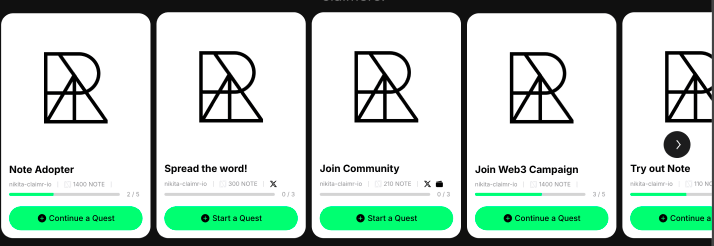
Example: Slider layout