> For the complete documentation index, see [llms.txt](https://docs.claimr.io/llms.txt). Markdown versions of documentation pages are available by appending `.md` to page URLs; this page is available as [Markdown](https://docs.claimr.io/how-to/create-discord-campaign.md).

# Create Discord campaign

## **Introduction**

Campaigns are the foundation of your user engagement strategy in claimr. Think of a campaign as the main container for your interactive experience, holding all the quests, tasks, and rewards you design to guide users and achieve your goals. Using claimr campaigns focused on Discord can help you:

* Increase your Discord server members.
* Encourage participation in Discord discussions or activities.
* Promote your Discord community.
* Reward users for joining and interacting with your server.
* Track the effectiveness of your Discord marketing efforts.

When creating a new campaign, claimr offers pre-built **Basic** templates for a quick start. Alternatively, you can choose to start with an **Empty** campaign to build everything manually.

This tutorial will guide you through the **manual process** of creating a campaign specifically designed for Discord engagement, including configuring the available Discord tasks.

## **Create your campaign**&#x20;

1. From your claimr dashboard, click **Campaigns** in the navigation menu.
2. On the Campaigns page, click the **Create new campaign** button.
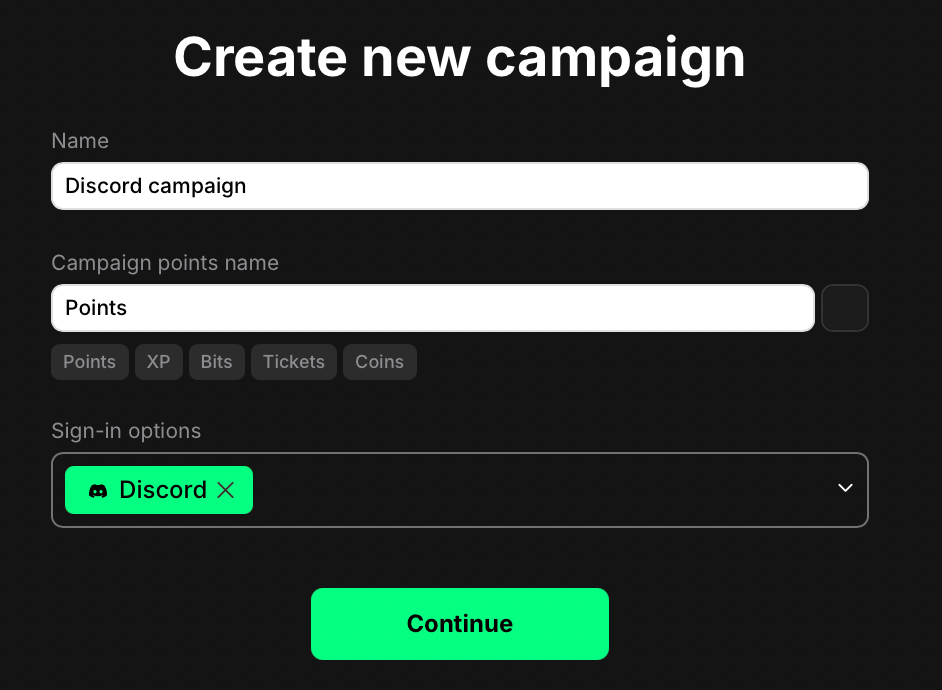
3. In the opened window, fill in the following details:

<figure><img src="/files/AHSRED9PGAahk9Z2e81G" alt="" width="375"><figcaption></figcaption></figure>

* **Name:** Enter a name for your campaign.&#x20;
* **Campaign points name:** Enter the name for the points users will earn (e.g., Points, XP, Tokens).
* **Sign-in options:** Select **Discord**. This requires users to connect their Discord account to join and participate.

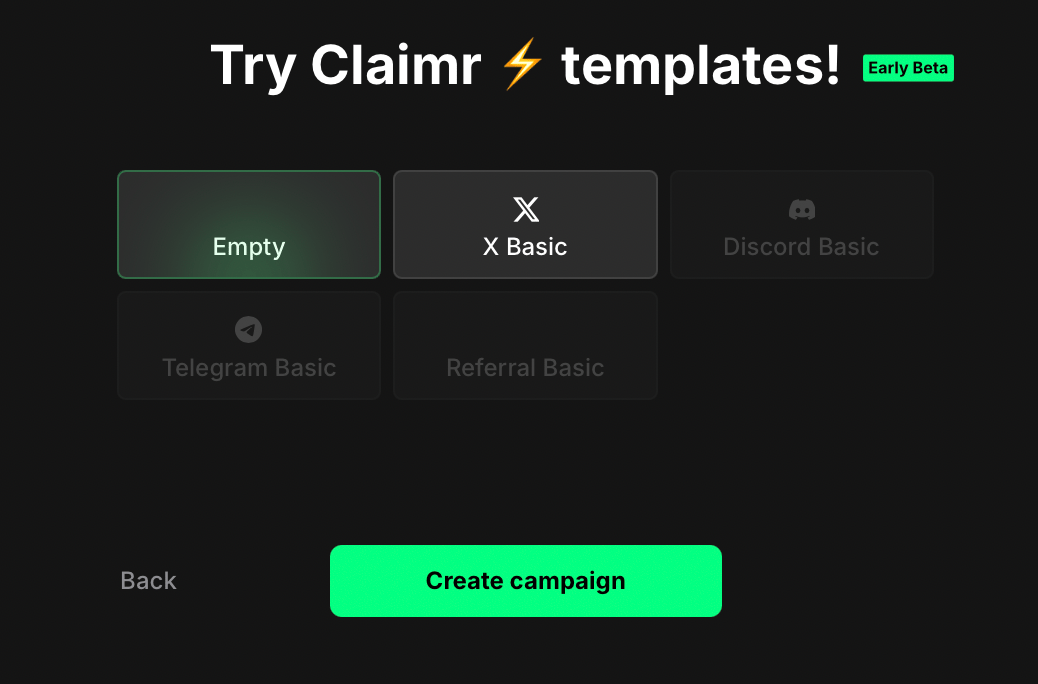
4. Click the **Continue** button. You will now see options to start with a pre-built template or from scratch. &#x20;
5. Select **Empty** to build your campaign manually and click **Create campaign** button.

<figure><img src="/files/UH7XdMCM7PUFX9Nv0L8x" alt="" width="375"><figcaption></figcaption></figure>

## **Create your quest**

Once your campaign is created, you will be automatically taken to the **Groups of** **quests** section. This is where you will add and organize your quests.&#x20;

<figure><img src="/files/xSdQgnPu3PybDAL4dva7" alt=""><figcaption></figcaption></figure>

Quests are often organized into **Groups** for structure. You will see a **Default group** already created.&#x20;

1. Сhange the name of this **Default Group** by clicking the edit icon (pencil) on the right.
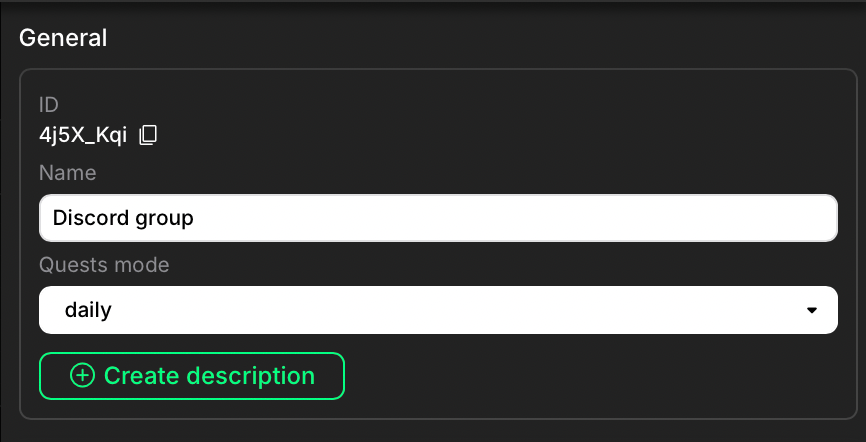
2. In the **General** settings that open, type the new name in the **Name** field, then click **Update** to save. You will be returned to the **Groups** dashboard.

<figure><img src="/files/7v2aYLIKjksgyw4M4lE5" alt="" width="375"><figcaption></figcaption></figure>

3. Within the **Group** area, click **+ Create quest**. A new form will appear.&#x20;
4. Enter a descriptive name for your first quest and click **Create**.

Your newly created quest will now appear as a card within the **group** on the **Quests** page.

<figure><img src="/files/2e9gwy9U4OwO4aWY3H6s" alt=""><figcaption></figcaption></figure>

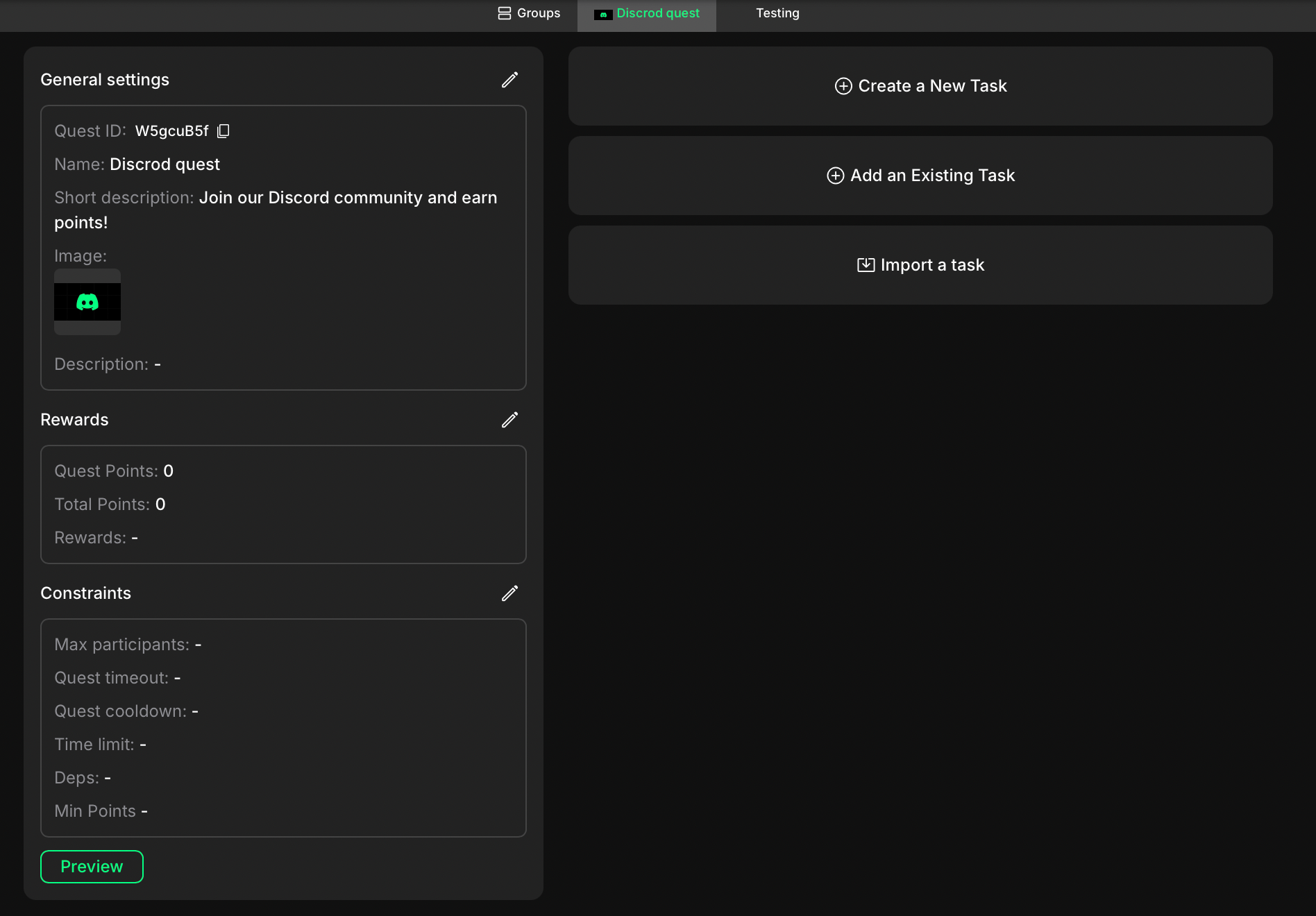
5. Click directly on the quest card to open its dedicated settings page.&#x20;
<figure><img src="/files/XbTEkFpe7F7mg55iVXfN" alt=""><figcaption></figcaption></figure>

From this page, you can:

* Begin adding tasks to the quest (covered in the next steps).
* Edit the quest's **General Settings**, including changing the **Quest Name**, adding a **Description**, or uploading an **Image**.

{% hint style="info" %}
For a detailed explanation of all available quest settings, please see our tutorial [Quest settings](/quests/quest-settings.md)
{% endhint %}

## **Create your tasks**

Now that your first quest is created, the next step is to add the specific **Tasks** users need to complete.

On the **Quest Settings** page, click the **+ Create new task** button. This will open the task configuration window.

### **Configure general settings**

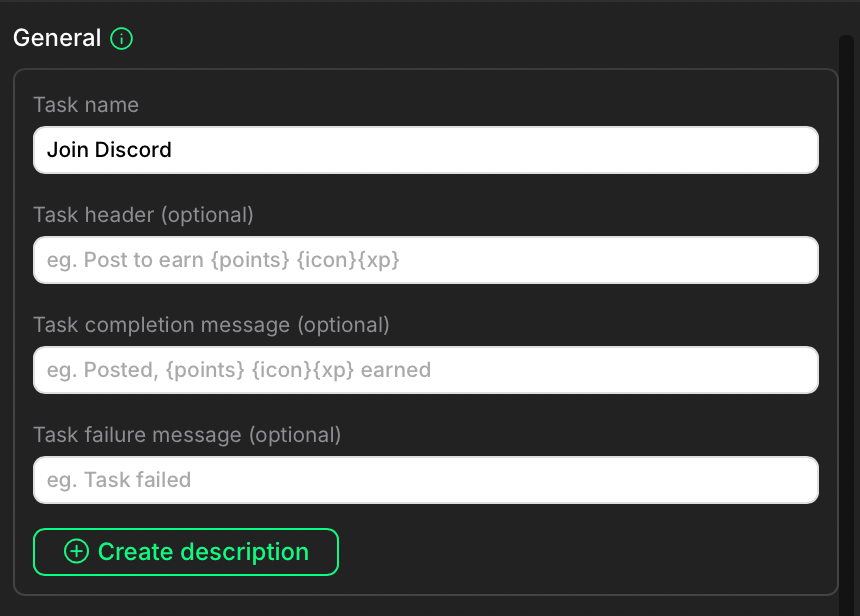
The task configuration window starts with the **General** **settings**. &#x20;

Enter a name for this task. This name is essential for identifying the task internally and is **not** shown to participants.

<figure><img src="/files/VcGlgbH4jVvBpbrSNqd9" alt="" width="375"><figcaption></figcaption></figure>

{% hint style="info" %}
You can further customize the task using these optional fields:

* **Task header:** The title/instruction participants will see.
* **Task completion message:** Message shown on success.
* **Task failure message:** Message shown on failure.
* **Description:** Click **+ Create description** to add detailed instructions using a text editor. After creating, a **Collapse description** toggle appears to control if the description is initially hidden.

For a detailed explanation of all task settings, including these optional fields and other advanced configurations, see our tutorial [Task settings](/tasks/task-settings.md)
{% endhint %}

### Set task type

Move down to the **Task type** section.

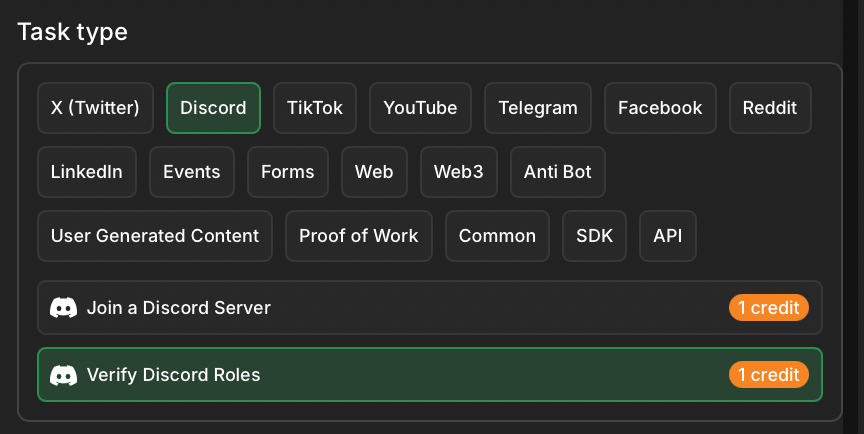
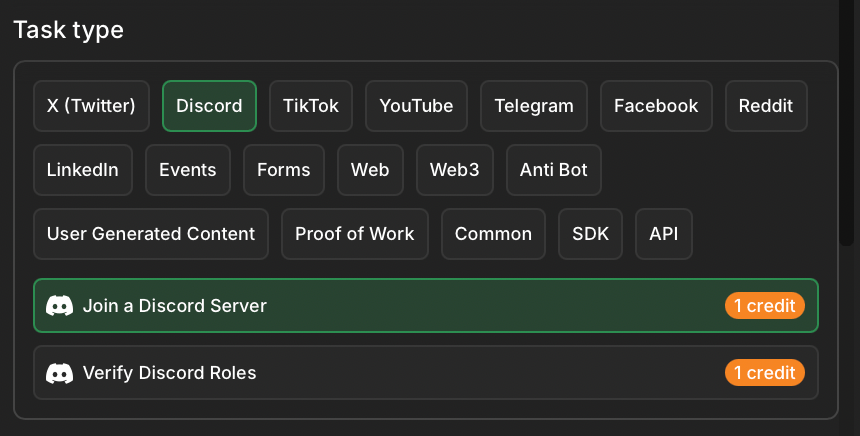
1. Select **Discord** from the platform options.
2. You will see two Discord-specific task types: **Join a Discord server** and **Verify Discord roles**. Select **Join a Discord server.** Use it to reward users for joining your server.&#x20;
<figure><img src="/files/abhQuCCAdVigZ2uytHfh" alt="" width="375"><figcaption></figcaption></figure>

{% hint style="warning" %}
Before configuring Discord task, add the claimr bot to your Discord server and grant it administrator permissions. This allows claimr to verify task completion. To add the bot, click the link provided within the Discord task settings interface in claimr.
{% endhint %}

3. Scroll down till you see the specific **task settings** for this task type.

<figure><img src="/files/BrPOXeXHlzcfCh9hgdRQ" alt="" width="375"><figcaption></figcaption></figure>

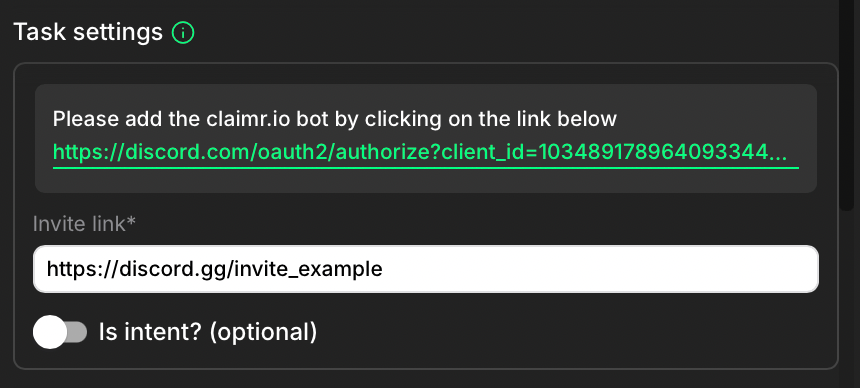
* **Invite link:** Add the invite link to your Discord server.
* **Is intent? (optional):** Enable this toggle if you want users to manually confirm their intent to join *before* claimr verifies their membership. If disabled, claimr attempts verification directly after the user clicks to join.

{% hint style="info" %}
To add multiple tasks to your campaign, you will need to click **+ Create new task** for each one and repeat the configuration process.
{% endhint %}

### Task rewards

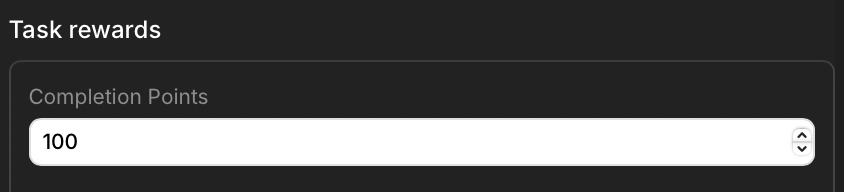
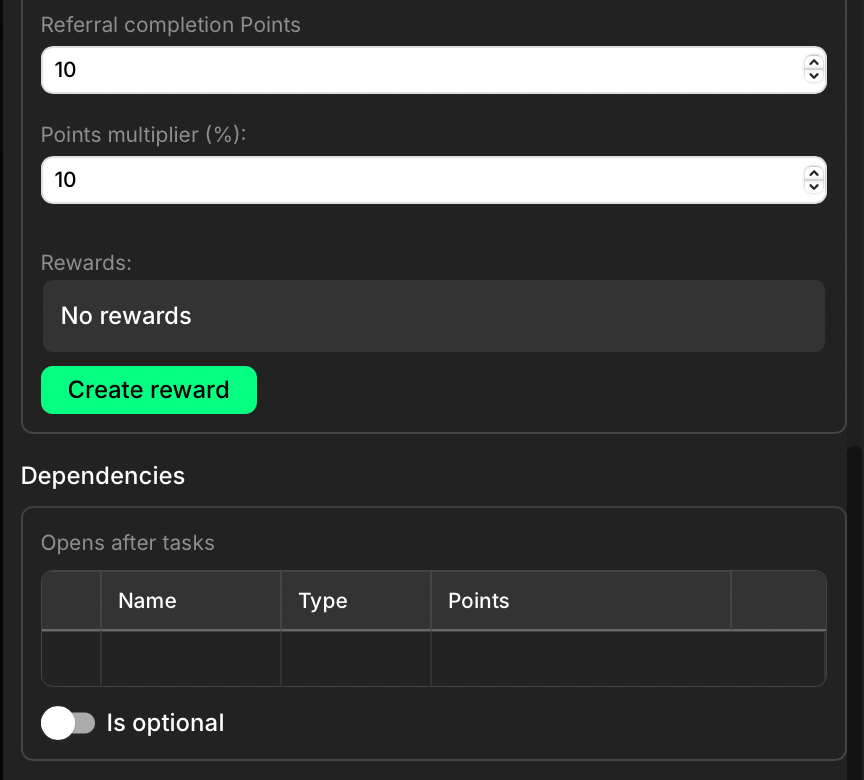
Scroll down to the **Task rewards** section to find the **Completion points field.** \
Enter the base number of points a user earns for successfully completing this specific task.
<figure><img src="/files/oRoGkI0CUj3APlEv0leO" alt="" width="375"><figcaption></figcaption></figure>

{% hint style="info" %}
Below **Completion Points**, you'll find additional settings for **Referral completion Points**, **Points multiplier**, non-point **Rewards**, task **Dependencies**, and **Advanced settings**. These allow for more complex reward structures and task flows.

For a detailed explanation of all task settings, including these optional fields and other advanced configurations, see our tutorial [Task settings](/tasks/task-settings.md)
{% endhint %}

<figure><img src="/files/u2KaJC1VeJWvc4zHv63G" alt="" width="375"><figcaption></figcaption></figure>

## **Save and preview the task**

Once you have configured all the task settings, click **Create** to save your configuration. Your task is now configured within the quest!

To see how this task will appear to users:

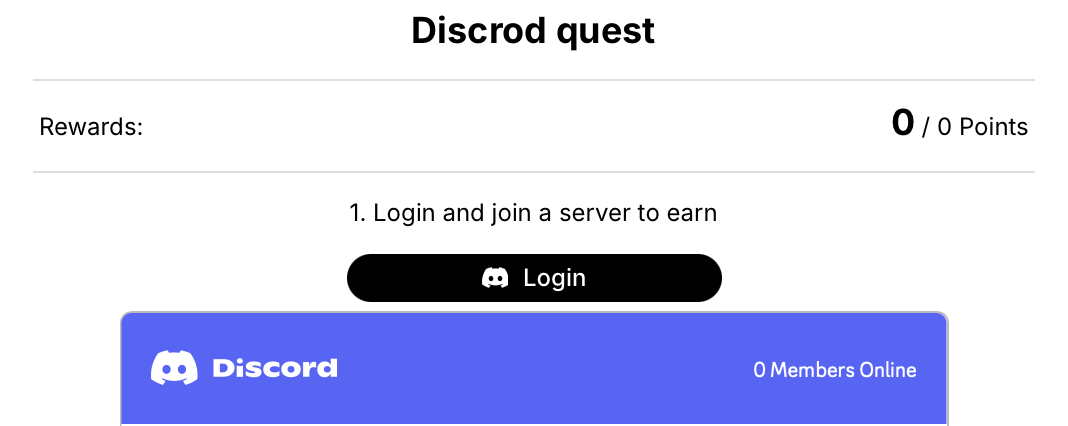
* Click **Preview** button (a play icon) located in the top-right.
* Alternatively, navigate back to the main **Quest settings** page and click **Preview** button under the quest details.

<figure><img src="/files/EiRkVpArNRj6LyexZZiQ" alt="" width="375"><figcaption></figcaption></figure>

The preview opens in a new tab, showing desktop, tablet, and mobile views.

## **Add another task**

The other task type available specifically for Discord is **Verify Discord Roles**. Use this task to reward users for having one or more specific roles in your Discord server.

To add this task:

1. Click the **+ Create new task** button again within your quest.
2. Configure the **General** settings (Task name, header, messages, description) just as you did for the previous task.
3. In the **Task type** section, select **Discord**, and this time choose **Verify Discord roles**.

<figure><img src="/files/GnZgOIH1tx0u8W42iCy5" alt="" width="375"><figcaption></figcaption></figure>

4. Configure the specific settings for **Verify Discord roles**:

<figure><img src="/files/zvfUgYHdhIFhyDKhA0kp" alt="" width="375"><figcaption></figcaption></figure>

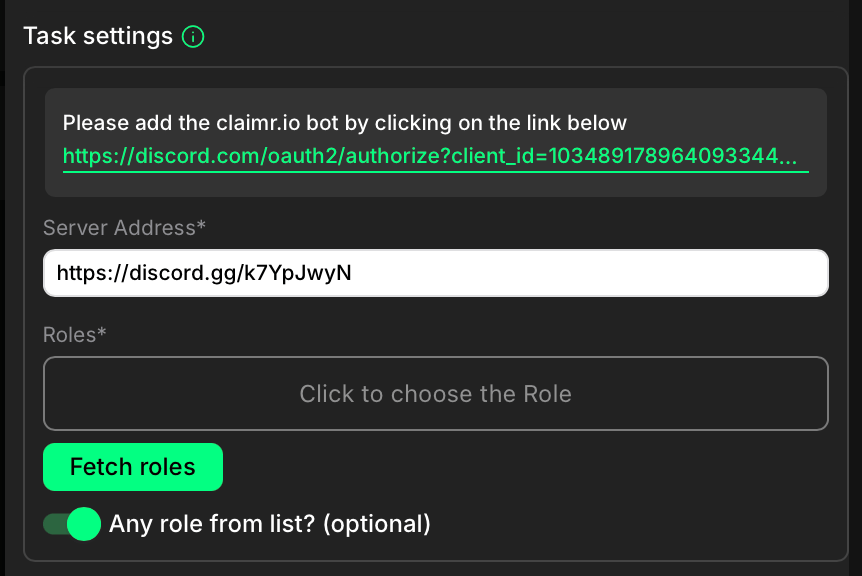
* **Server address:** Enter the full URL of your Discord server.
* **Fetch roles:** Click this button first to retrieve the list of available roles from your connected Discord server.
* **Roles:** Select the specific role(s) users need to have to complete this task.
* **Any role from list? (optional):** Enable this toggle if having *any one* of the selected roles is enough to complete the task. Leave it disabled if the user must have *all* the selected roles.

After configuring these specific settings for **Verify Discord Roles**, move on to **Task Rewards** section, adjust any **Dependencies** just as you did for the previous task. Once finished, click **Create** to save this task.

## **Preview your campaign**

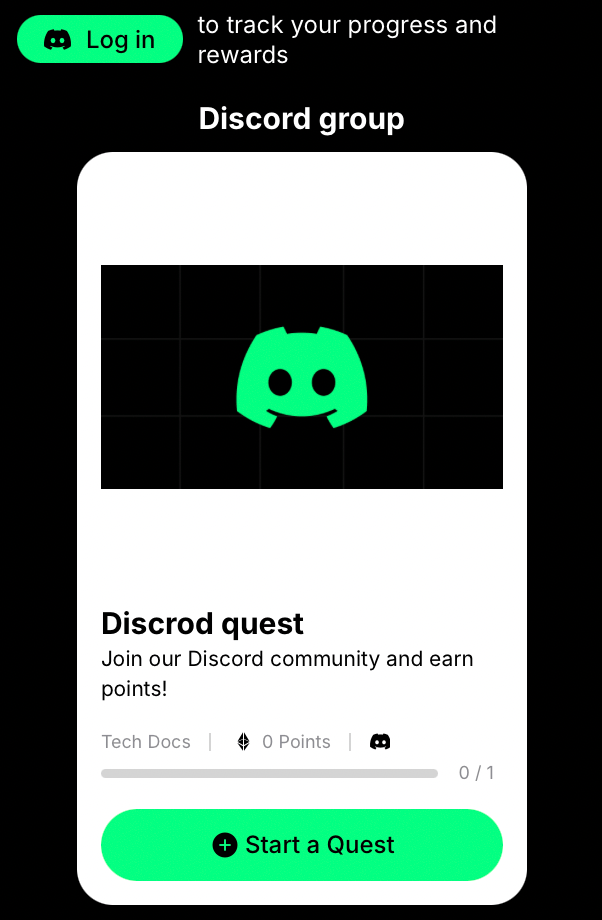
Once you have configured all the campaign settings, see how it will appear to users.&#x20;

Click the **Preview** button (a play icon), located in the top-right of the task settings window. The preview opens in a new tab, showing desktop, tablet, and mobile views.

<figure><img src="/files/DmVKiETExaPeAvfMvfQT" alt=""><figcaption></figcaption></figure>

In preview mode, try clicking the buttons and completing the actions to see exactly how participants will interact with the task.

<figure><img src="/files/G3j8wT3HnE6YakxneW6g" alt="" width="301"><figcaption></figcaption></figure>

Looking to build campaigns for other platforms like X or Telegram? Check out our dedicated tutorials for step-by-step guides on those specific setups.


---

# Agent Instructions
This documentation is published with GitBook. GitBook is the documentation platform designed so that both humans and AI agents can read, navigate, and reason over technical content effectively. Learn more at gitbook.com.

## Querying This Documentation
If you need additional information that is not directly available in this page, you can query the documentation dynamically by asking a question.

Perform an HTTP GET request on the current page URL with the `ask` query parameter, and the optional `goal` query parameter:

```
GET https://docs.claimr.io/how-to/create-discord-campaign.md?ask=<question>&goal=<endgoal>
```

`ask` is the immediate question: it should be specific, self-contained, and written in natural language.
`goal` is optional and describes the broader end goal you are ultimately trying to accomplish on behalf of the user. GitBook uses it to tailor the answer towards what is most useful for that goal.

The response will contain a direct answer to the question and relevant excerpts and sources from the documentation.

Use this mechanism when the answer is not explicitly present in the current page, you need clarification or additional context, or you want to retrieve related documentation sections.