> For the complete documentation index, see [llms.txt](https://docs.claimr.io/llms.txt). Markdown versions of documentation pages are available by appending `.md` to page URLs; this page is available as [Markdown](https://docs.claimr.io/how-to/how-to-build-a-campaign-with-puzzle-rewards.md).

# How to build a campaign with Puzzle rewards

Puzzle rewards are collectible pieces that users earn by completing tasks throughout a quest. They are used to create multi-step challenges or quests where users gather multiple puzzle pieces and then solve a final task based on the clues they've collected.

Puzzle rewards help to structure narrative or logic-based progression within any campaign. They encourage users to:

* Complete more tasks to collect all puzzle pieces
* Pay attention to detail in clues or visuals
* Solve a final challenge to validate their understanding
* Stay engaged through multi-step discovery

This tutorial will guide you through building a campaign that uses Puzzle rewards, from reward creation to task logic and the final answer validation.

## Create your campaign

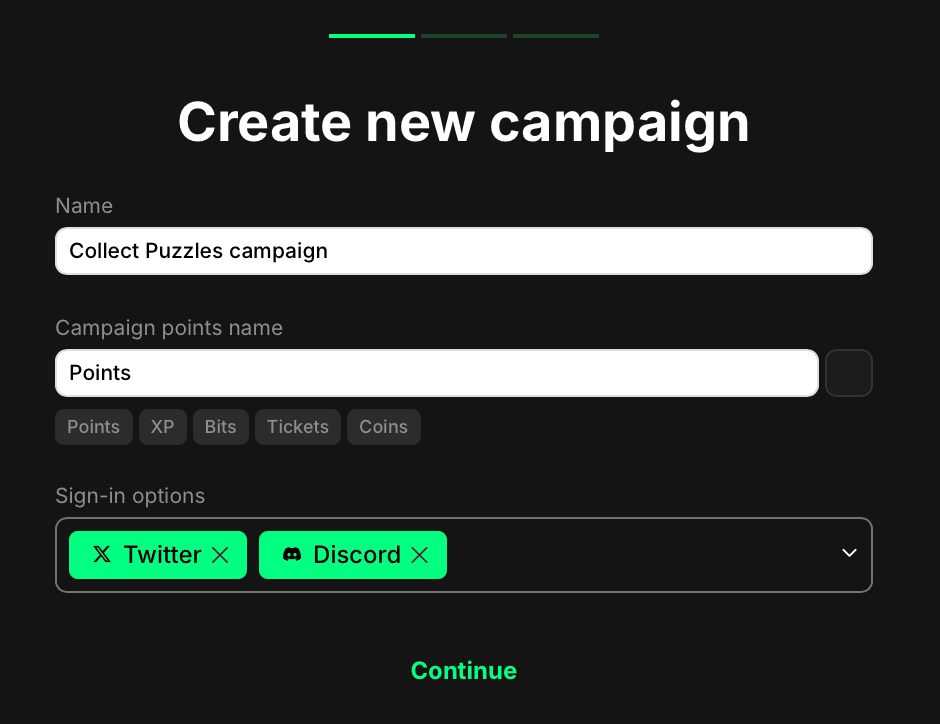
<figure><img src="/files/2TtXEnZFY5p9mqQ3MkcV" alt="" width="375"><figcaption></figcaption></figure>

From your claimr dashboard:

1. Click **Campaigns** in the navigation menu.
2. On the **Campaigns** page, click the **Create new campaign** button.
3. In the opened window, fill in the following details:
   * Name: Enter a name for your campaign
   * Campaign points name: Enter the label for points users will earn (e.g. Points, Tokens)
   * Sign-in options: Choose any supported sign-in method, depending on your audience
4. Click **Continue**, then select **Empty.**&#x20;
5. Click **Continue**, then select your campaign's visual theme.

## Create your quest

Once your campaign is created, you’ll land in the Groups of quests section:

* Rename the default group if needed by clicking the pencil icon
* Inside that group, click **+ Create quest**
* Enter a descriptive name for your puzzle quest (e.g. “Puzzle Quest”) and click **Create**
* Click the quest card to open its settings page

From here, you can begin adding tasks and configuring the quest’s general settings (name, image, description).

## Create puzzle piece rewards

You’ll need to create one reward for each puzzle piece the user should collect.
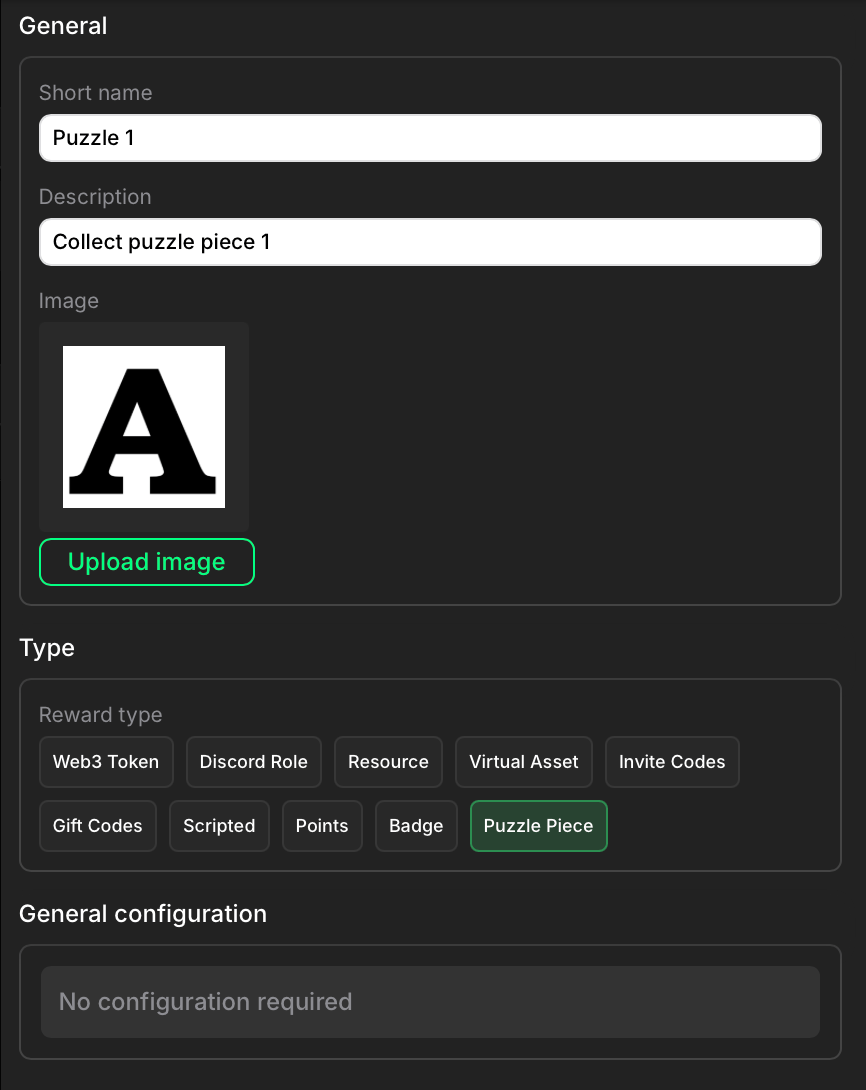
<figure><img src="/files/3t8EkCTGWRlEJCayYxVZ" alt="" width="375"><figcaption></figcaption></figure>

1. Go to the **Rewards tab**
2. Click **Create reward**
3. Fill in the following:
   * Short name: Enter a name like “Puzzle 1”, “Puzzle 2”, etc.
   * Description: Label the piece (e.g. “Puzzle Piece 1”) or set the instruction for your users.&#x20;
   * Image (optional): Upload a visual clue: letter, number, or fragment of a bigger picture
4. Select **Puzzle Piece** as the reward type
5. Click **Create** to save the reward

Repeat these steps for each individual puzzle piece.
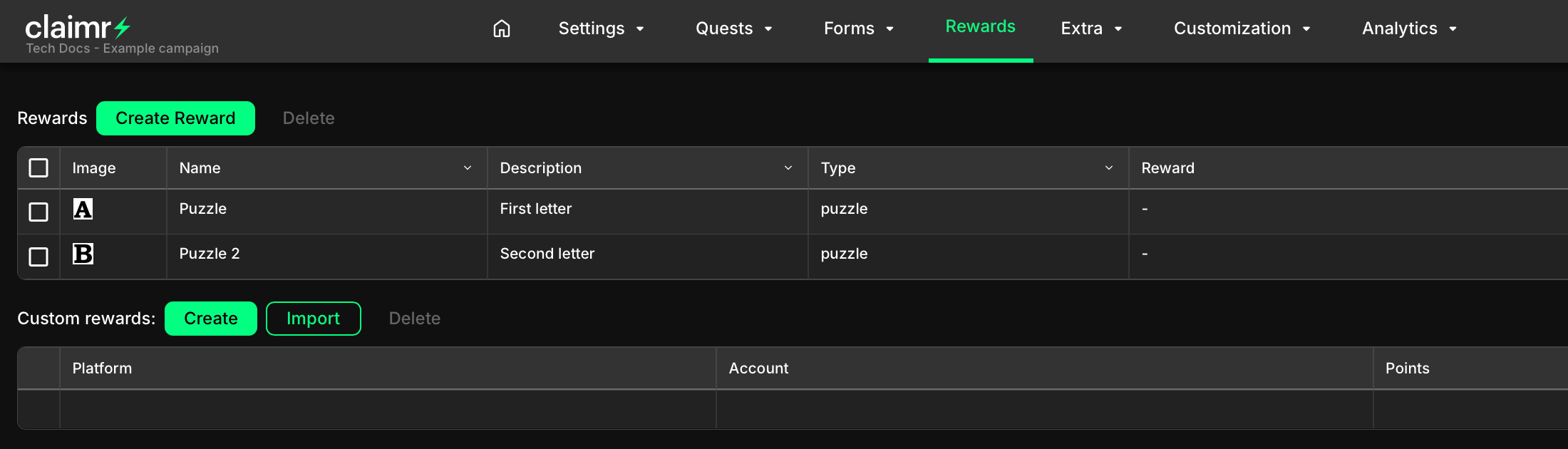
<figure><img src="/files/2xvggBRbkPxAz9EKCzl2" alt=""><figcaption></figcaption></figure>

All created rewards will appear in the Rewards dashboard.&#x20;

## Create your tasks

Now that your puzzle rewards are set, add tasks that distribute them to users.

Each puzzle piece will require two tasks:

1. A core task (e.g. Follow on X, Subscribe to YouTube).
2. A **Claim a reward task** immediately after.

To add a task:

* On the quest settings page, click **+ Create new task**

#### **Configure the core task**

* Select a task type like Follow on X or Subscribe to a channel
* Fill in the required fields (e.g. URL, message)
* Click **Create task** to save

#### **Add a Claim a reward task**

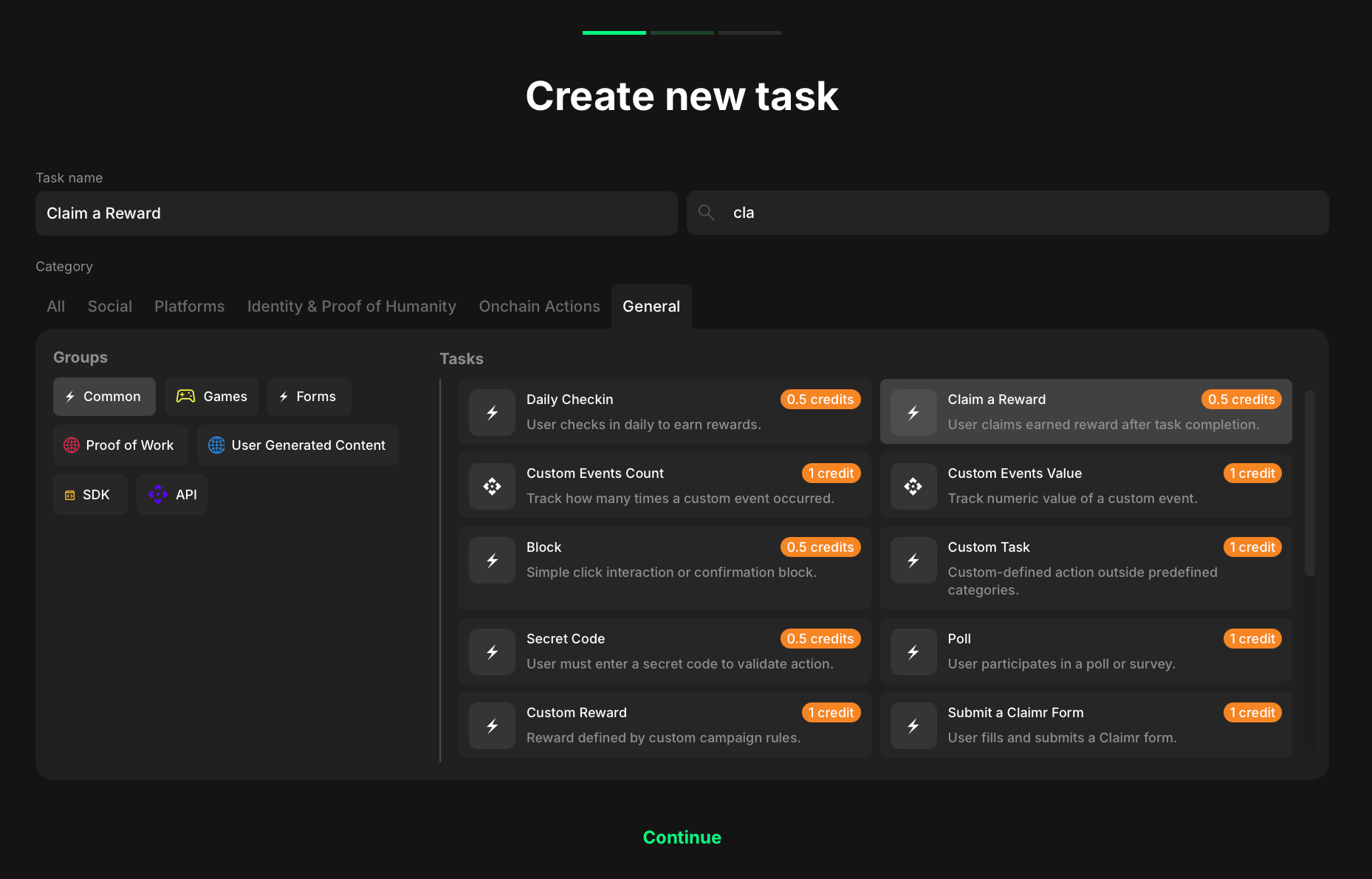
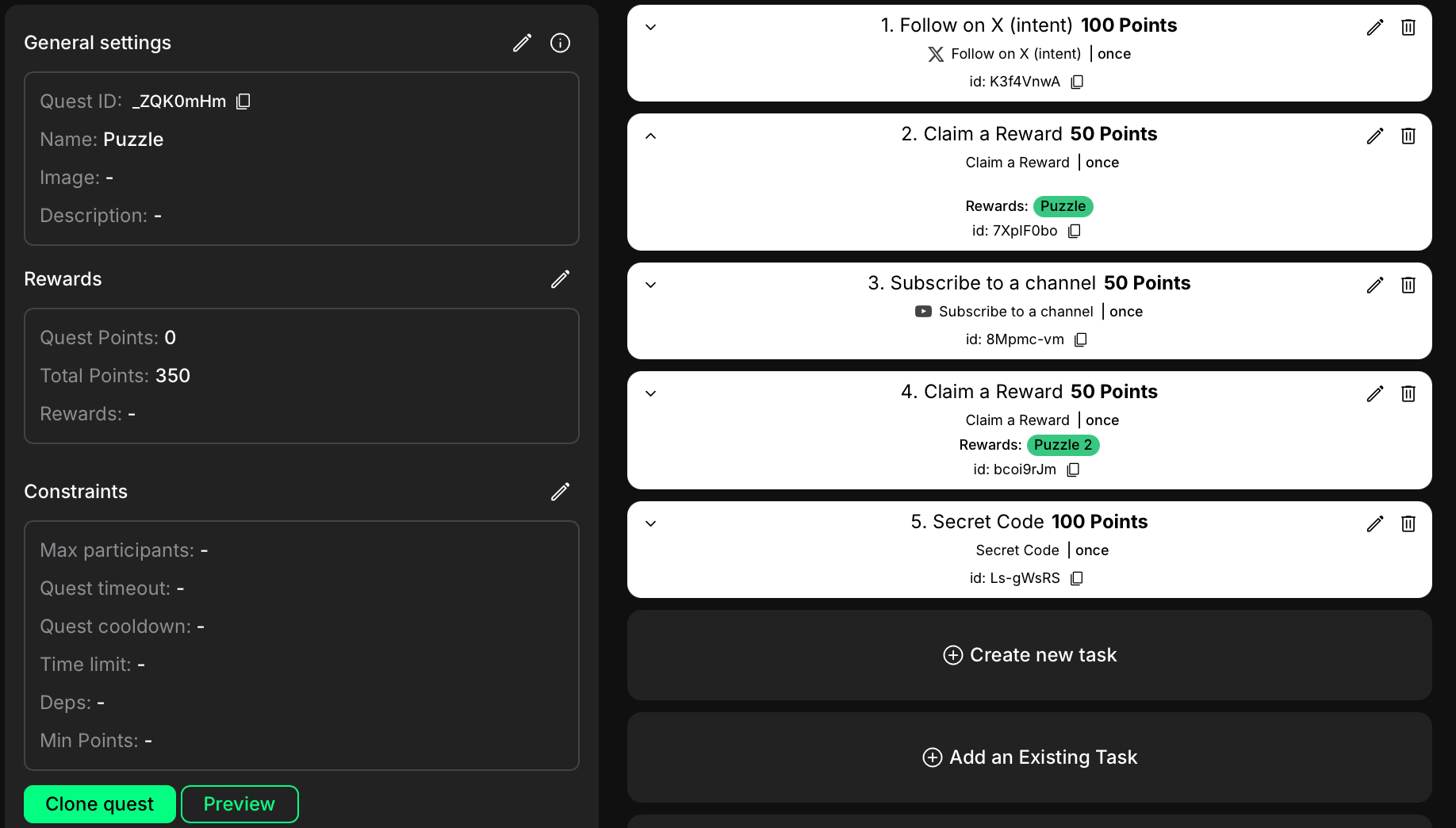
<figure><img src="/files/8zSAqwupnrLZ1JlnZyiB" alt="" width="563"><figcaption></figcaption></figure>

Right after the core task, add a **Claim reward task** to deliver the puzzle piece

1. Click **+ Create new task**
2. Under Category, select **Common**
3. Choose **Claim a reward** and click **Continue**

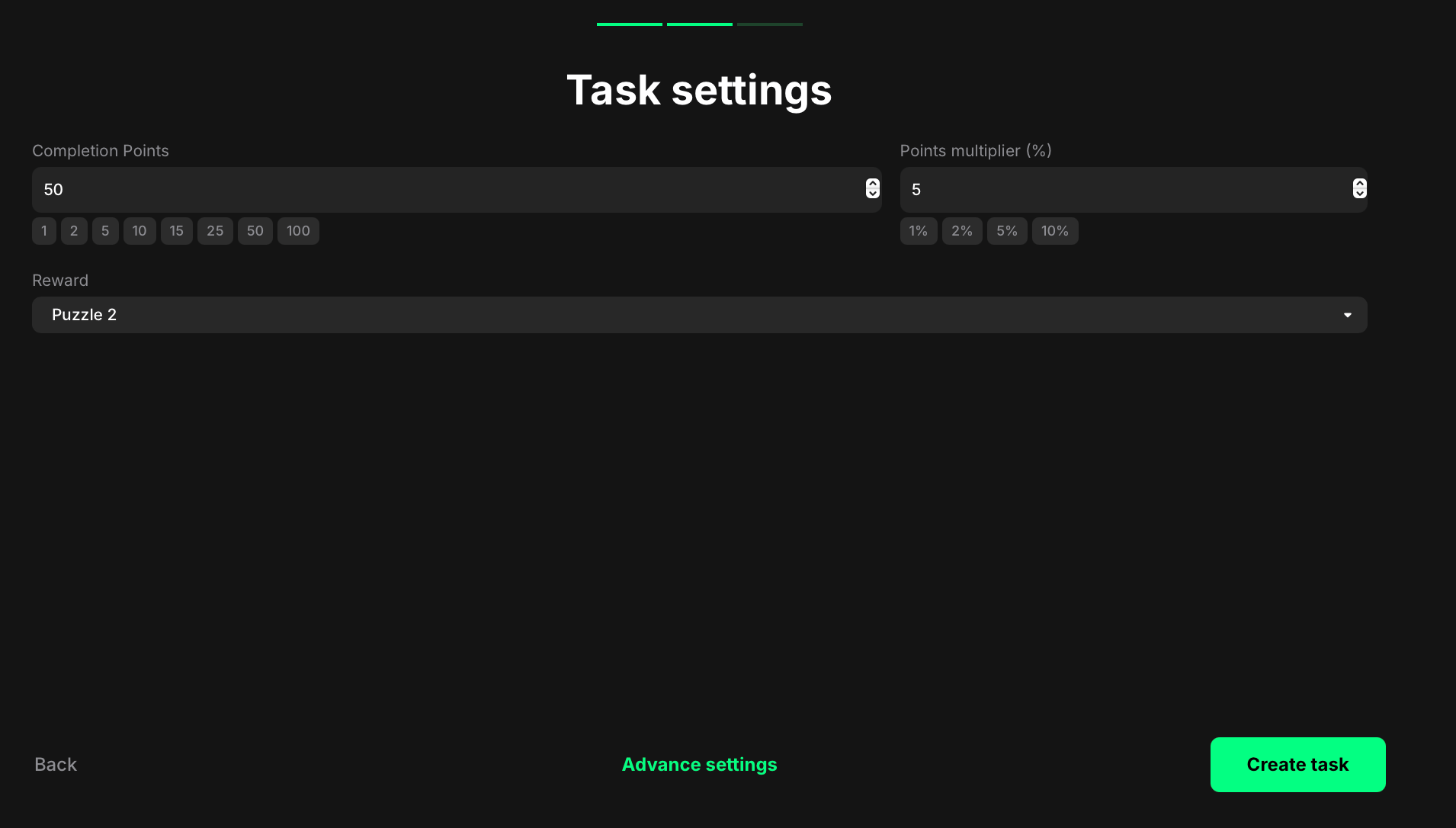
<figure><img src="/files/sTGcXTBgTSGWkSr6RdIA" alt="" width="563"><figcaption></figcaption></figure>

4. In the **Task settings** screen:

* Completion points: Set the base reward for claiming the piece
* Points multiplier (%): Optional
* Reward: Select the appropriate Puzzle Piece reward (e.g. Puzzle 1)

5. Click **Create task** to save

Repeat this pair (core task + claim reward) for every puzzle piece.

## Create a final Secret code task

Once all puzzle pieces are distributed, add a final challenge that users can only complete if they’ve correctly interpreted the clues.
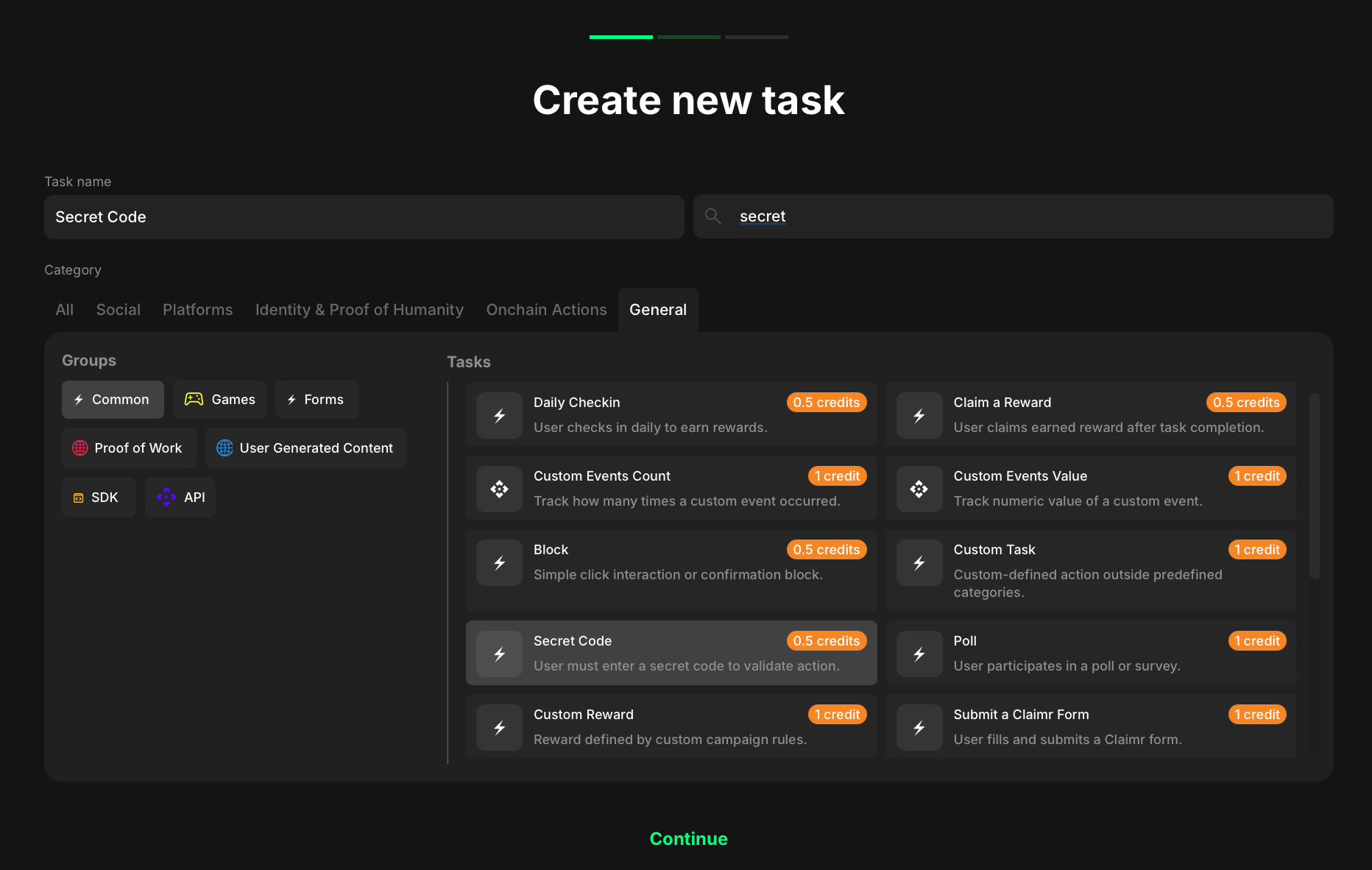
<figure><img src="/files/8RQzf80GZD8M51OH8jsX" alt="" width="563"><figcaption></figcaption></figure>

To add the Secret code task:

1. Click + Create new task in the same quest
2. Under Category, select Common
3. Choose Secret code and click Continue

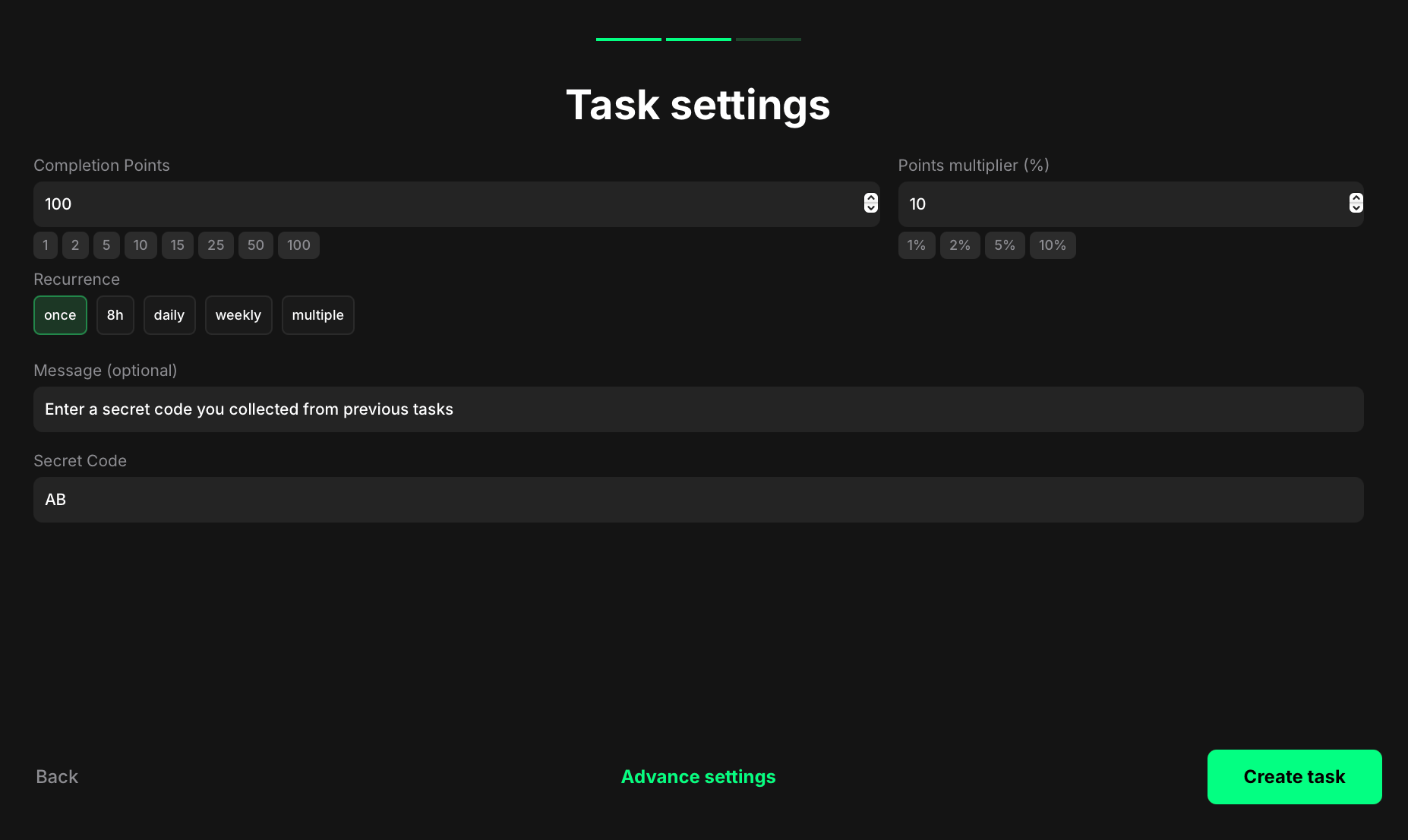
<figure><img src="/files/CCU6hgpWNLsO4KAeXjsD" alt="" width="563"><figcaption></figcaption></figure>

**Configure task settings**

* **Completion points:** Set the number of points awarded when the user’s KuCoin account is verified through KYC.
* **Points multiplier (%):** Add a percentage-based bonus to the total reward. Example: a 5% multiplier increases the final reward by 5%.
* **Recurrence:** Control how often users can complete the task:

  Once – can only be completed one time per user.

  8h – available once every eight hours.

  Daily – available once every 24 hours.

  Weekly – available once every 7 days.

  Multiple – stays open and can be completed as many times as needed, one after another, without any waiting time.
* **Message (optional):** Enter a message displayed above the input field to guide users
* **Secret Code:** Enter the correct answer (case-sensitive)

Click **Create task** to save. All created tasks will appear in your campaign.&#x20;

<figure><img src="/files/tWz9AbwP6EmNCBKtifZ0" alt=""><figcaption></figcaption></figure>

Go through them, change the order if needed, and preview how they will appear to users:

1. Click the **Preview button (play icon)** from the task or quest settings
2. The preview opens in a new tab and shows desktop, tablet, and mobile views

Try interacting with the task flow to verify logic and visibility.

## How Secret code tasks appear to users

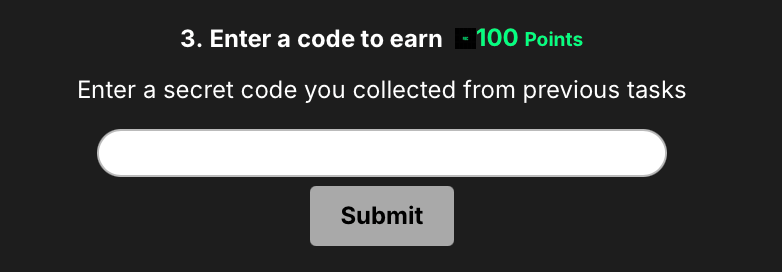
<figure><img src="/files/knaUpdjX0zWG6lzmOhTU" alt="" width="375"><figcaption></figcaption></figure>

When users encounter a Secret code task, they see:

* The instruction message you added (if any)
* An input field
* A submit button

If they enter the correct code, the task is marked complete and the reward is granted. If incorrect, the task remains incomplete.

If Recurrence is set to Multiple, users can return and attempt again without waiting.


---

# Agent Instructions
This documentation is published with GitBook. GitBook is the documentation platform designed so that both humans and AI agents can read, navigate, and reason over technical content effectively. Learn more at gitbook.com.

## Querying This Documentation
If you need additional information that is not directly available in this page, you can query the documentation dynamically by asking a question.

Perform an HTTP GET request on the current page URL with the `ask` query parameter, and the optional `goal` query parameter:

```
GET https://docs.claimr.io/how-to/how-to-build-a-campaign-with-puzzle-rewards.md?ask=<question>&goal=<endgoal>
```

`ask` is the immediate question: it should be specific, self-contained, and written in natural language.
`goal` is optional and describes the broader end goal you are ultimately trying to accomplish on behalf of the user. GitBook uses it to tailor the answer towards what is most useful for that goal.

The response will contain a direct answer to the question and relevant excerpts and sources from the documentation.

Use this mechanism when the answer is not explicitly present in the current page, you need clarification or additional context, or you want to retrieve related documentation sections.