
Why use test users?
Adding specific users as testers before or during a campaign is crucial for ensuring a smooth experience. Use the Test Users feature to:- Thoroughly test your campaign’s quests, tasks, rewards, and overall user flow.
- Identify potential bugs, errors, or usability issues with feedback from a select group.
- Allow team members or real test users to preview and experience the campaign without affecting live user data or analytics.
- Safely test specific conditions, edge cases, or integrations.
- Gather valuable feedback on the campaign experience from a trusted group before a wider release.
Access the Test users section
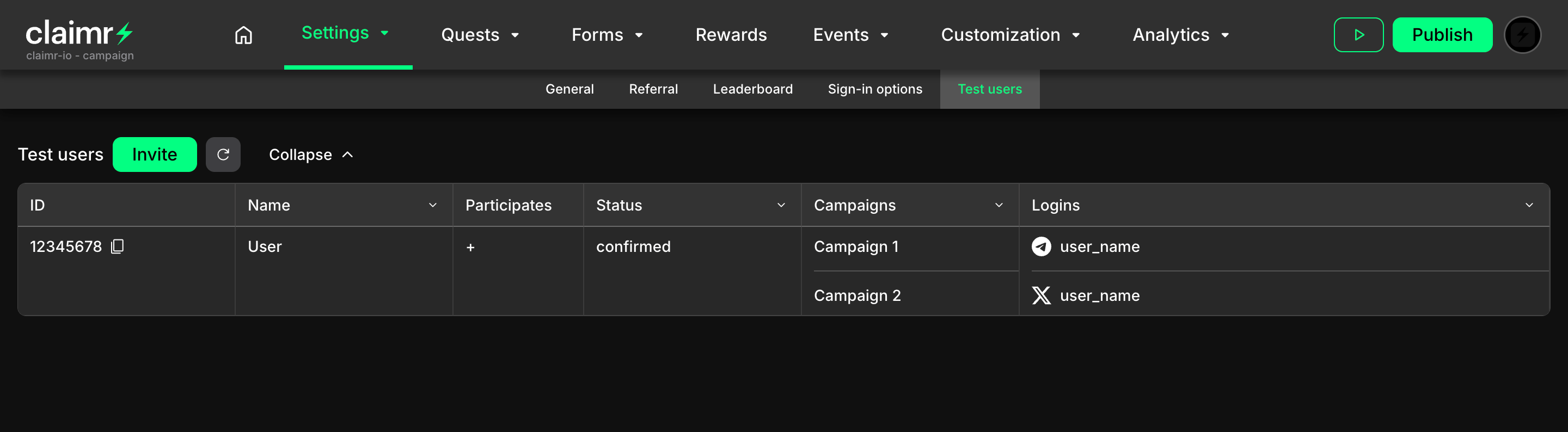
- Log in to your Claimr account.
- Select the Campaign you want to add test users to.
- Navigate to the campaign’s Settings section.
- Select Test Users from the settings menu or sidebar.
Add a test user
Adding a user to the test group involves two main parts: the user getting their unique ID, and the campaign manager adding that ID in the settings.1
User's view: get the user ID
The person you want to add as a tester must first retrieve their unique Claimr User ID for that specific campaign. Provide them with these instructions:
- Open the specific campaign you need to test.
- Once the widget is loaded, click repeatedly (several times) anywhere on the screen or widget area.
- A pop-up message should appear confirming: “User ID successfully copied”. This copies their unique ID for that campaign to their clipboard.
- Send this copied User ID to the campaign manager.
2
Manager's view: invite the user
Once you (the campaign manager) have received the User ID from the tester: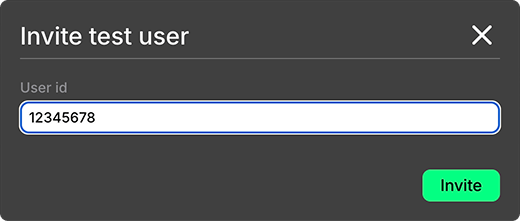
- Navigate to the Test users dashboard for the relevant campaign (go to campaign Settings → Test Users). You will see a list of any users already added as testers.
- Click the Invite button.
- The Invite test user modal window will appear.
- Paste the User ID provided by the tester into the User ID field.
- Click the green Invite button in the modal window.
Invitation status and the user’s confirmation
Manager’s view: invitation sent

- A new entry for the invited user appears in the Test Users table on your dashboard.
- This entry will show the user’s ID, Name (if available), and initially, the Status will be set to
created.
created: The invitation has been sent, awaiting the user’s response.confirmed: The user has accepted the invitation via the widget.rejected: The user has declined the invitation via the widget.
User’s view: accept the invitation
After the manager sends the invite, the invited user needs to confirm. The next time the invited user opens the specific campaign widget, a pop-up notification will appear asking them to join the test group. This pop-up will have two buttons: Reject and Confirm.
- If the user clicks
Confirm: They are officially added as a test user for this campaign and can participate according to any special rules or access you have configured for testers. Their status in your Test Users list will update toconfirmed. - If the user clicks
Reject: They decline the invitation, their status in your Test Users list will change torejected, and they will not become a test user. The invitation process would need to be restarted if they change their mind.
Test users’ table
Once a user clicks Confirm in the widget pop-up, their Status in your Test Users dashboard updates toconfirmed. They are now officially a test user for this campaign, and you can see their complete record in the table.
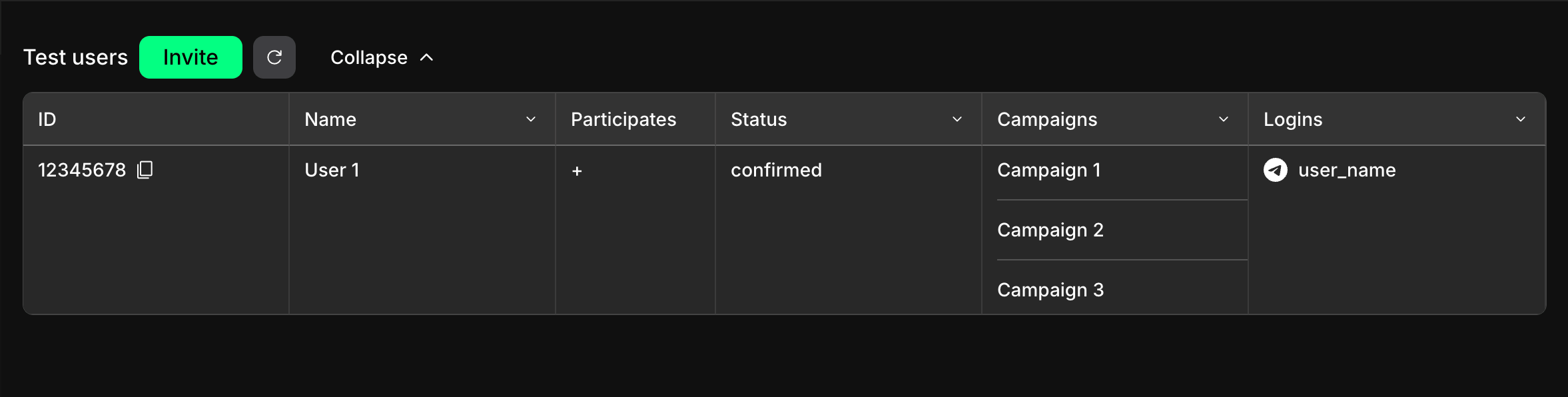
- ID: The test user’s unique Claimr identifier (the same ID they copied from the widget). You can click an icon next to it to copy the ID again.
- Name: The user’s display name, typically taken from their primary connected account or first login method used with Claimr.
- Participates: A + (plus) sign indicates the user is actively participating as a test user in the specific campaign you are currently viewing. A - (minus) sign would mean they might be a test user in other campaigns within your organization but not this one. This helps manage testers across multiple campaigns.
- Status: The current state of their test user invitation:
confirmed,created, orrejected. - Campaigns: Lists the names of all campaigns within the organization that this user is participating in (as a test user).
- Logins: Shows the different accounts or login methods the user has connected to their Claimr profile (e.g., Discord username, X handle, wallet address).
Test user’s details
To see more detailed information about a specific test user:- Click on the row corresponding to that user in the Test Users table.
- A detailed information drawer will slide out from the right side of the screen.
General section
Displays the fundamental information about the test user.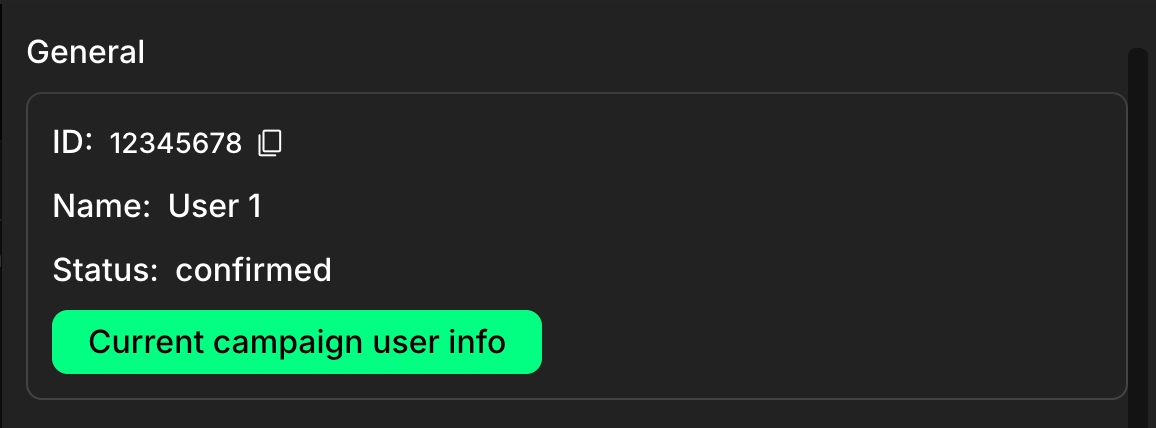
- ID: The user’s unique Claimr identifier.
- Name: The name associated with the user account (often from their first login).
- Status: The current invitation status (
confirmed,created, orrejected). - Current campaign user info button: If the test user is actively participating in the campaign you are currently viewing (indicated by a
+in the Participates column of the main table), this green button will be visible. Clicking it opens another dashboard showing details about this user’s specific activity, points, and status within this particular campaign. This button will not be displayed if the user is not currently a participant in the campaign you are viewing.
Logins section
Lists all the external accounts and login methods the user has connected to their Claimr profile.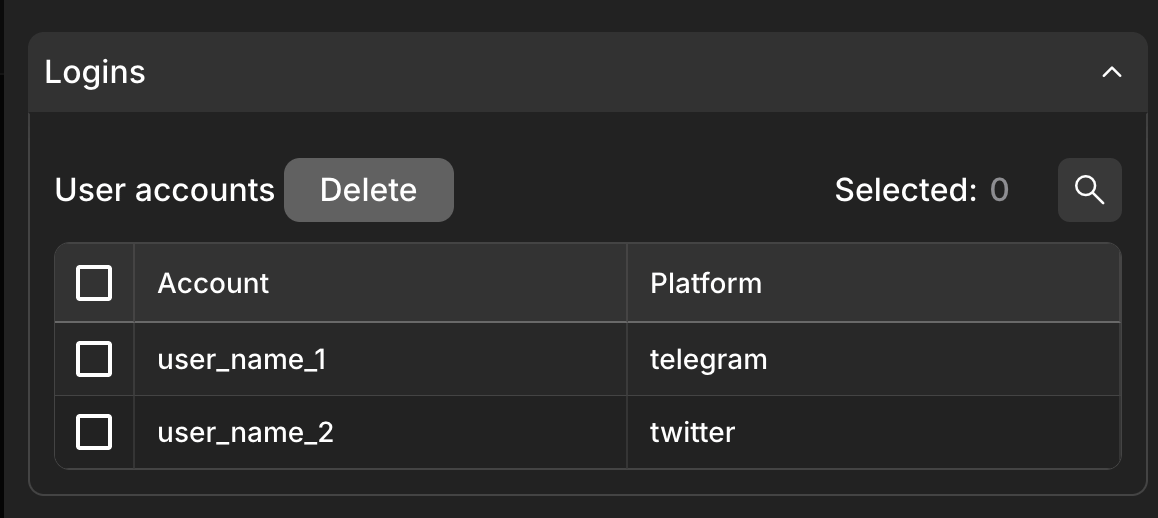
- Account: The username, email, or address associated with the login.
- Platform: The type of login (e.g.,
discord,email,web3,x).
Entries section
Shows a list of all campaigns within your organization that this user is participating in (as a test user or regular user).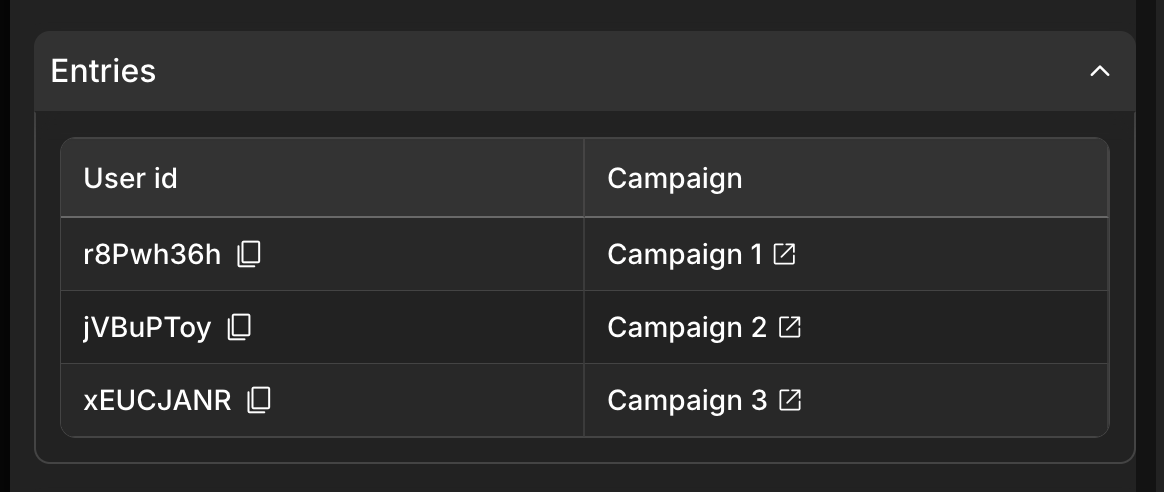
- User ID: The user’s ID within that specific campaign context.
- Campaign: The name of the campaign.
Deleting a test user
Removing individual logins (as described in the Logins section) is different from removing the user entirely from the test group. If you need to completely remove a test user:- Scroll to the very bottom of this drawer till you find a red Delete from test users button.
- Click this red button to remove the user from the test group for this campaign. You will be asked to confirm this action.