> For the complete documentation index, see [llms.txt](https://docs.claimr.io/llms.txt). Markdown versions of documentation pages are available by appending `.md` to page URLs; this page is available as [Markdown](https://docs.claimr.io/quests/create-new-quest.md).

# Create new quest

### Before you start

Make sure you have:

* An active campaign in Claimr
* A quest group created (or you'll create one during this process)
* A clear idea of what you want users to accomplish in this quest

### Create your quest

**1. Access your campaign**

From your Claimr main panel, click **Campaigns** in the header menu. Choose the campaign where you want to add the quest and click on it.

**2. Navigate to Quests**

In the campaign header menu, click the **Quests** tab. You'll see all quest groups you've created for this campaign.

<figure><img src="/files/4zTOA4bBfSlY1Ddq7Pvz" alt=""><figcaption></figcaption></figure>

**3. Create a new quest group (if needed)**

If you don't have an appropriate group for your quest yet:

1. Click the **Create Group** button on the right
2. Give your group a descriptive name (e.g., "Social Tasks" or "Onboarding Journey")
3. Click **Create**

Your new group will appear in the quest groups list.

**4. Create your quest**

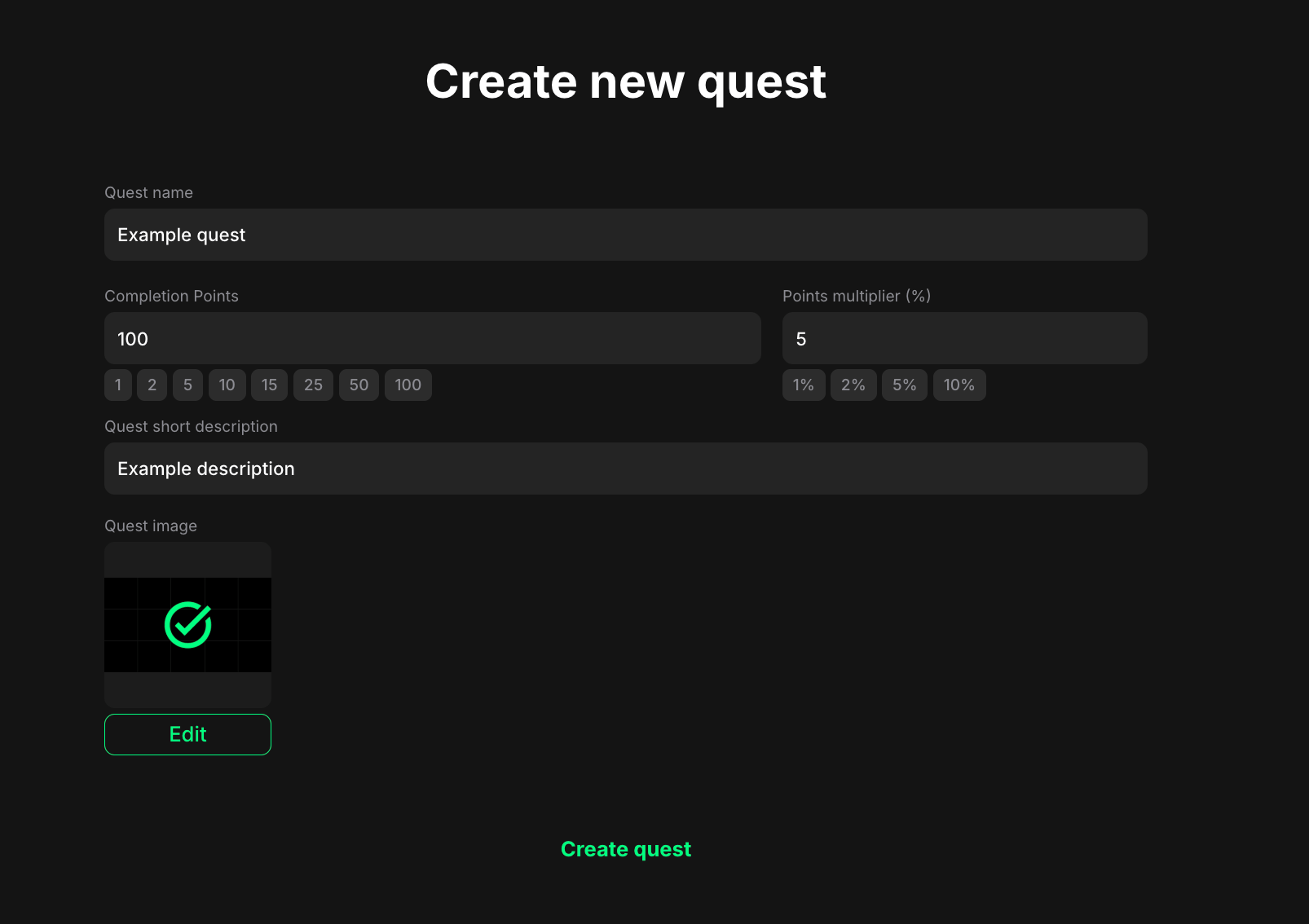
Click **+ Create quest** within your chosen quest group. A pop-up window will appear with the quest creation form.
<figure><img src="/files/WAz4HH0FYX2zVcMGwvbm" alt="" width="563"><figcaption></figcaption></figure>

Configure the essential settings for your new quest:

* **Quest name**: Enter a catchy, memorable name that clearly describes what users will do. Examples: "Social starter", "Daily login bonus", "Invite your friends"
* **Completion Points**: Set the base points users earn for completing this quest. Use the quick-select buttons (1, 2, 5, 10, 15, 25, 50, 100) or type a custom amount. Consider the effort required and your overall reward structure.
* **Points multiplier (%)**: Add a percentage bonus to boost the reward. Use quick-select buttons (1%, 2%, 5%, 10%) or enter a custom percentage. Example: Setting 5% on 100 points gives users 105 points total.
* **Quest short description**: Write a brief summary of what this quest involves. This appears on the quest card in your campaign. Tell users what they'll do and what they'll gain. Keep it clear and engaging.
* **Quest image**: Upload a visual that represents your quest. Click **Upload** to choose an image from your computer. Use eye-catching visuals that match your quest theme.&#x20;

Click the **Create quest** button at the bottom of the pop-up. You'll be redirected to the quest settings page.

{% hint style="info" %}
**Pro tip**: Start with simple quests to test your reward structure before building complex multi-task journeys. You can always add more depth later.
{% endhint %}

### Next steps

Configure your quest in detail:

1. **Add tasks** - Create the specific actions users will complete
2. **Configure Quest Settings** - Set up rules, dependencies, and advanced options
3. **Set Up Rewards** - Define what users earn beyond base points


---

# Agent Instructions
This documentation is published with GitBook. GitBook is the documentation platform designed so that both humans and AI agents can read, navigate, and reason over technical content effectively. Learn more at gitbook.com.

## Querying This Documentation
If you need additional information that is not directly available in this page, you can query the documentation dynamically by asking a question.

Perform an HTTP GET request on the current page URL with the `ask` query parameter, and the optional `goal` query parameter:

```
GET https://docs.claimr.io/quests/create-new-quest.md?ask=<question>&goal=<endgoal>
```

`ask` is the immediate question: it should be specific, self-contained, and written in natural language.
`goal` is optional and describes the broader end goal you are ultimately trying to accomplish on behalf of the user. GitBook uses it to tailor the answer towards what is most useful for that goal.

The response will contain a direct answer to the question and relevant excerpts and sources from the documentation.

Use this mechanism when the answer is not explicitly present in the current page, you need clarification or additional context, or you want to retrieve related documentation sections.
