> For the complete documentation index, see [llms.txt](https://docs.claimr.io/llms.txt). Markdown versions of documentation pages are available by appending `.md` to page URLs; this page is available as [Markdown](https://docs.claimr.io/widget/claimr-widget-integrations/framer-integration.md).

# Framer integration

Integrating your claimr widget into Framer allows you to seamlessly display your interactive content within your Framer designs. This guide will walk you through the process, which involves setting up a frame and configuring a Code Override to embed the widget.

### Create a frame in Framer

In Framer, everything begins with a frame. This frame will serve as the container for your claimr widget.

* Create a new **Frame** in your Framer project.
* You can style this frame as needed, or leave it with default styling.

### Access Code overrides

To embed the claimr widget, you will use Framer's Code Overrides feature, which allows you to extend component functionality with custom code.

* Select your newly created Frame.
* In the right-hand properties panel, scroll down and open the **Code Overrides** tab at the bottom.
* Click the **+** button to add a new file. If no override file exists, you will be prompted to create one.

### Create the Override File

This file will contain the custom code necessary to initialize and load your claimr widget.

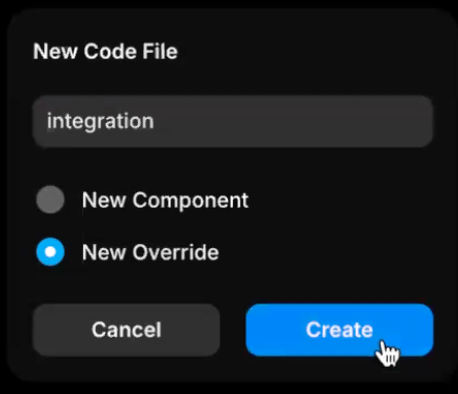
<figure><img src="/files/KReQ7Rvv1yCXOLUq51pE" alt="" width="229"><figcaption></figcaption></figure>

* Name your file (e.g., `claimrIntegration.tsx`) and click **Create**.
* In the newly opened code editor, <mark style="color:yellow;">paste the override code provided</mark>. <mark style="color:yellow;">NEED THIS CODE</mark>\
  This code sets up the mechanism to load the claimr widget.

### Edit the Override Code

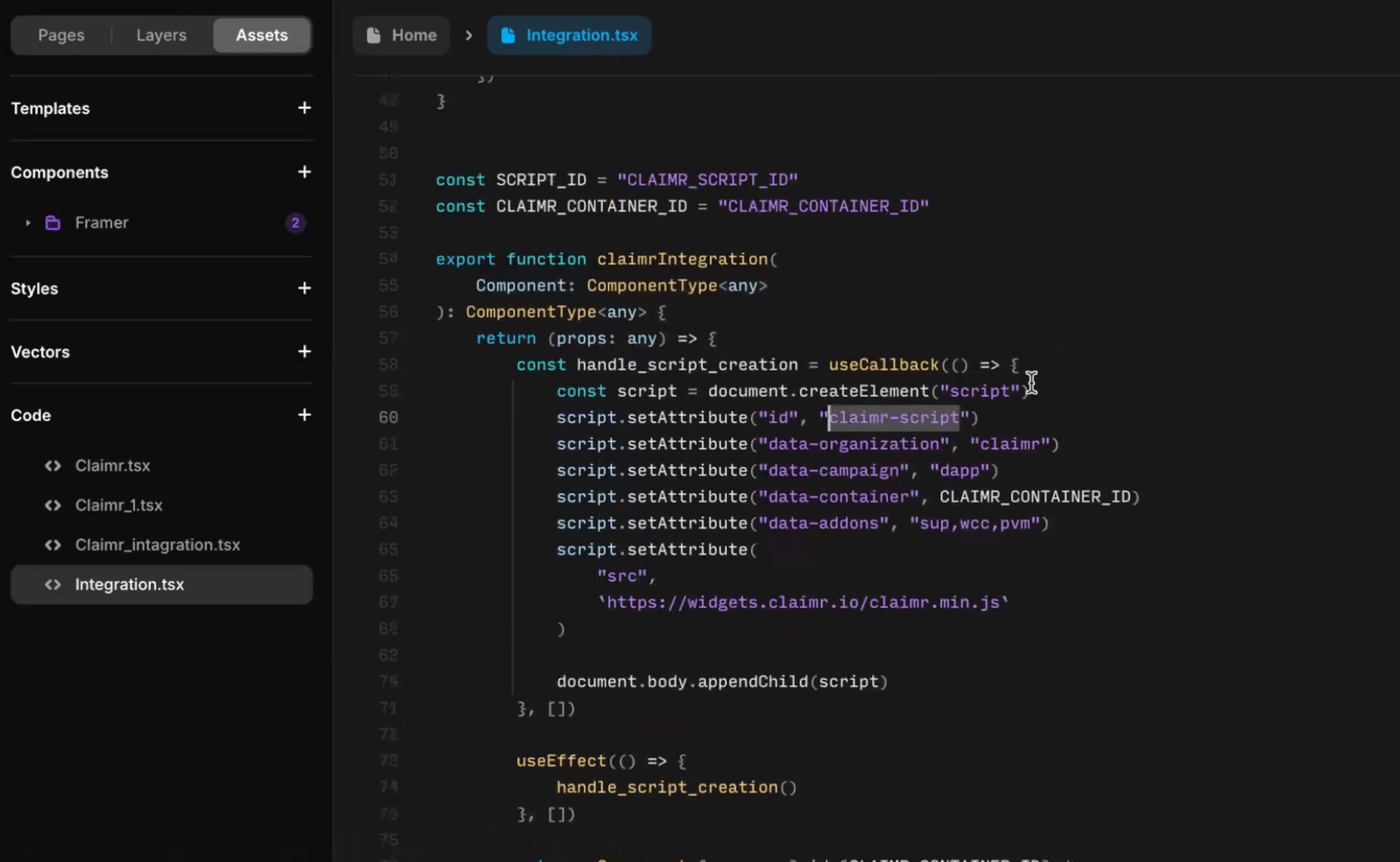
You will need to modify the override file to include specific `data-` attributes that define your claimr widget's behavior and link it to your campaign.
<figure><img src="/files/bUdzV00sIH5QXUl2pvXv" alt=""><figcaption></figcaption></figure>

* Within the override file, find or create a function (e.g., `claimrIntegration`).
* Pass all the necessary `data-` attributes required for your claimr widget to this function. These attributes are crucial for the widget to correctly identify your campaign and organization:
  * `data-id`: The ID of your widget instance.
  * `data-organization`: Your organization's name.
  * `data-company`: Your company's name.
  * `data-container-id`: This attribute should match the ID of the Framer frame you created in Step 1, which will act as the widget's container.

**Example of an override function**

```typescript
import { Override } from "framer"

const SCRIPT_ID = "CLAIMR_SCRIPT_ID"
const CLAIMR_CONTAINER_ID = "CLAIMR_CONTAINER_ID"

export function claimrIntegration(
    Component: ComponentType<any>
): Override {
    return {
        onMount: (props: any) => () => {
            const handle_script_creation = useCallback(() => {
                const script = document.createElement("script")
                script.setAttribute("id", "claimer-script")
                script.setAttribute("data-organization", "claimr")
                script.setAttribute("data-campaign", "dapp")
                script.setAttribute("data-container", CLAIMR_CONTAINER_ID)
                script.setAttribute("data-add-ons", "sup,wcc,pvm")
                script.setAttribute("src", "https://widgets.claimr.io/claimr.min.js")
                document.body.appendChild(script)
            }, [])

            useEffect(() => {
                handle_script_creation()
            }, [])
        },
    }
}

```

### Link override to your frame

After editing the override code, you need to apply it to your specific Framer frame.
<figure><img src="/files/xQi8dTtFvgOAjNjcs7wC" alt="" width="216"><figcaption></figcaption></figure>

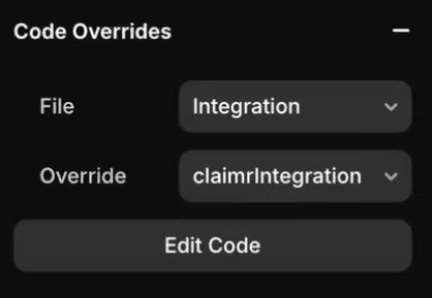
* In the **Layers** tab, select the Frame you created before.
* In the **Code Overrides** section of the right-hand properties panel, select your newly created file.
* From the function dropdown, choose the specific function you defined.

### Finalize and publish your project

Once the override is linked, save your changes and publish the project to see the integrated widget.

* Framer typically autosaves your changes. Ensure all modifications are saved.
* Click **Publish** to deploy your project.
* Verify on the published page that the claimr widget is successfully integrated and functioning correctly within your Framer design.


---

# Agent Instructions
This documentation is published with GitBook. GitBook is the documentation platform designed so that both humans and AI agents can read, navigate, and reason over technical content effectively. Learn more at gitbook.com.

## Querying This Documentation
If you need additional information that is not directly available in this page, you can query the documentation dynamically by asking a question.

Perform an HTTP GET request on the current page URL with the `ask` query parameter, and the optional `goal` query parameter:

```
GET https://docs.claimr.io/widget/claimr-widget-integrations/framer-integration.md?ask=<question>&goal=<endgoal>
```

`ask` is the immediate question: it should be specific, self-contained, and written in natural language.
`goal` is optional and describes the broader end goal you are ultimately trying to accomplish on behalf of the user. GitBook uses it to tailor the answer towards what is most useful for that goal.

The response will contain a direct answer to the question and relevant excerpts and sources from the documentation.

Use this mechanism when the answer is not explicitly present in the current page, you need clarification or additional context, or you want to retrieve related documentation sections.