What is Referrals analytics?
Referrals Analytics provides a detailed overview of your campaign’s referral program performance. It allows you to monitor and analyze the activity of both referrers and the users they invite, helping you understand the effectiveness of your word-of-mouth marketing efforts within Claimr.Use this data to
- Track program performance: Monitor the overall success and reach of your referral campaign.
- Identify top referrers: Discover your most influential users who are driving new participants to your campaign.
- Analyze referred user activity: Assess the engagement level of users who joined through a referral link.
- Optimize your referral strategy: Use insights to refine rewards and improve the effectiveness of your referral program.
Accessing Referrals analytics
- Log in to your Claimr account.
- Select the relevant campaign.
- Click on the Analytics tab in the top navigation menu.
- Select Referral from the submenu.
Referrals dashboard
Once you select Referral, the dashboard will open, displaying a table with all referral data. This dashboard provides tools to analyze and export your referral information.
Dashboard features
- Export to Google Sheets: Click this button to export the referral data directly to a Google Sheet for further analysis.
- Export .csv file: Click this button to download the referral data as a .csv file.
- Collapse/Expand: Use this feature to collapse or expand sections of the view.
- Hide empty: Enable this toggle to hide users who haven’t brought in any referrals. This action cleans up the view by removing empty rows.
- Search: Use the search bar on the right to find specific users or data within the table.
Table elements
This table offers a comprehensive breakdown of each referral relationship.
- User ID: The unique identifier for the user.
- Ref ID: The unique identifier for this referrer.
- Name: The name of this user.
- Date: The date the user was added.
- IP: The IP address of this referrer.
- IP score: The risk or trust score associated with the user’s IP address.
- Total users: The total number of users invited by this user.
- Ref points: The total points accumulated by all referrals.
- Shared points: The total points the referrer earned from their referrals.
- Total points: The total points the referrer earned during the campaign.
- Ref IP: The IP address of the referrals.
- Ref status: The status of the referral:
- Unverified: Not yet valid for referral rewards or program criteria.
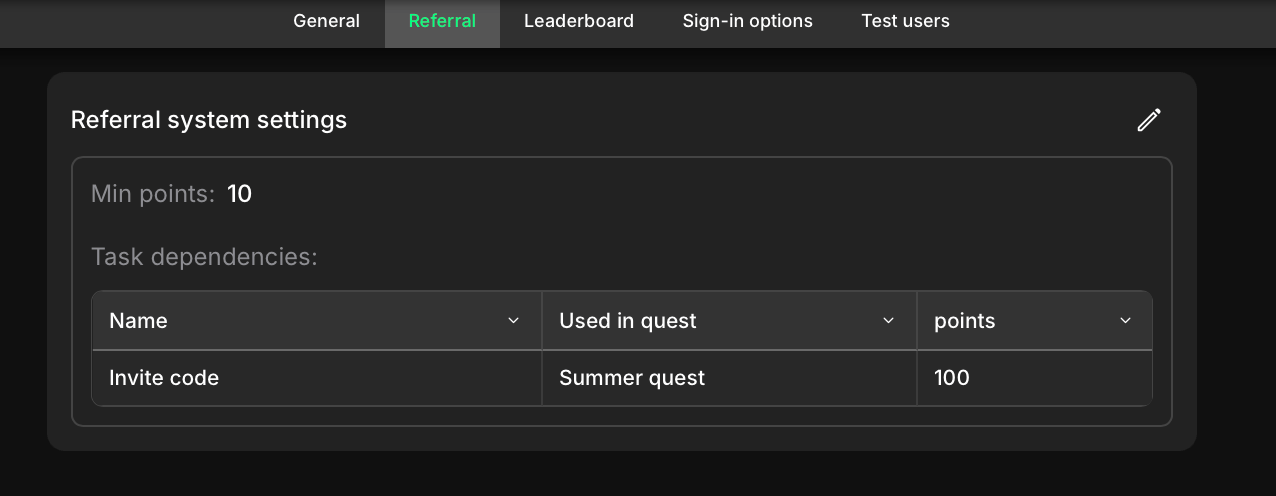
- Verified: Completed required actions and passed all validation checks. A verified referral typically means the user is authenticated, passed bot checks (not disqualified), completed a required task, and earned a minimum points amount as defined by your settings.
- Joined at: The date and time the referral user joined the campaign.
- Tasks points: The total points the referral user earned from completing tasks.
- Completed tasks: The total number of tasks the referral user completed.
Determine referral status (Verified/Unverified)
Your referral’s status, whether Verified or Unverified, is directly determined by the referral verification rules you set up in your settings.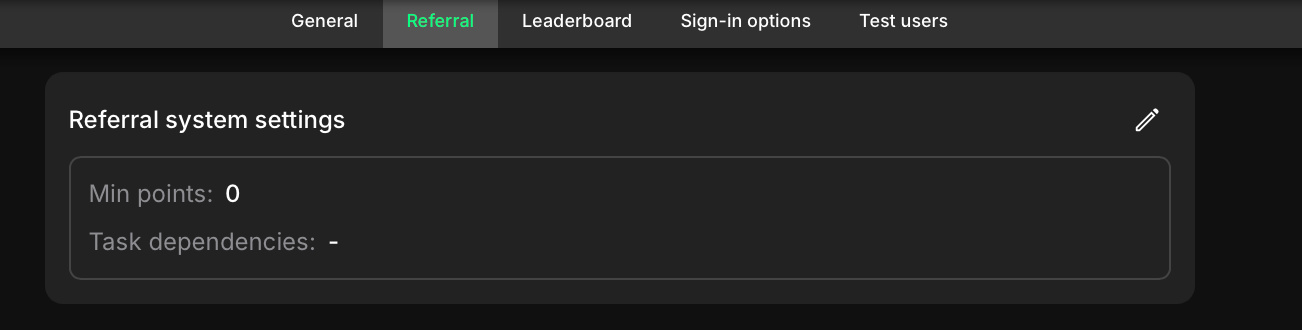
- Navigate to Settings.
- Select Referral from the menu. This opens Referral System Settings.
- Click the Edit icon (pencil) to open the configuration window.
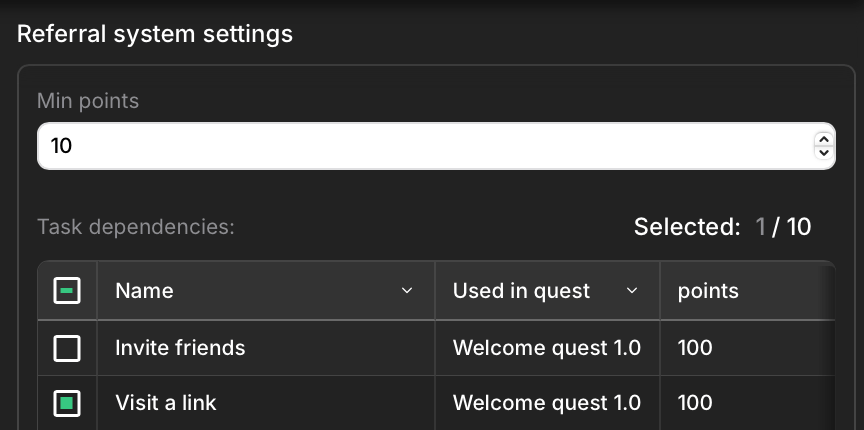
- Specify the minimum number of points a referral needs to earn to be considered verified.
- Select specific task dependencies that must be completed.