
What is UGC analytics?
The UGC (User-Generated Content) analytics section gives you a full overview of all video and media submissions shared by users as part of your UGC tasks. It helps you evaluate the quality and relevance of these submissions and make data-informed decisions about user engagement and rewards. Use UGC analytics to:- Review user submissions: Open the images or links your users submitted.
- Track post performance: See metrics like views, shares, and comments - available for tracking tasks only.
- Manage content: Approve valid submissions or reject the ones that don’t meet your requirements.
- Rate content quality: Assign a score to each submission (internal use only).
- Monitor participation: Access submission timestamps, user IDs, and file or link references.
How your users see UGC tasks
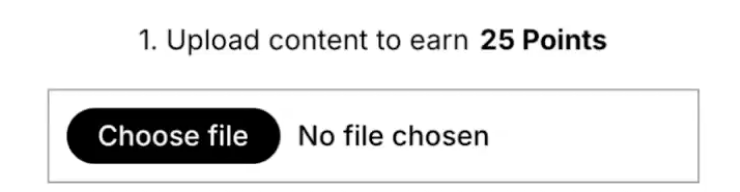
UGC task example
- Your user selects a UGC task in your campaign.
- They upload an image or submit a link, depending on the task type.
- The task is marked as completed.
- Their submission appears in your UGC analytics section, where you can see and manage it.
Accessing the UGC section
- Log in to your Claimr account.
- Select your campaign.
- Click the Analytics tab in the campaign menu.
- Choose UGC from the analytics submenu.
UGC dashboard
The UGC dashboard displays all user-submitted content in a visual grid. Each submission appears as a card that includes key information and actions. You can manage and evaluate incoming UGC here.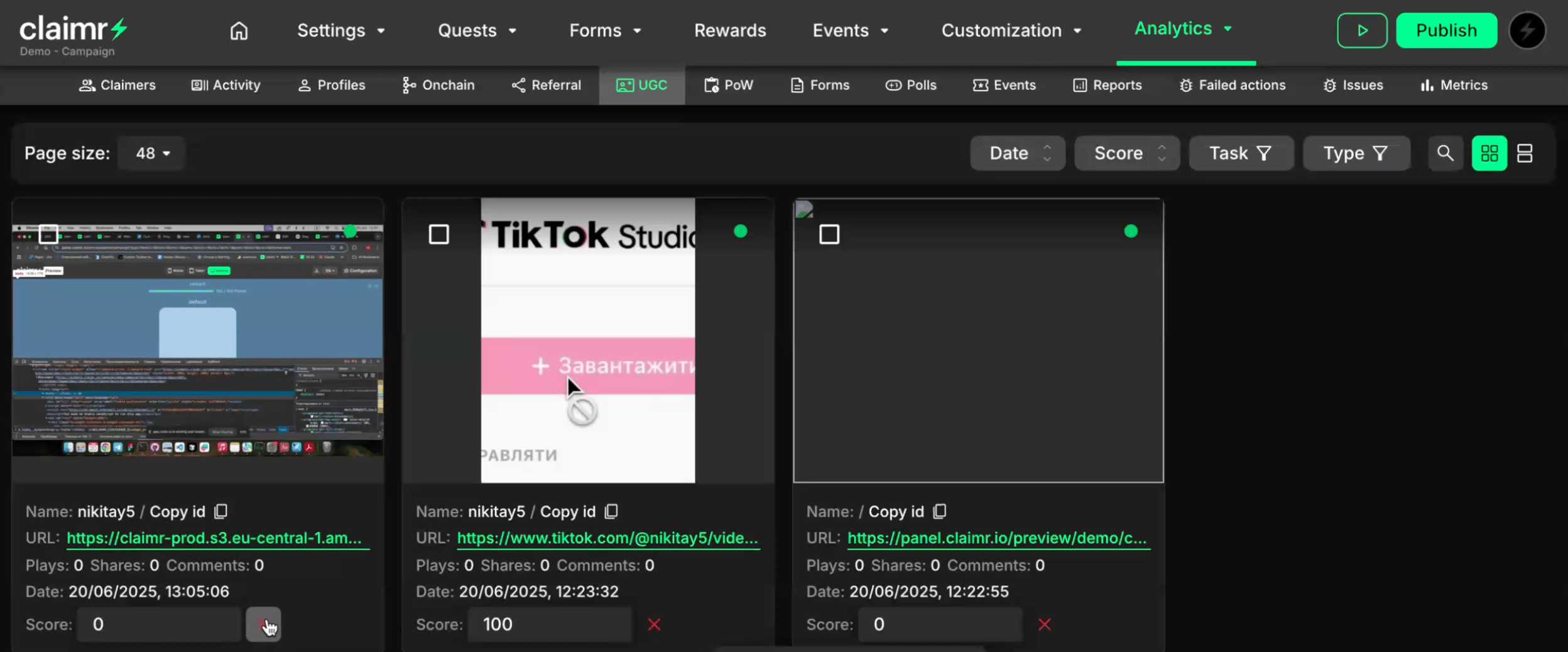
- View submissions: See thumbnails and link previews depending on the task type.
- Sort or filter entries: Filter by task type, status, or other parameters.
- Approve or reject: Click the check or cross icon to change the submission status.
- Score content: Assign an internal quality rating to any UGC item.
- Bulk action: Select multiple cards and perform approval/rejection actions for all selected entries.
UGC’s submission card
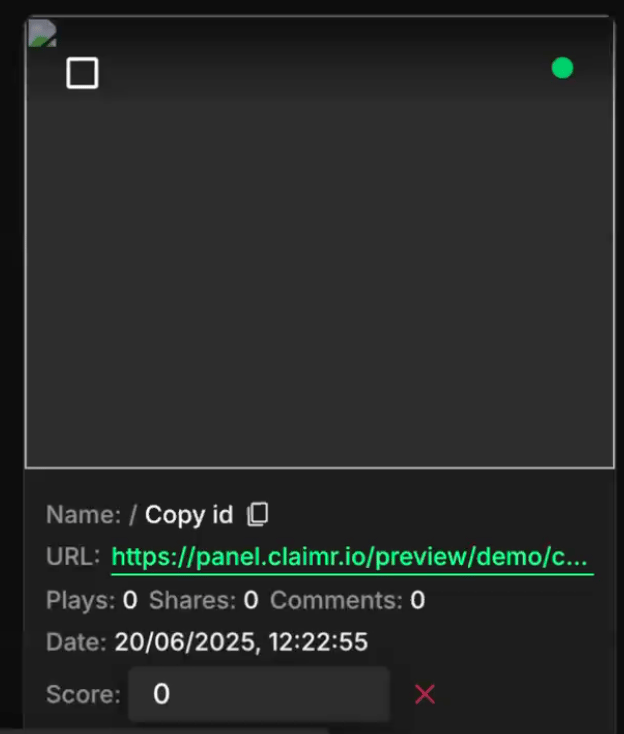
- Preview: A thumbnail for images or a visible link for URLs.
- User information: The user’s display name and ID (with copy option).
- Submission type: Image or link, depending on task settings.
- Performance metrics: Plays, shares, and comments (for tracking tasks only).
- Date: When the submission was received.
- Status: You can approve (check) or reject (cross) any submission. By default, submissions are approved as soon as the task is completed, but you can manually override this.
- Score: An optional field where you can rate content. It lets you rate your users’ content based on creativity, relevance, or any other criteria you choose. It does not influence task completion or point allocation.