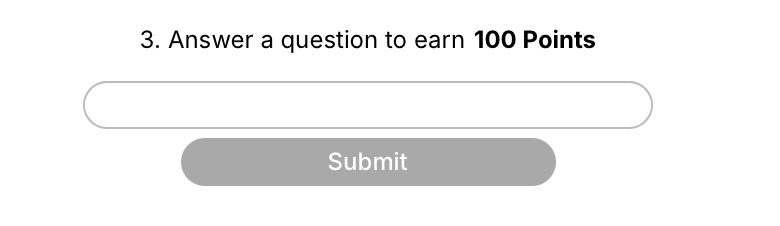
What are Custom tasks?
Use Custom tasks to confirm that a user has completed an instruction that isn’t directly trackable. These tasks let you define a required action (submitting a wallet address, pasting an ID, or entering a response) and optionally review it before approval. They’re useful when you need flexibility, optional manual validation, or a free-form response. Use Custom tasks to:- Ask users to complete an off-platform action and paste proof
- Collect responses in a short or long text field
- Set up manual review with pending approval
- Add flexible steps between or after verified actions
For detailed information about general task settings, including task header, description, rewards, dependencies, and more, refer to Task Settings.
Configure a Custom task
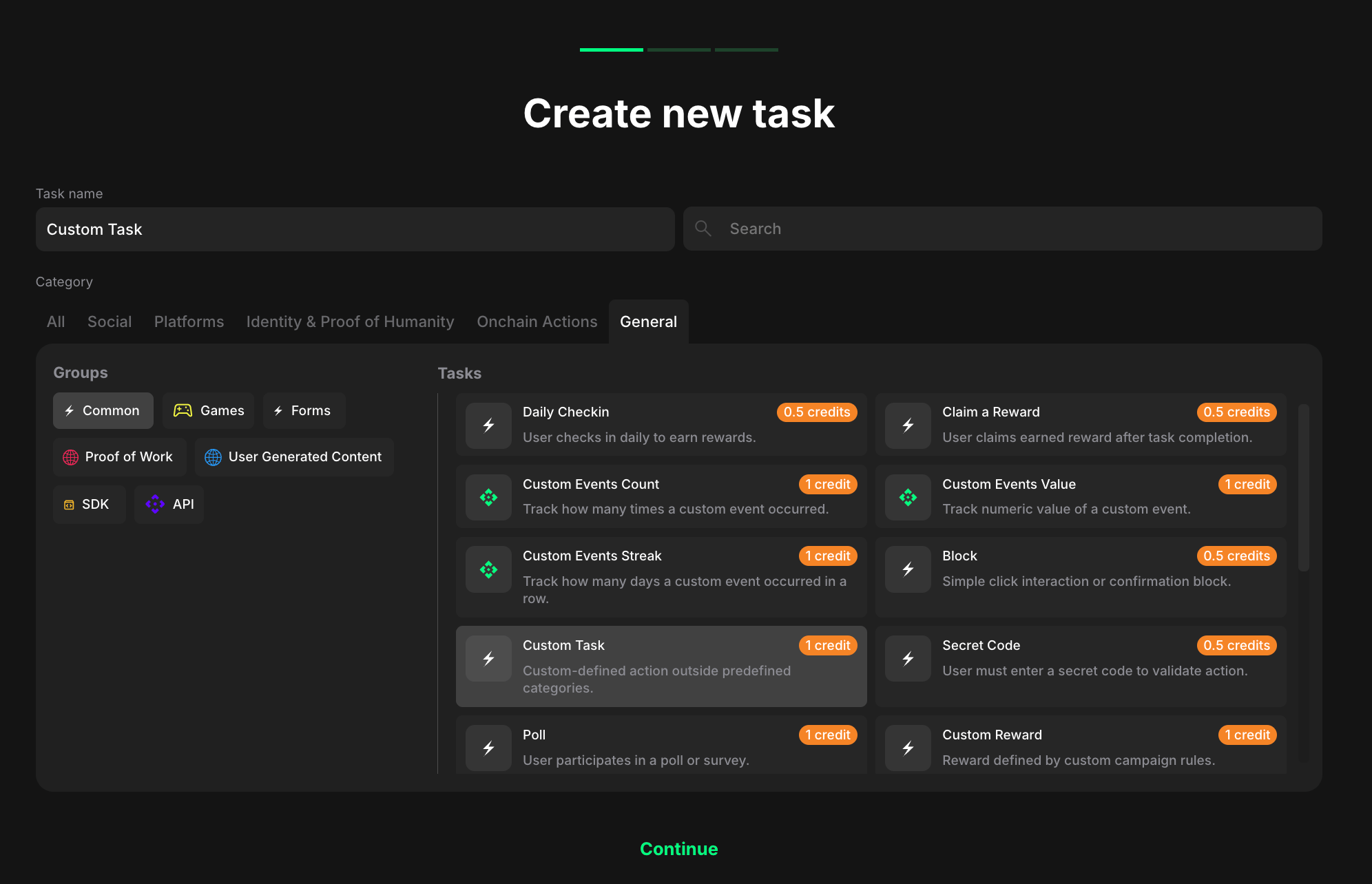
- From your campaign dashboard, go to the Quests tab and click on the quest where you want to add a Custom task.
- On the quest settings page, click + Create new task.
- In the Category section, click General.
- In the Groups section, click Common.
- Select Custom Task from the Tasks list.
- Click Continue.
Task settings
After selecting the task type, move to the next page and configure the following fields: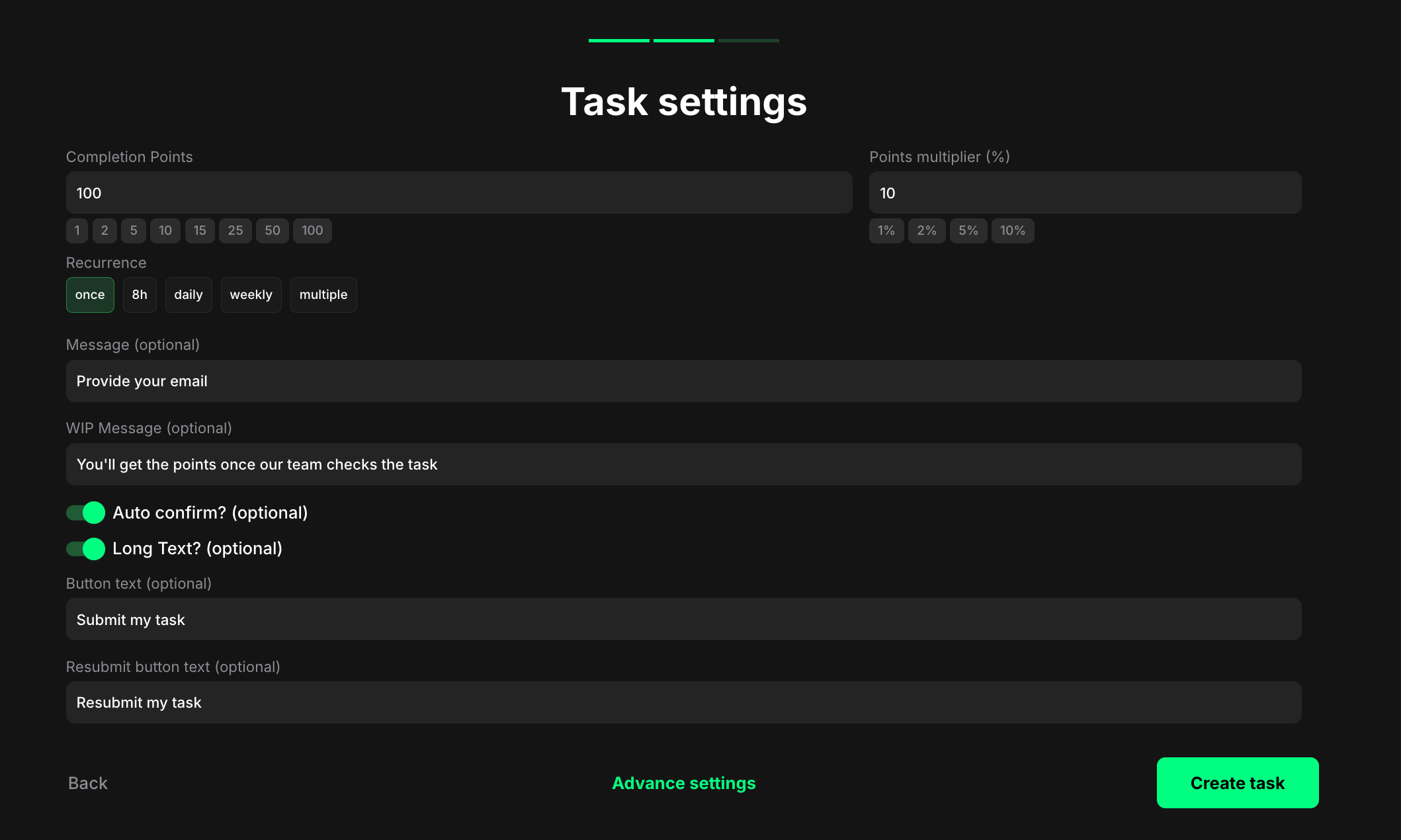
- Completion points: The number of points awarded when the user completes the task.
- Points multiplier (%): Add a percentage-based bonus to the total reward. For example, a 20% multiplier increases the final reward by 20%.
- Recurrence: Control how often users can complete the task:
- Once - can only be completed one time per user.
- Daily - available once every 24 hours.
- Weekly - available once every 7 days.
- Multiple - the task stays open and can be completed as many times as needed, one after another, without any waiting time.
- Message - Add a short instruction that will appear above the input field. This can include context about what the user should submit (e.g., “Enter your email” or “Paste your transaction ID”).
- WIP Message - Add a message that will be shown while the task is pending approval. For example: “This task will be completed once your submission is reviewed.”
- Auto confirm? - Enable this toggle if you want the task to be automatically marked as complete once the user submits a response. If disabled, the task will stay in a “pending” state until manually approved.
- Long Text? - Enable this toggle to change the input field from a single line to a multi-line text area. Useful for collecting longer responses.
- Button text - Customize the label on the confirmation button (e.g., “Submit” or “Confirm”).
- Resubmit button text - Customize the label for the button that appears if the user is asked to submit again.
How Custom tasks appear to users
When users encounter a Custom task, they see the following elements:- The instruction you set in the Message field
- A single-line input or multi-line text box, depending on whether Long Text? is enabled
- A button to confirm the submission