> For the complete documentation index, see [llms.txt](https://docs.claimr.io/llms.txt). Markdown versions of documentation pages are available by appending `.md` to page URLs; this page is available as [Markdown](https://docs.claimr.io/tasks/common-tasks/submit-an-email-tasks.md).

# Submit an email tasks

## What are Submit an email tasks?

The Submit an email task allows you to collect verified user emails by requiring participants to submit their email address and confirm it via a one-time code. This ensures that only real users with valid emails can complete the task and earn points.

Use Submit an email tasks to:

* Grow your email list: Capture verified user emails for future marketing or community engagement.
* Gate access to features: Require email submission before showing high-value tasks or content.
* Validate users: Add an extra verification step before rewarding points or tokens.

{% hint style="info" %}
For detailed information about general task settings, including task name, header, description, rewards, dependencies, and more, refer to our [Task Settings ](/tasks/task-settings.md)article.
{% endhint %}

## Create a task

<figure><img src="/files/erQ0JEbC15FukcihhKRz" alt="" width="563"><figcaption></figcaption></figure>

To create a Submit an email task:

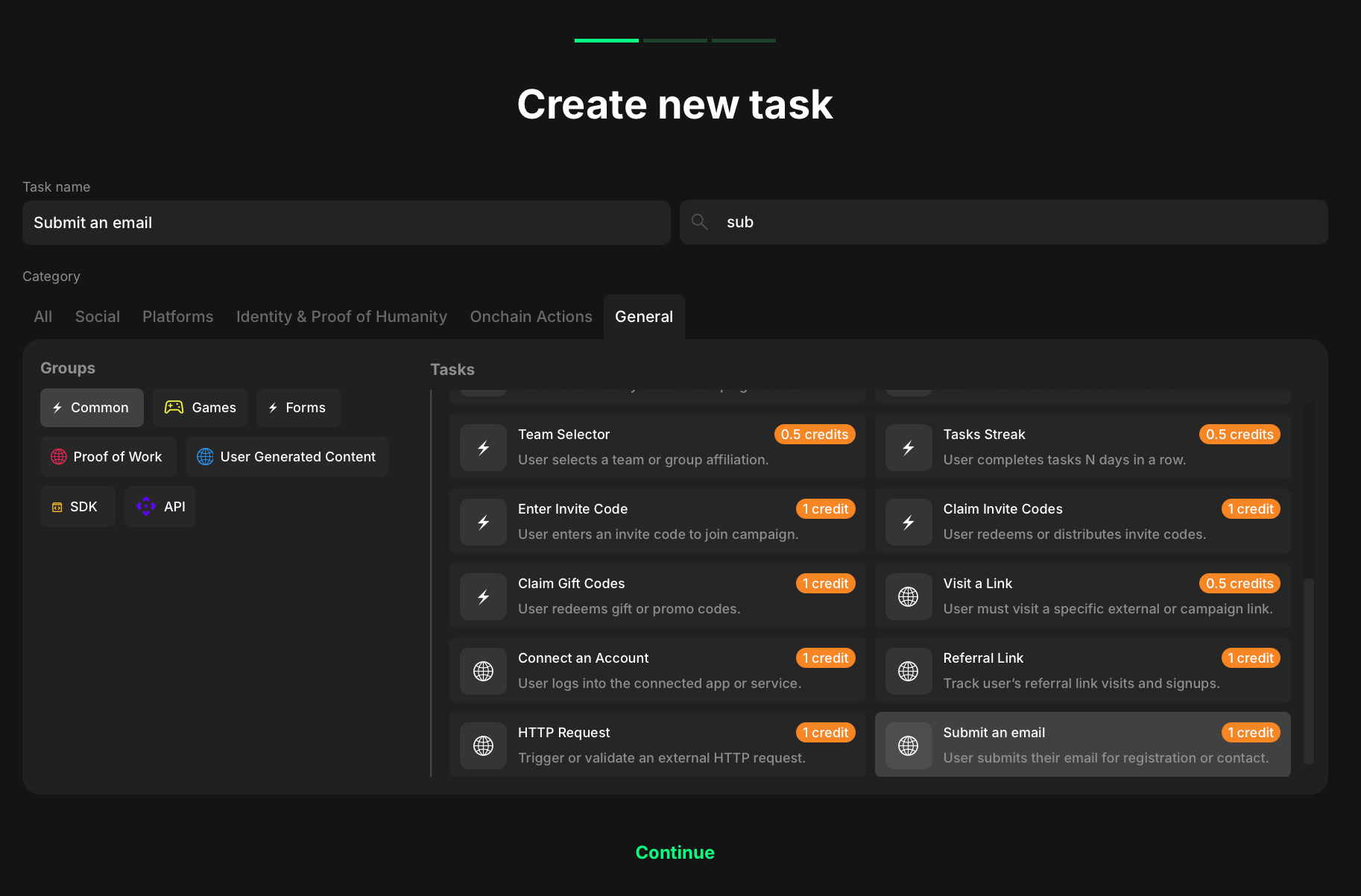
1. Go to your quest and click <mark style="color:green;">**+ Create new task**</mark>.
2. Under the Category section, select <mark style="color:green;">**Common**</mark>**.**
3. Choose <mark style="color:green;">**Submit an email**</mark> from the list of task types.
4. Click <mark style="color:green;">**Continue**</mark> to proceed to task settings.

Once you've selected both, move on to configuring the specific settings for your task.

<figure><img src="/files/PawWuNDrFX8AclkYpsea" alt="" width="563"><figcaption></figcaption></figure>

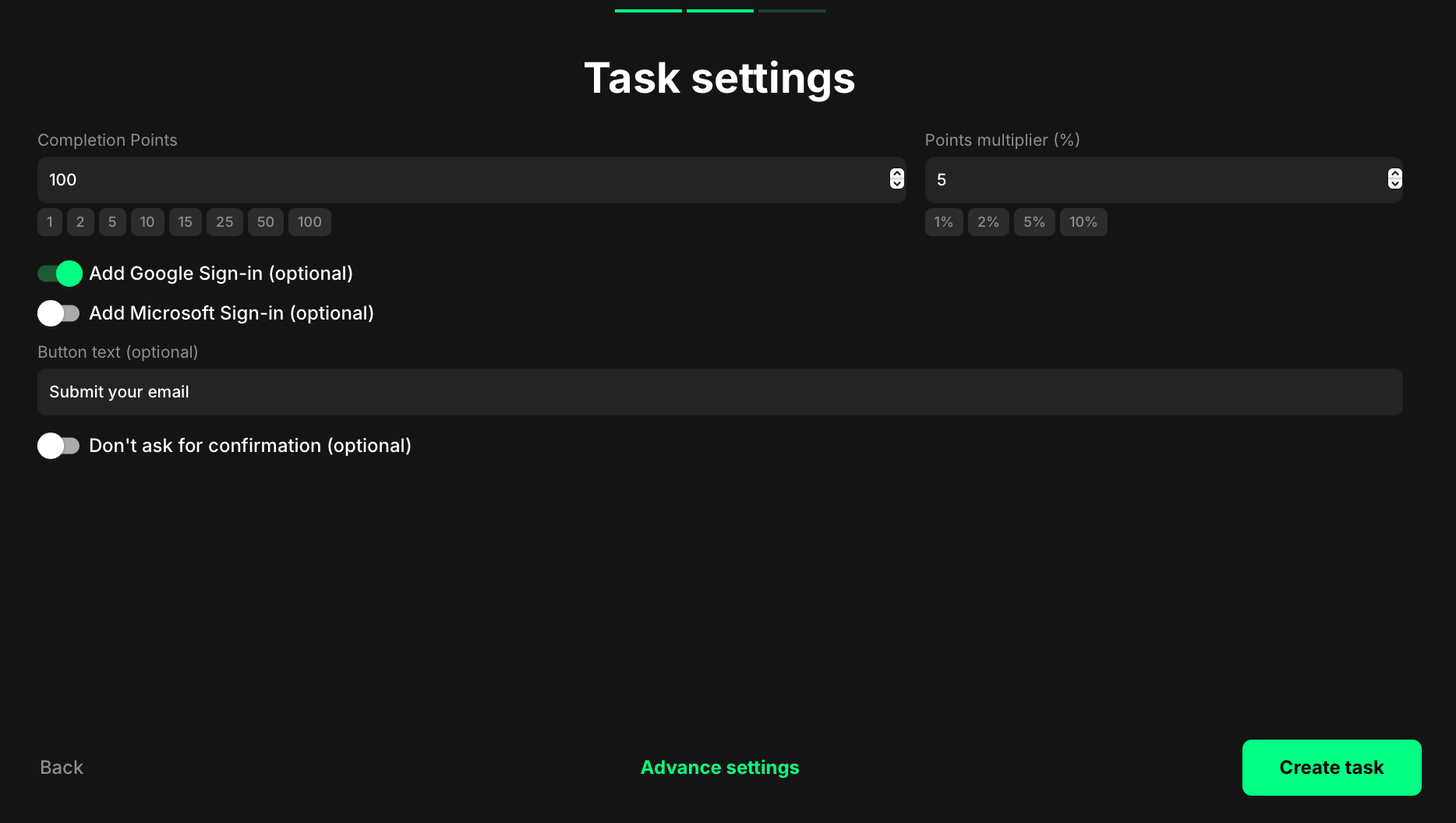
* Completion points: The base value users receive after completing the task. This is shown in the interface and tracked in your analytics.
* Points multiplier (%) (optional): Increases the final reward by a set percentage. For example, if the reward is 100 and the multiplier is 5%, the user will receive 105 points.
* Add Google Sign-in (optional): Enable to let users submit a verified email via Google OAuth.
* Add Microsoft Sign-in (optional): Enable to let users submit a verified email via Microsoft OAuth.
* Button text (optional): Enter the call-to-action label shown on the submit button (e.g., “Submit your email”).
* Don’t ask for confirmation (optional): Enable to complete the task immediately after submission (no extra confirmation step). Disable to show a confirmation prompt before completion.

## How it looks to users

<figure><img src="/files/fM7FccMtFWWxkZGSBbcP" alt="" width="375"><figcaption></figcaption></figure>

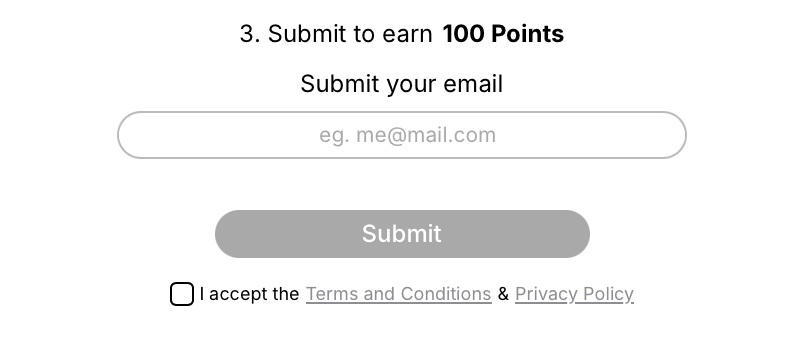
Once the task is live, users will see a simple form:

* A field prompting them to Submit your email (with a placeholder such as eg. <me@mail.com>)
* A Submit button (disabled until the user accepts the Terms and Conditions and Privacy Policy)
* A required checkbox for legal consent

After submitting their email:

1. The system sends a one-time code to the provided email address.
2. The user must enter this code to verify their submission.
3. Only after entering a valid code is the task marked as complete and points awarded.

This two-step verification ensures higher quality email capture and minimizes fake entries.


---

# Agent Instructions
This documentation is published with GitBook. GitBook is the documentation platform designed so that both humans and AI agents can read, navigate, and reason over technical content effectively. Learn more at gitbook.com.

## Querying This Documentation
If you need additional information that is not directly available in this page, you can query the documentation dynamically by asking a question.

Perform an HTTP GET request on the current page URL with the `ask` query parameter, and the optional `goal` query parameter:

```
GET https://docs.claimr.io/tasks/common-tasks/submit-an-email-tasks.md?ask=<question>&goal=<endgoal>
```

`ask` is the immediate question: it should be specific, self-contained, and written in natural language.
`goal` is optional and describes the broader end goal you are ultimately trying to accomplish on behalf of the user. GitBook uses it to tailor the answer towards what is most useful for that goal.

The response will contain a direct answer to the question and relevant excerpts and sources from the documentation.

Use this mechanism when the answer is not explicitly present in the current page, you need clarification or additional context, or you want to retrieve related documentation sections.