> For the complete documentation index, see [llms.txt](https://docs.claimr.io/llms.txt). Markdown versions of documentation pages are available by appending `.md` to page URLs; this page is available as [Markdown](https://docs.claimr.io/tasks/common-tasks/daily-checkin.md).

# Daily checkin

## What are Daily checkin tasks?

Reward users for returning to your quest day after day. Each day, they can click a button to claim a reward: either points, off-chain assets, or both. You can configure different rewards for each day and display a visual calendar to track progress. These tasks are useful for building engagement streaks and rewarding consistency.

**Use Daily Checkin tasks to:**

* Encourage users to return every day
* Set escalating or rotating rewards
* Build habit loops and campaign momentum
* Track user consistency with visual progress

For detailed information about general task settings, including task header, description, rewards, dependencies, and more, refer to [Task settings](/tasks/task-settings.md).

## Create a Daily checkin task

To configure a Daily checkin task in Claimr:
<figure><img src="/files/nWutYSAIa2grzvTBthxM" alt="" width="563"><figcaption></figcaption></figure>

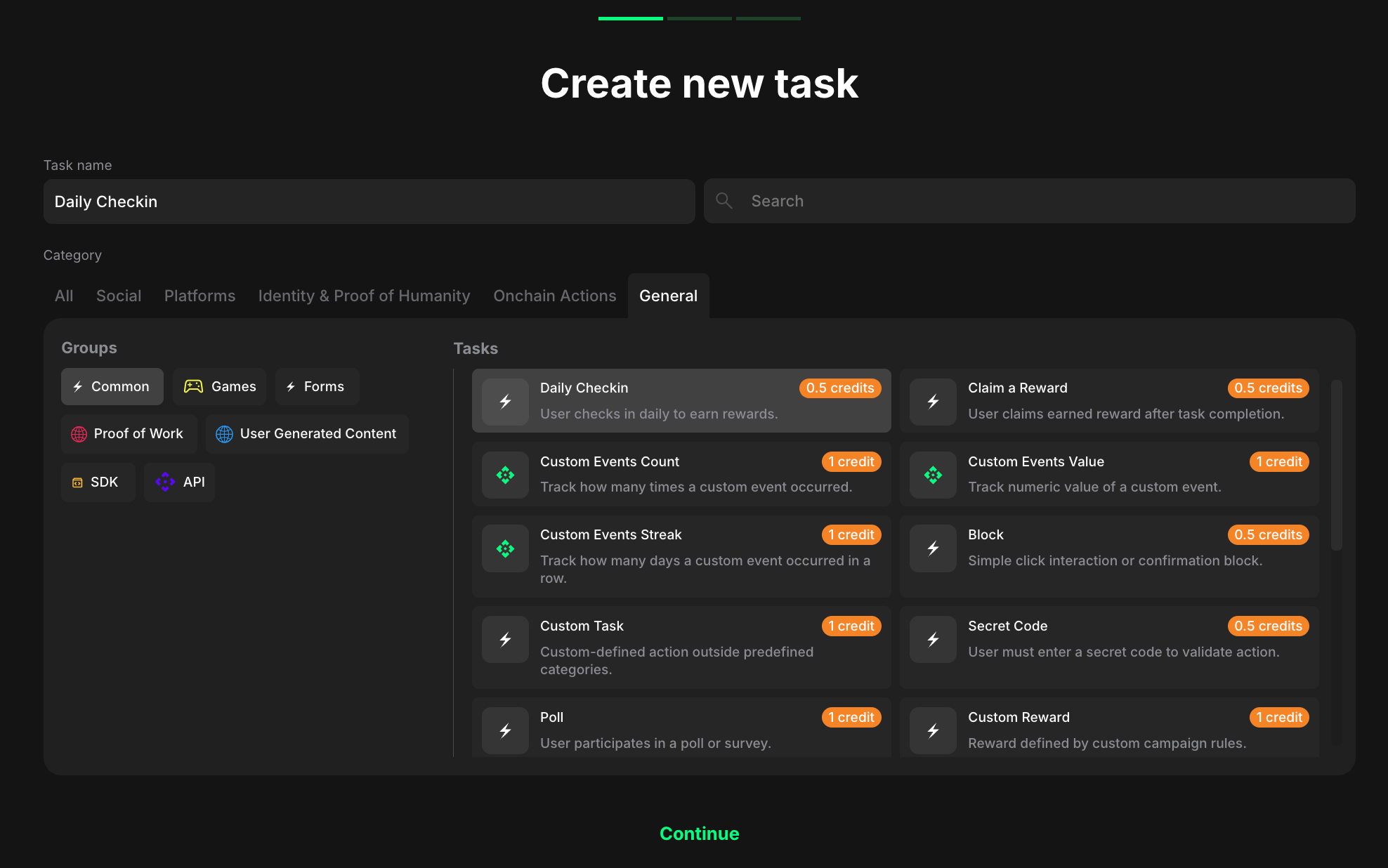
1. From your campaign dashboard, go to the **Quests** tab and click on the quest where you want to add a Daily Checkin task.
2. On the quest settings page, click **+ Create new task**.
3. In the Category section, click **General**.
4. In the Groups section, click **Common**.
5. Select **Daily Checkin** from the Tasks list.
6. Click **Continue**.

## Task settings

<figure><img src="/files/y8bsND6Vdwu8qTVnPE9j" alt="" width="563"><figcaption></figcaption></figure>

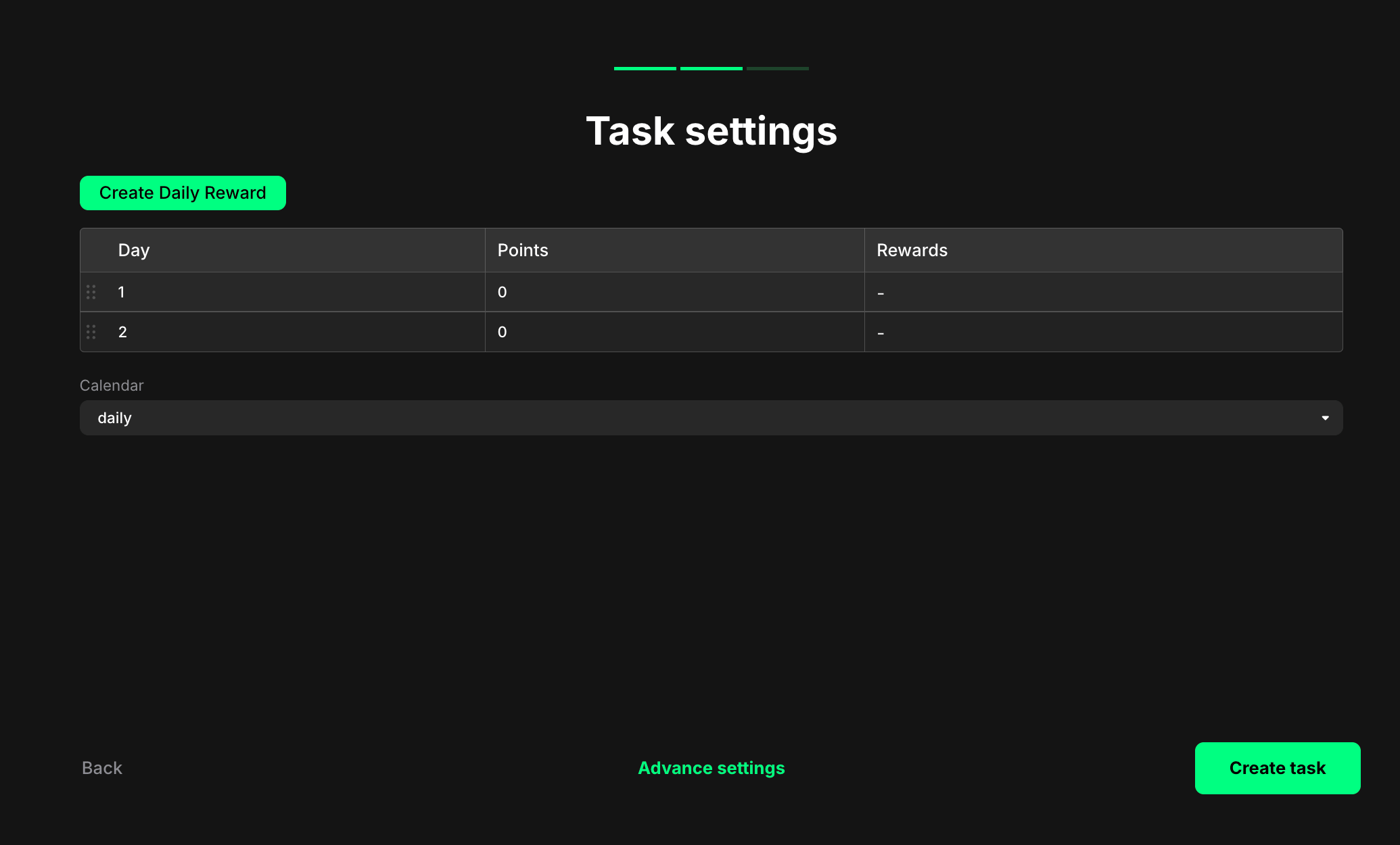
At this stage, you'll see a simplified configuration screen. However, not all settings are available here.

To access full configuration options, click **Create task**, then open the task in edit mode from your quest dashboard. The edit view gives you complete control over each day's points, optional rewards, and calendar display.

**Create Daily Reward**: Click this button to add new days to your check-in cycle.

**Daily reward table**: Use this table to define rewards for each day:

<table><thead><tr><th width="165.28900146484375">Column</th><th>Description</th></tr></thead><tbody><tr><td><strong>Day</strong></td><td>The day number in the cycle (e.g., 1, 2, 3...)</td></tr><tr><td><strong>Points</strong></td><td>The number of points awarded for that day</td></tr><tr><td><strong>Rewards</strong></td><td>Additional assets like NFTs or tokens, configured through Claimr's reward system. Shows "-" if no reward is set.</td></tr></tbody></table>

You can drag and reorder days using the handle icon on the left of each row.

**Calendar**: Choose whether to display the visual calendar:

* **daily** – The calendar will be shown in the campaign widget, displaying all days in the cycle
* **(blank/other)** – The calendar is hidden; only the claim button appears

Rewards will loop in the order defined. After users complete all days, the cycle restarts from Day 1.

### Save and configure

**Back**: Click to return to the previous screen without saving

**Advance settings**: Click to configure additional task settings like dependencies, completion pop-ups, and metadata

**Create task**: Click to save your task and add it to your quest

You can return and modify any reward value or display setting from the quest dashboard at any time.

### How Daily Checkin tasks appear to users

#### When the calendar is enabled

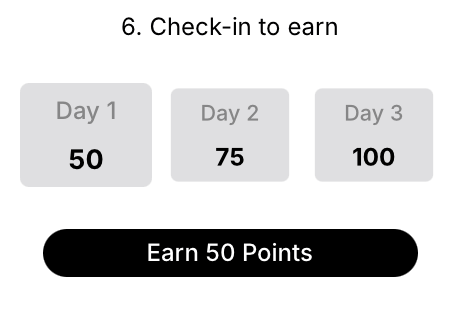
Users see a visual layout showing the full check-in cycle: one tile per day, based on the number of days configured in the task settings. Each tile displays the reward for that day (e.g., 50, 75, 100 points).

**Before claiming:**

<figure><img src="/files/HqjFhx4C29nOYlyzz1qw" alt="" width="231"><figcaption></figcaption></figure>

* The current day is active and highlighted
* A button appears showing the number of points available to claim (e.g., "Earn 50 Points")

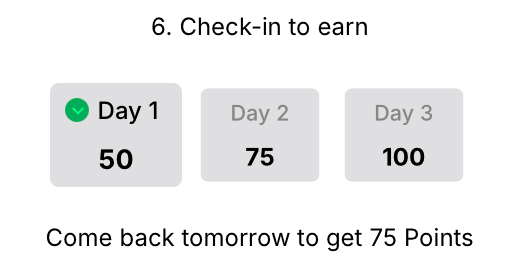
**After claiming:**

<figure><img src="/files/lBcMCPXQfmO6yWc9dmGl" alt="" width="261"><figcaption></figcaption></figure>

* A green checkmark appears next to the current day
* The button is replaced with a message showing the reward for the next check-in (e.g., "Come back tomorrow to get 75 Points")

Only one check-in can be claimed per day. Users return the next day to continue the cycle, and the calendar updates visually with each interaction.

#### When the calendar is disabled

* The user sees only the check-in button (no grid or visual progress)
* After claiming, the button is replaced with a confirmation message (e.g., "Come back tomorrow") without showing upcoming rewards

{% hint style="info" %}
**Pro tip**: Use escalating rewards (increasing points each day) to incentivize users to maintain their streak. Set higher rewards on Day 7 or Day 30 to celebrate milestone completions.
{% endhint %}

<br>


---

# Agent Instructions
This documentation is published with GitBook. GitBook is the documentation platform designed so that both humans and AI agents can read, navigate, and reason over technical content effectively. Learn more at gitbook.com.

## Querying This Documentation
If you need additional information that is not directly available in this page, you can query the documentation dynamically by asking a question.

Perform an HTTP GET request on the current page URL with the `ask` query parameter, and the optional `goal` query parameter:

```
GET https://docs.claimr.io/tasks/common-tasks/daily-checkin.md?ask=<question>&goal=<endgoal>
```

`ask` is the immediate question: it should be specific, self-contained, and written in natural language.
`goal` is optional and describes the broader end goal you are ultimately trying to accomplish on behalf of the user. GitBook uses it to tailor the answer towards what is most useful for that goal.

The response will contain a direct answer to the question and relevant excerpts and sources from the documentation.

Use this mechanism when the answer is not explicitly present in the current page, you need clarification or additional context, or you want to retrieve related documentation sections.