
What are Visit a link tasks?
Visit a Link tasks in Claimr allow you to reward users for simply clicking on a specified URL. These tasks are perfect for driving traffic to a landing page, referral link, article, external app, or any other destination. Once the user visits the link, the task is considered complete: no proof or submission required. Use Visit a link tasks to:- Drive traffic: Direct users to campaign pages, partner sites, or custom URLs.
- Promote engagement: Highlight specific features, announcements, or calls to action.
- Integrate referral flows: Use masked or dynamic links to connect with external reward systems.
For detailed information about general task settings, including task name, header, description, rewards, dependencies, and more, refer to our Task Settings article.
Create a task
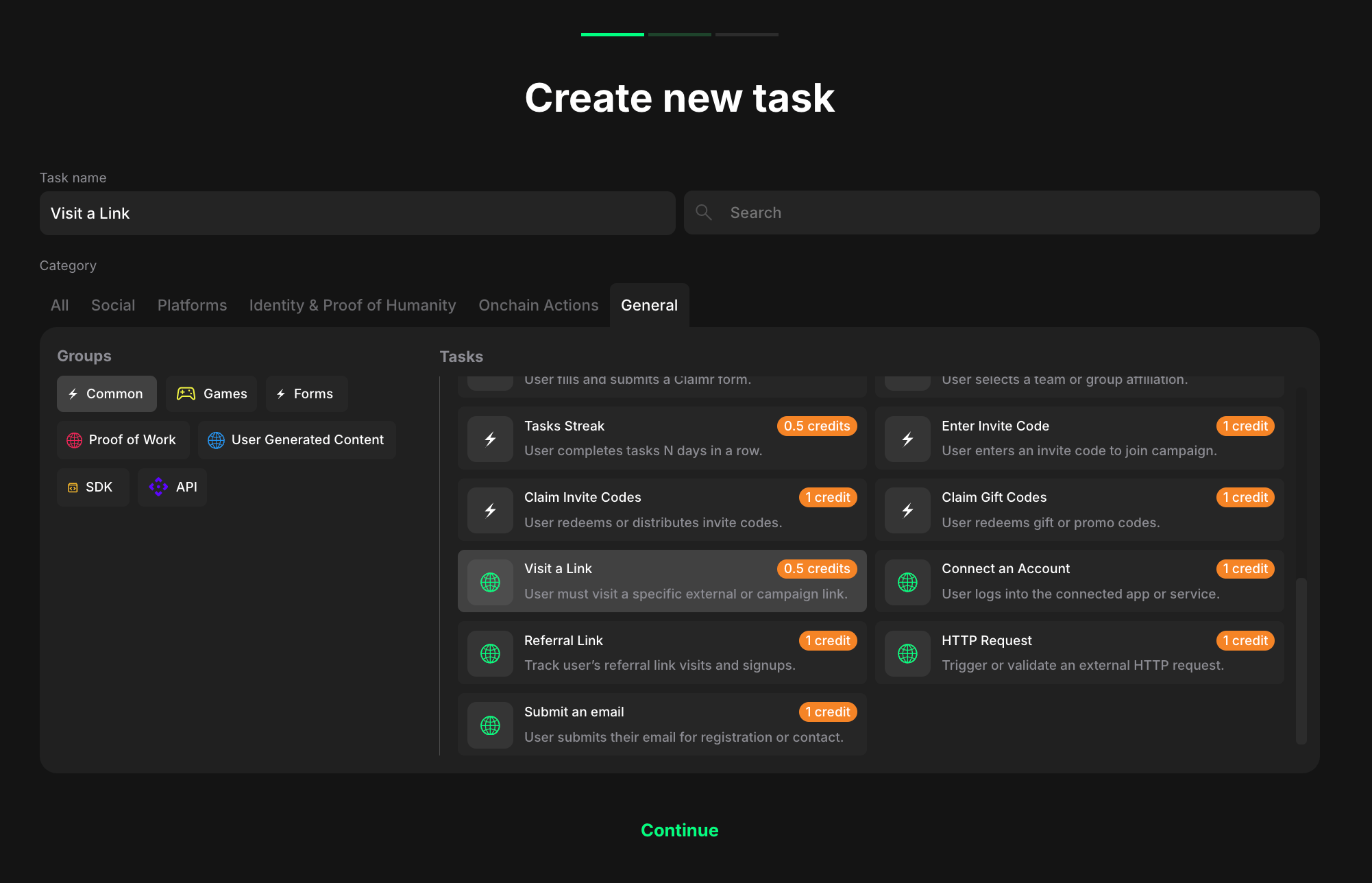
- Go to your quest and click + Create new task.
- Under the Category section, select Web.
- Choose Visit a Link from the list of task types.
- Click Continue to proceed to task settings.
Configure a task
Visit a Link tasks offer an extensive set of configuration options. While only the destination link is required, you can fine-tune how the link is displayed and how users interact with it.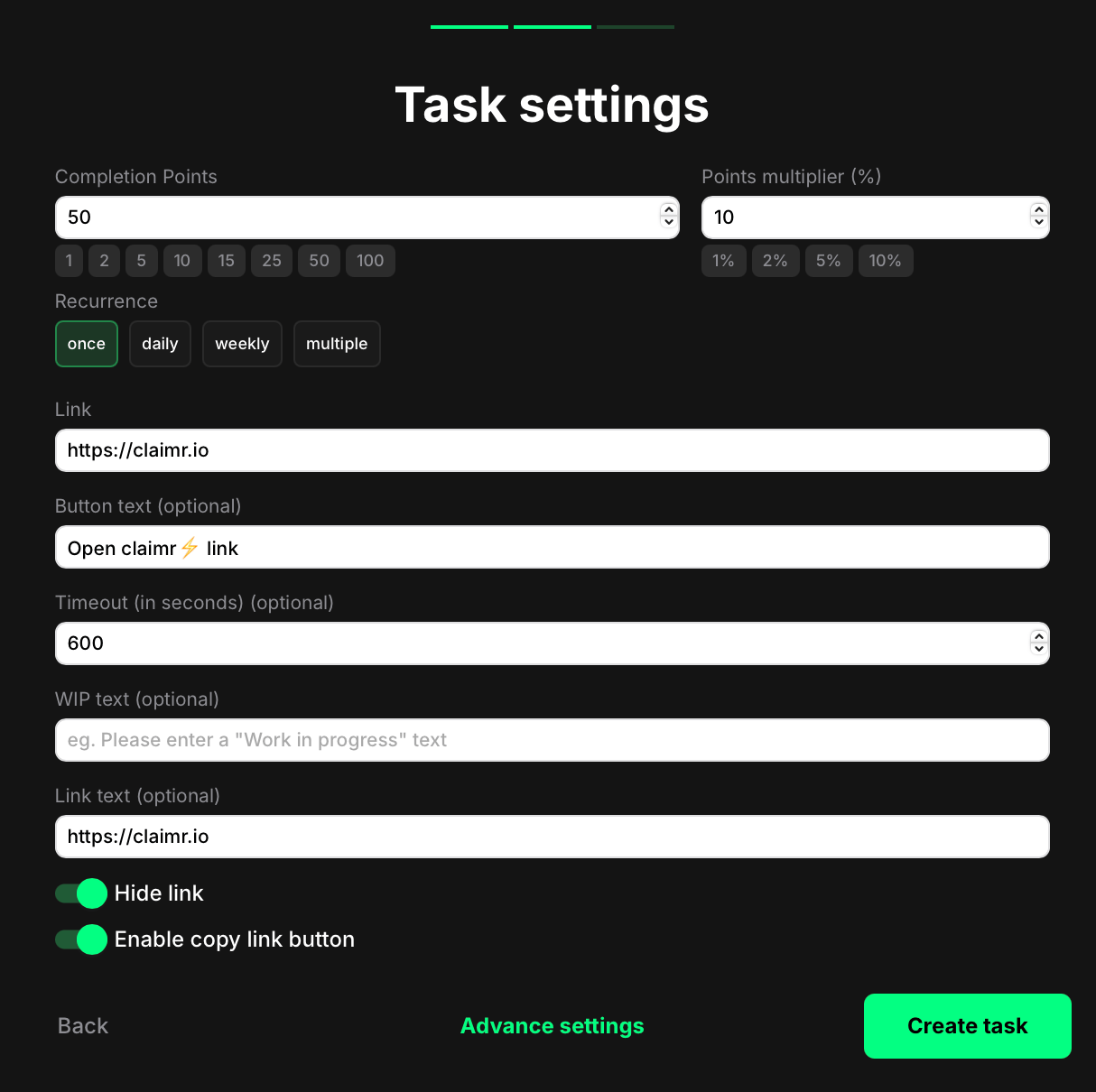
Required field
- Completion points: This is the base value shown at the top of the game UI. It may or may not match the actual reward the user receives.
- Points multiplier (%): Optional bonus that increases the user’s final reward by a percentage. For example, if the selected reward is 500 and the multiplier is 10%, the final payout will be 550 points.
- Recurrence: Define how often the task can be completed:
- Once
- Daily
- Weekly
- Multiple times (immediate repeat)
- Link: The full URL users will be redirected to.
Display options
- Button text: Customize the button label that users click to visit the link.
- Timeout (in seconds): Add a delay before the task is marked as complete. For example, setting 600 means the task won’t be marked complete until 10 minutes after the click.
- WIP text: Show a custom “work in progress” message during the waiting period (only applies if a timeout is set).
- Link text: Customize how the link is displayed below the button. Useful when you want to show a branded or shortened link instead of the full destination.
- Hide link: Toggle this on to remove the link preview entirely and display only the button.
- Enable copy link button: Let users copy the link with one click (appears next to the button).
How it looks to users
Once the task is live, users will see a button prompting them to open the link.
- A visible link below the button, with either the raw URL or a custom label.
- A copy icon that allows them to copy the link to clipboard.
- A delay (timeout) before the task can be marked complete.