> For the complete documentation index, see [llms.txt](https://docs.claimr.io/llms.txt). Markdown versions of documentation pages are available by appending `.md` to page URLs; this page is available as [Markdown](https://docs.claimr.io/tasks/common-tasks/poll-tasks.md).

# Poll tasks

## What are Poll tasks?

Collect user opinions through simple voting interactions. Users complete the task by selecting one of several predefined answers. These tasks are often used to increase engagement, personalize content, or gather input during a campaign without requiring any submissions or validation.

**Use Poll tasks to:**

* Collect audience feedback&#x20;
* Add fun, low-friction interactions to your quest
* Run lightweight surveys or preference checks
* Engage users with decision-making moments

For detailed information about general task settings, including task header, description, rewards, dependencies, and more, refer to [Task settings](/tasks/task-settings.md).

## Configure a Poll task

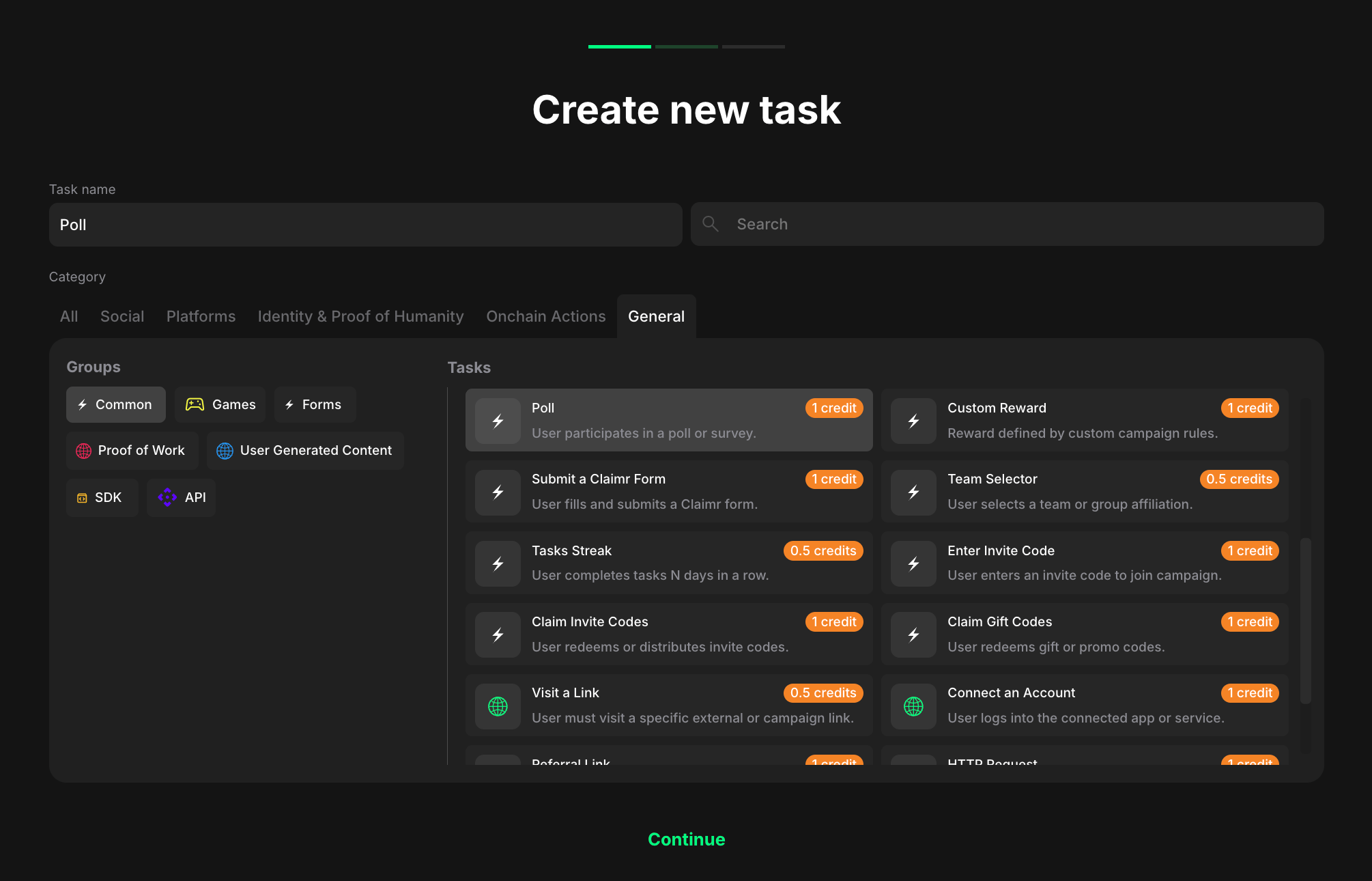
<figure><img src="/files/owcTKEd0mQMJjb1Jn5ho" alt="" width="563"><figcaption></figcaption></figure>

To configure a Poll task in Claimr:

1. From your campaign dashboard, go to the **Quests** tab and click on the quest where you want to add a Poll task.
2. On the quest settings page, click **+ Create new task**.
3. In the Category section, click **General**.
4. In the Groups section, click **Common**.
5. Select **Poll** from the Tasks list.&#x20;
6. Click **Continue**.

## Task settings

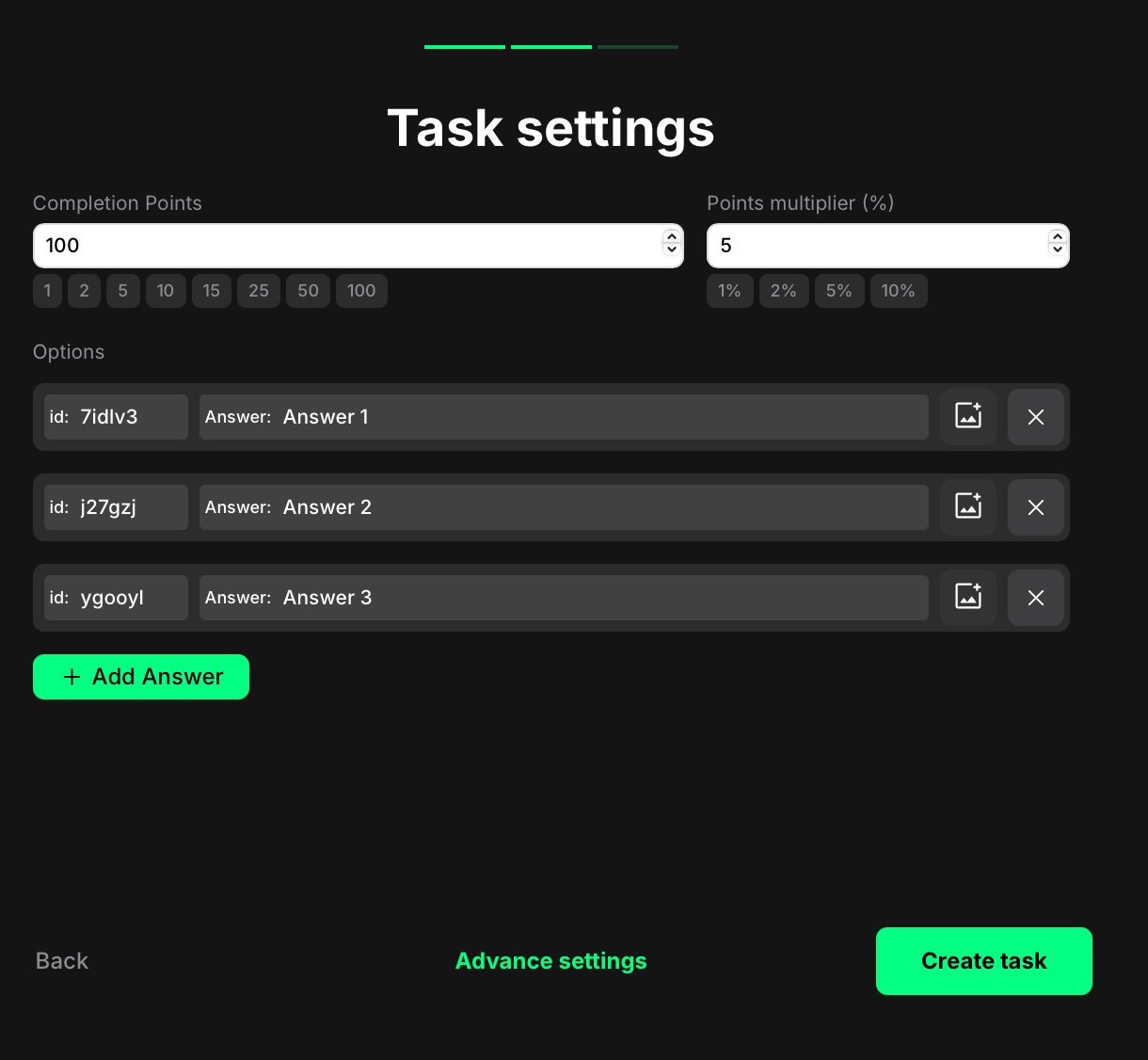
<figure><img src="/files/cbccswgKMZYdP2q57dc1" alt="" width="375"><figcaption></figcaption></figure>

After selecting the task type, configure the following fields:

* Completion points: The number of points awarded when the user completes the task.
* Points Multiplier (%): Add a percentage-based bonus to the total reward. For example, if your completion points are set to 100 and your multiplier is 5%, the final reward is 105 points.
* ID: A unique identifier that is automatically generated for each answer. You can customize this value if needed.
* Answer: The text label shown to users as the voting option.
* Image (optional): Upload an image for each answer. If an image is uploaded, the option will appear as a visual tile; if not, it will appear as a button with text only.

{% hint style="info" %}
**Pro tip**: Use visual images for answer options to make polls more engaging and easier to scan. Polls work great as icebreakers or to segment users based on their preferences early in your quest.
{% endhint %}

Click **+ Add Answer** to create more choices. Use the X icon to remove any existing answer. Deleting an answer also removes its image if one is set.

Once you’re done:

Click **Create task** to save and add it to your quest right away. You’ll now see the task listed in your quest. From there, you can reorder it, delete it, or edit it anytime.

Or, click **Advanced settings** to continue configuring more options specific to the selected task type.

## How Poll tasks appear to users

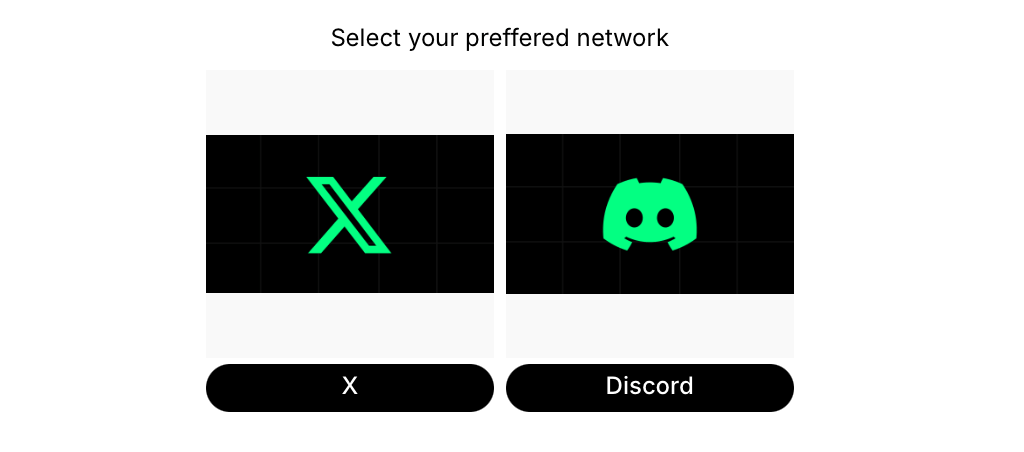
<figure><img src="/files/hsLErvI4FUTzu6Q25uUN" alt="" width="375"><figcaption><p>Preview mode</p></figcaption></figure>

When users encounter a Poll task, they see:

* A prompt to vote, along with the reward information
* A set of options displayed as either buttons or image tiles, depending on how each answer was configured

Users complete the task by selecting one of the answers. Their vote is recorded immediately, and the reward is granted without any further input.


---

# Agent Instructions
This documentation is published with GitBook. GitBook is the documentation platform designed so that both humans and AI agents can read, navigate, and reason over technical content effectively. Learn more at gitbook.com.

## Querying This Documentation
If you need additional information that is not directly available in this page, you can query the documentation dynamically by asking a question.

Perform an HTTP GET request on the current page URL with the `ask` query parameter, and the optional `goal` query parameter:

```
GET https://docs.claimr.io/tasks/common-tasks/poll-tasks.md?ask=<question>&goal=<endgoal>
```

`ask` is the immediate question: it should be specific, self-contained, and written in natural language.
`goal` is optional and describes the broader end goal you are ultimately trying to accomplish on behalf of the user. GitBook uses it to tailor the answer towards what is most useful for that goal.

The response will contain a direct answer to the question and relevant excerpts and sources from the documentation.

Use this mechanism when the answer is not explicitly present in the current page, you need clarification or additional context, or you want to retrieve related documentation sections.